You want to show someone what's on your screen, and you want to do it in the next ten seconds. Good news: iPhone has a screen recorder built in, and once the button is in place it really is one tap.
Here's the whole thing in three steps, then everything people usually get stuck on.
The quick answer
- Open Control Center. Swipe down from the top-right corner of the screen (on iPhone SE, swipe up from the bottom).
- Tap the Screen Recording button (a solid circle inside a ring). After a three-second countdown, everything on screen is being recorded.
- Tap the red indicator at the top of the screen, then tap Stop. The video lands in the Photos app.
That's it. If you don't see the button, the next section fixes that.
How to add the Screen Recording button to Control Center
The button isn't always there out of the box. Since iOS 18, you add it from Control Center itself, and that's still how it works on iOS 27:
- Open Control Center.
- Tap the + in the top-left corner, or touch and hold an empty part of the background.
- Tap Add a Control at the bottom of the screen.
- Type "Screen Recording" in the search field and tap it.
- Tap an empty area to finish. You can drag the button wherever you want it.
You only have to do this once. The button stays until you remove it.
On iOS 17 or older, the route is different: go to Settings > Control Center and tap the green + next to Screen Recording.
The button is there but grayed out
That's almost always a restriction, not a bug. Go to Settings > Screen Time > Content & Privacy Restrictions > Content Restrictions > Screen Recording and set it to Allow. If the iPhone is managed by a school or employer, the restriction may come from their profile, and only they can lift it.
How to screen record with sound
By default, an iPhone screen recording captures the sound the phone plays (an app, a video, a game), but not your voice. To narrate as you record:
- Open Control Center.
- Touch and hold the Screen Recording button instead of tapping it.
- Tap Microphone so it turns on.
- Tap Start Recording.
The microphone setting sticks for your next recordings until you turn it off again. If your recording came out silent even so, there are a handful of specific causes, from calls to protected apps. They're all in our guide to screen recording audio.
How to stop, and where the video is saved
You can stop a recording two ways:
- Tap the red indicator at the top of the screen (the clock area or the pill around the Dynamic Island), then tap Stop.
- Or open Control Center and tap the red Screen Recording button.
Recordings save to the Photos app, in your Library, like any other video. You'll see a small "Screen Recording video saved to Photos" banner when it's done.
How to screen record on iPad
It works the same way. Swipe down from the top-right corner to open Control Center, tap the Screen Recording button, and tap the indicator to stop. Adding the button works the same too: + or long-press, then Add a Control.
The one iPad-specific tip: if you use Stage Manager or Split View, the recording captures the whole display, not just the app you're working in. Close what you don't want in the video first.
Is it different on iPhone 18 Pro, 17, 16, or 15?
No. What changes the steps is the iOS version, not the model. Every iPhone with Face ID opens Control Center the same way, so a brand-new iPhone 18 Pro and a three-year-old iPhone 15 record identically.
| iPhone | Open Control Center | Add the button |
|---|---|---|
| iPhone 18 Pro, iPhone 17, 17 Pro, 17e, 16, 15, and other Face ID models | Swipe down from the top-right corner | From Control Center (iOS 18 and later) |
| iPhone SE (2nd and 3rd generation) | Swipe up from the bottom edge | From Control Center (iOS 18 and later) |
| Any iPhone on iOS 17 or earlier | Same as above for your model | Settings > Control Center |
Covers iOS 18 through iOS 27. If a future iOS update changes the steps, we'll update this table.
Common problems and quick fixes
The recording stopped on its own. Usually storage. Screen recordings are big, so check Settings > General > iPhone Storage and free up a few GB. A call coming in can also end it.
Part of the video is black. Some apps, mostly streaming video apps, protect their content. The screen shows fine for you, but the recording shows black there. That's intentional on the app's side, and there's no setting to change it.
Notifications showed up in the video. Screen recording captures everything, banners included. Turn on Do Not Disturb (or any Focus) before you hit record.
You can't record while mirroring. Apple doesn't allow screen recording and screen mirroring at the same time. Stop AirPlay first.
The other person's voice is missing from a call. That's by design. iOS doesn't record call audio through the screen recorder. If you're trying to capture a FaceTime call, here's what actually works.
What to do after you record
A raw screen recording is rarely the thing you want to send. A few quick edits in the Photos app go a long way:
- Trim the ends. Open the video, tap Edit, and drag the yellow handles to cut the fumbling at the start and the Control Center swipe at the end.
- Crop out the status bar if the time and battery are distracting. Same Edit screen, crop tool.
- Mute it if the audio adds nothing. Tap the speaker icon in Edit.
If you're recording your own app to show people what you built, a demo for a launch post, an App Store preview, or a quick clip for investors, the raw file usually needs more than a trim. It needs to sit inside a clean device frame, maybe zoom in on the tap that matters, and export at the right size for wherever it's going.
Where MobileStudio fits
That last step is what MobileStudio is built for: taking a phone screen recording and turning it into a polished app demo on the same phone, with a device frame, background, zooms, and export presets, without moving the file to a laptop.
MobileStudio is now on Google Play, and MobileStudio for iOS is coming soon. Get MobileStudio, or browse real app demos made with it to see what a finished recording can look like.
Quick FAQ
How long can an iPhone screen recording be?
Apple doesn't publish a time limit. In practice, free storage and battery are what end long recordings, so check both before recording anything over a few minutes.
Does screen recording capture notifications?
Yes. Anything that appears on screen is recorded, including banners. Turn on Do Not Disturb first.
Can I record just part of the screen?
Not with the built-in recorder. It always records the full screen. Crop the video afterwards in Photos.
Does the other person know if I screen record?
iOS doesn't notify other people. Some apps can tell when the screen is being captured and may hide content, but most don't. For social apps specifically, see whether Instagram notifies you.
Can I screen record on an iPhone with no app?
Yes. The recorder is built into iOS. You only need a separate app if you want extras like a face-cam overlay or built-in editing. We compared the options in Do you actually need a screen recorder app?.
Sources and further reading
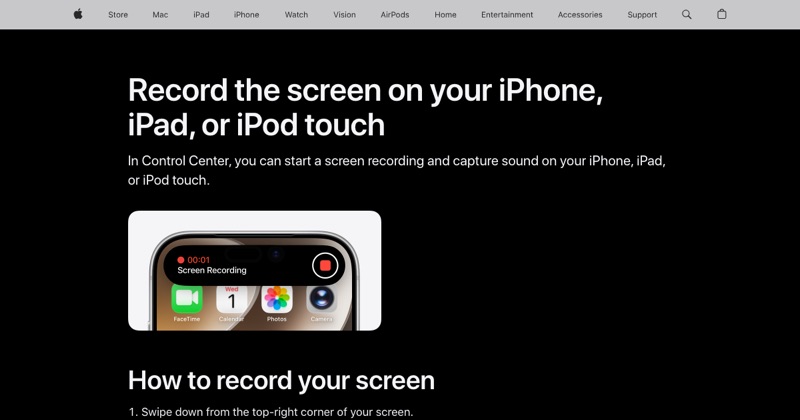 support.apple.comApple Support: Record the screen on your iPhone, iPad, or iPod touchIn Control Center, you can start a screen recording and capture sound on your iPhone, iPad, or iPod touch.
 support.apple.comApple Support: Use and customize Control Center on iPhoneOpen the iPhone Control Center to access useful controls. You can customize Control Center by adding controls.