The Screen Recording button isn't in Control Center on every iPhone, and Apple changed how you add it in iOS 18. Here's the current method and the old one.
Which iOS do you have?
Check Settings > General > About > iOS Version. If it says 18 or higher, use the first method. If it's 17 or lower, use the second.
iOS 18, 26, 27 and later: add it from Control Center
- Swipe down from the top-right corner to open Control Center. (On iPhone SE, swipe up from the bottom.)
- Tap the + in the top-left corner. You can also touch and hold an empty part of Control Center.
- Tap Add a Control at the bottom.
- Type Screen Recording in the search box.
- Tap it. It drops into Control Center.
- Tap an empty area to finish.
You can now drag it to a better spot, like the first page, so it's always one swipe away.
iOS 17 and earlier: add it in Settings
- Open Settings > Control Center.
- Scroll to More Controls.
- Tap the green + next to Screen Recording.
Check it worked
Open Control Center. You should see a circle inside a ring. Tap it, wait for the countdown, then tap the red indicator at the top to stop. Your video is in Photos.
Can't add it?
If Screen Recording doesn't appear in the controls gallery, or the button stays gray after adding it, a restriction is on. Go to Settings > Screen Time > Content & Privacy Restrictions > Content Restrictions > Screen Recording and choose Allow.
Where MobileStudio fits
Once you're recording, MobileStudio helps turn screen recordings of your app into polished demos, right on your phone. Get MobileStudio.
Quick FAQ
Do I have to add screen record again after an update?
No. It stays in Control Center through iOS updates.
Can I put it on the Lock Screen?
Yes, on iOS 18 and later. Customize the Lock Screen and swap a control.
Sources and further reading
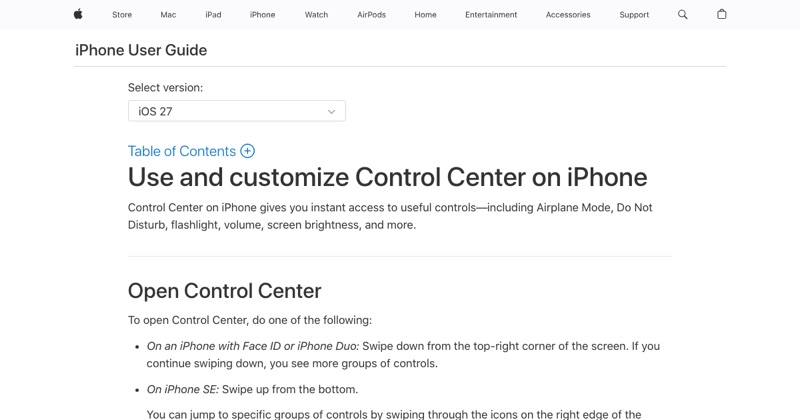 support.apple.comApple Support: Use and customize Control Center on iPhoneOpen the iPhone Control Center to access useful controls. You can customize Control Center by adding controls.
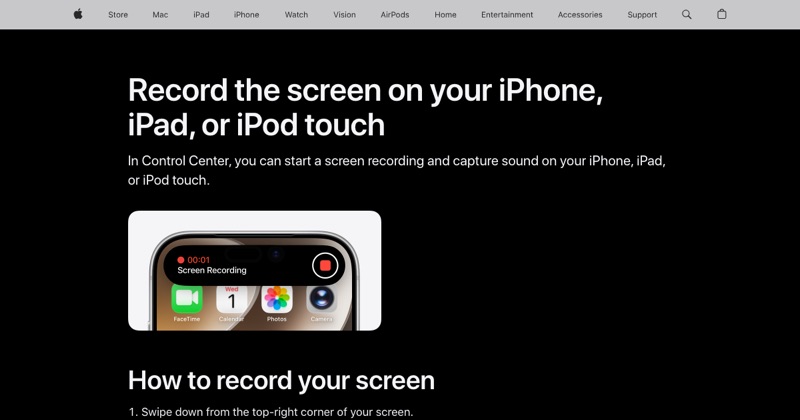 support.apple.comApple Support: Record the screen on your iPhone, iPad, or iPod touchIn Control Center, you can start a screen recording and capture sound on your iPhone, iPad, or iPod touch.