Screen recording on iPhone takes about ten seconds once you know where everything is. This guide walks through the whole thing, from a phone that has never recorded its screen to a finished clip you'd be happy to send.
Step 1: Make sure the button is in Control Center
Swipe down from the top-right corner of the screen to open Control Center. Look for a solid circle inside a ring. That's the Screen Recording button.
If it isn't there, add it. On iOS 18 and later (including iOS 27):
- Open Control Center and tap the + in the top-left corner.
- Tap Add a Control.
- Search for Screen Recording and tap it.
On iOS 17 or earlier, go to Settings > Control Center and tap the green + next to Screen Recording.
Step 2: Get your screen ready
A few seconds of prep saves a re-record:
- Turn on Do Not Disturb so banners don't appear in the video.
- Open the app or screen you want to show first, so the recording starts on the right thing.
- Check free storage in Settings > General > iPhone Storage. Long recordings get big.
Step 3: Start recording
Open Control Center and tap the Screen Recording button. A three-second countdown runs on the button, then everything on screen is captured. Close Control Center and do what you want to show.
Want your voice in it? Touch and hold the button instead, turn Microphone on, then tap Start Recording.
Step 4: Stop and find the video
Tap the red indicator at the top of the screen, then tap Stop. The recording saves to the Photos app automatically.
Step 5: Tidy it up
Open the video in Photos and tap Edit. Drag the yellow handles to trim the start (where you were closing Control Center) and the end (where you were reaching to stop). Crop if the status bar is distracting.
That's the whole process. If you hit a snag, like a grayed-out button, no sound, or a black screen, our complete iPhone screen recording guide covers every fix.
Where MobileStudio fits
If the recording is of your own app and it's going to a launch post, a product page, or an investor, a trim usually isn't enough. MobileStudio turns raw iPhone screen recordings into polished app demos with device frames, zooms, and backgrounds, right on the phone. Get MobileStudio.
Quick FAQ
Do I need an app to screen record on iPhone?
No. The recorder is built into iOS. Apps only add extras like a face-cam overlay.
Where do iPhone screen recordings go?
To the Photos app, in your Library, like any other video.
Can I screen record with sound?
Yes. App sound is recorded by default. Touch and hold the record button and turn on the microphone to add your voice.
Sources and further reading
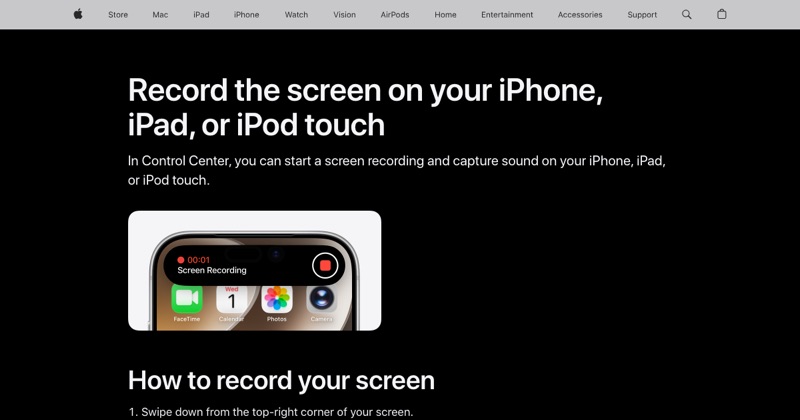 support.apple.comApple Support: Record the screen on your iPhone, iPad, or iPod touchIn Control Center, you can start a screen recording and capture sound on your iPhone, iPad, or iPod touch.
 support.apple.comApple Support: Use and customize Control Center on iPhoneOpen the iPhone Control Center to access useful controls. You can customize Control Center by adding controls.