Recording a FaceTime call sounds like it should take one tap. It doesn't, and the reason is almost always the same: you hit record, play it back, and the other person is completely silent.
That's not a bug. Apple blocks call audio from standard screen recordings on purpose. The good news is there are four reliable ways around it, and the right one depends on whether your call is audio or video, and whether you're on an iPhone or a Mac.
The short answer
| Your situation | Best method | Cost |
|---|---|---|
| One-to-one FaceTime audio call, feature available in your region | Apple's built-in Call Recording | Free |
| FaceTime video call, you're on a Mac | Mac screen recorder plus a virtual audio driver, or Audio Hijack | Free or paid |
| FaceTime video call, you're only on an iPhone | Screen Recording plus speakerphone and a second device | Free |
| Group FaceTime call | Mac with a virtual audio driver, or a second device | Free or paid |
If you only read one section, read the one that matches your row. Recording a WhatsApp or Zoom call instead? See how to record video calls on your phone.
Why FaceTime recordings come out silent
When you start a screen recording on an iPhone, iOS captures the video and your microphone. It does not capture the decoded audio coming from the other person. That's why your own voice shows up in the recording and theirs doesn't. The Mac's built-in recorder (Cmd+Shift+5 or QuickTime) works the same way: it records your mic, but not the sound your Mac plays back.
Every method below is really just a way of getting that second audio stream into the recording.
Method 1: Apple's built-in Call Recording (audio calls only)
Since iOS 18.1, iPhone can record calls, and Apple extended it to one-to-one FaceTime audio calls. Apple's own FaceTime guide for Mac also lists Call Recording for audio calls.
How to use it:
- Start a one-to-one FaceTime audio call.
- Tap or click the Record button on the call screen.
- Both people hear a notice that the call is being recorded.
- Tap or click stop when you're done.
- Open the Notes app and go to the Call Recordings folder to find the audio and its transcript.
If Apple Intelligence is turned on, you can also generate a summary of the call.
What to know before you rely on it:
- It's audio only. It won't record a FaceTime video call.
- It's one-to-one only. Group calls aren't supported.
- It's not available everywhere. Apple limits it by region and language, and the option doesn't appear at all in some places, including the EU. Check Apple's feature availability page for your country and OS version.
- It can't be silent. The other person is always told.
That last point is actually a feature if you care about doing this properly.
Method 2: Record on a Mac (the best way to get both voices)
If you can take the call on a Mac, you can get clean audio from both sides. The Mac gives you three routes.
Free: QuickTime or OBS plus BlackHole
BlackHole is a free, open-source virtual audio driver. It lets your Mac pass the sound FaceTime is playing into a recording app.
- Install BlackHole.
- Open Audio MIDI Setup (search for it in Spotlight).
- Create a Multi-Output Device that includes your speakers or headphones and BlackHole, so you can still hear the call while it's being recorded.
- Create an Aggregate Device that combines your microphone and BlackHole, so one input carries both voices.
- Set the Multi-Output Device as your Mac's sound output.
- In QuickTime (File > New Screen Recording) or in OBS Studio, choose the Aggregate Device as the audio input.
- Start recording, then start or join your FaceTime call.
It works, but the first setup takes a while. Plan on 20 to 40 minutes the first time, and expect to fiddle with it again after an OS update.
Do a 10-second test first. Record a short clip with both of you talking and play it back before the real call.
Paid: Audio Hijack
Audio Hijack from Rogue Amoeba can capture audio straight from FaceTime, along with your mic, without building any routing yourself. It supports recent macOS versions, and the trial version has limitations until you buy it. It records audio only, so if you need the video too, run it alongside a screen recorder.
Paid: Loopback
Loopback, also from Rogue Amoeba, does the same virtual-routing job as BlackHole with a proper interface instead of Audio MIDI Setup. People often pair it with QuickTime to capture video and both voices at once.
Method 3: iPhone only (the speaker workaround)
If you only have an iPhone and the call is a video call, there's no clean built-in way to capture both voices. The practical workaround:
- Start the screen recording from Control Center (no button? here's how to add it). Long-press the record button and turn the microphone on.
- Put the call on speaker so your mic picks up the other person.
- Keep the room quiet and hold the phone steady.
The result is usable, not studio quality. You'll hear echo and room noise, and the other person's voice will sound thinner than yours. For a keepsake or a reference recording, that's usually fine.
Second-device version: Put the call on speaker and record the whole thing with another phone or a voice recorder placed close by. It's low-tech, but it produces more consistent audio than recording on the same phone.
Method 4: Join from a PC and record there
FaceTime links let people on Windows and Android join calls through a web browser. If you have a Windows PC, you can join through the link and record the browser window with a recorder that captures system audio (OBS Studio is free). Windows makes it much easier to capture what the computer is playing than macOS does.
What about third-party iPhone apps?
Be skeptical. In user reports, results are mixed: some people say apps like DU Recorder and Record It! work, while others report they got no call audio at all. Many "call recorder" apps in the App Store are built for regular phone calls, not FaceTime, and some push subscriptions hard. Before paying for anything on iPhone, use the free trial, test with a real call, and play it back.
The apps mentioned in this guide
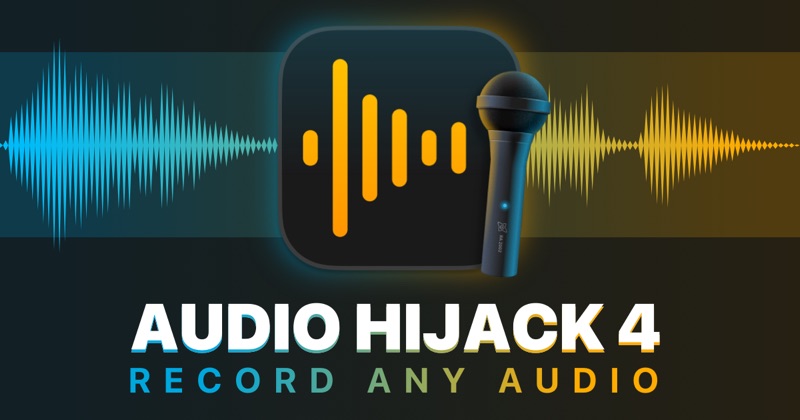 rogueamoeba.comAudio HijackMac, paid (free trial with limits). Records audio straight from FaceTime and your mic, with no routing setup.
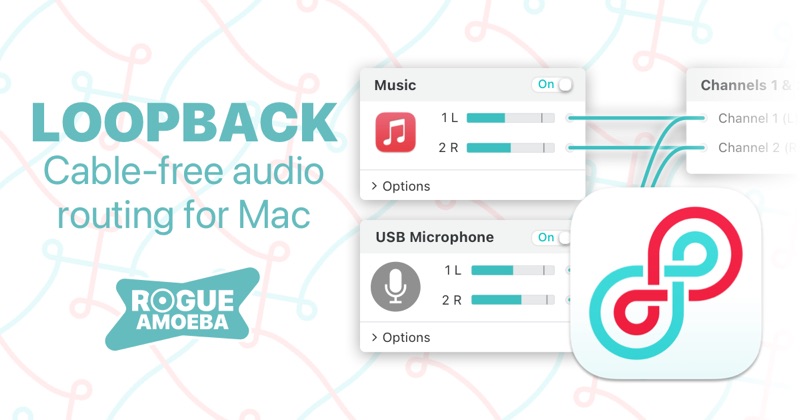 rogueamoeba.comLoopbackMac, paid. Virtual audio routing with a proper interface; pair it with QuickTime for video plus both voices.
 existential.audioBlackHoleMac, free and open source. Virtual audio driver that passes FaceTime's sound into QuickTime or OBS.
 obsproject.comOBS StudioMac and Windows, free and open source. Screen recorder that captures the call window; add BlackHole on Mac to get the other person's voice.
Prices and features change, so check each site before you buy.
Do you need permission to record a FaceTime call?
Yes, and the rules matter.
- In many places, including a number of US states and parts of Europe, everyone on the call must consent to recording.
- In other places, one participant's consent is enough.
- Rules for work, medical, financial, or legal calls can be stricter.
The safest habit is simple: say "I'm going to record this, is that okay?" at the start, and make sure the answer is on the recording. Apple's built-in feature enforces this by announcing the recording. The workarounds above don't, so it's up to you.
This isn't legal advice. If you're recording for business or something that could end up in a dispute, check the rules for the places everyone on the call is located.
Fix it: five reasons your FaceTime recording sounds wrong
- No audio from the other person. You used a standard screen recording, which leaves call audio out by design. Use a Mac with a virtual audio driver, Audio Hijack, or the speaker workaround.
- No audio at all. The microphone was off in the recording settings. On iPhone, long-press the record button in Control Center and turn the mic on.
- Echo or doubled voices. On the speaker workaround, lower the volume and use a quieter room. On Mac, use headphones so the call doesn't play out loud into your mic.
- Your voice is quiet or ducked. FaceTime lowers your side's audio in some setups. Record your mic and system audio on separate tracks if your recorder allows it, then balance them in editing.
- Audio drifts out of sync. Recording audio and video on separate devices causes this. Clap once at the start of both recordings so you have a sync point when you line them up.
Get a better recording: quick tips
- Test first. Ten seconds with both of you talking will save you from finding out later that the audio failed.
- Use headphones on the call to prevent echo.
- Record in a quiet room with the phone or laptop on a stable surface.
- Turn on Do Not Disturb so notifications don't interrupt the call or end up in the recording.
- Check storage. Video recordings get big. Leave several GB free for anything over a few minutes.
- Keep the call window visible. If you switch apps, the video can pause or the recording can capture the wrong thing.
Quick FAQ
Can FaceTime tell the other person I'm recording?
Apple's built-in Call Recording always notifies both people. Standard screen recording on iPhone and Mac doesn't send a notice, which is exactly why you should ask for permission yourself.
Can I record a group FaceTime call?
Not with Apple's built-in feature, which is one-to-one only. Use a Mac with a virtual audio driver, or a second device.
Can I record a FaceTime video call with sound on an iPhone alone?
Not cleanly. The speaker workaround gets you usable audio. For good audio, take the call on a Mac.
Where does Apple's call recording go?
Into the Notes app, in a folder called Call Recordings, with a transcript.
Is it free?
Apple's built-in feature, QuickTime, OBS, and BlackHole are all free. Audio Hijack and Loopback are paid.
The bottom line
- Audio call and the feature is available where you live: use Apple's Call Recording.
- Video call, and you want both voices: use a Mac with BlackHole (free) or Audio Hijack (paid).
- iPhone only: use the speaker workaround and keep your expectations realistic.
- Whatever you pick: test it first, and ask permission before you hit record.
Where MobileStudio fits
Once you've got the recording, the raw file usually needs work before you share it: trimming the dead air at the start, adding captions, or putting the screen inside a clean phone frame. That's what MobileStudio is for. MobileStudio for iOS does it right on the phone, so there's no cable or Mac editing step. If you're weighing a desktop tool instead, here's how MobileStudio compares to Screen Studio, and you can browse real app demos made with it to see the finished result.
MobileStudio is now on Google Play. Get MobileStudio to turn rough screen recordings into videos worth watching.
Sources and further reading
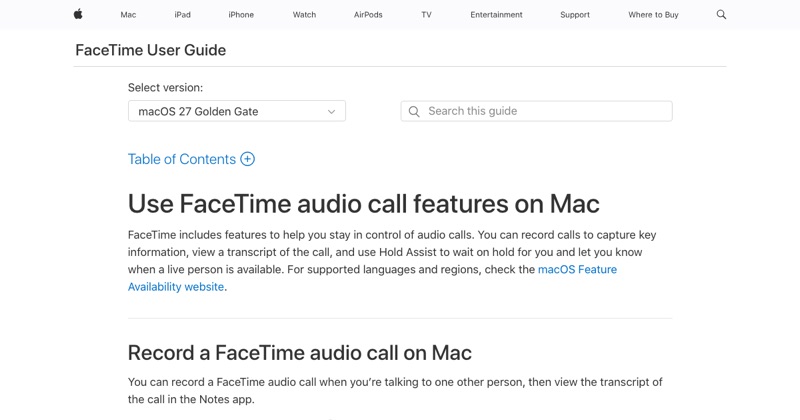 support.apple.comApple Support: FaceTime audio call features on MacIn FaceTime on Mac, record and transcribe audio calls, or use Hold Assist to wait on hold and notify you when to return.
- rogueamoeba.comRogue Amoeba: Audio HijackRecord VoIP calls from Zoom, web streams from Safari, and much more.
- existential.audioBlackHole by Existential AudioZero Latency. Perfect for Streamers, Podcasters, and Online Instructors.
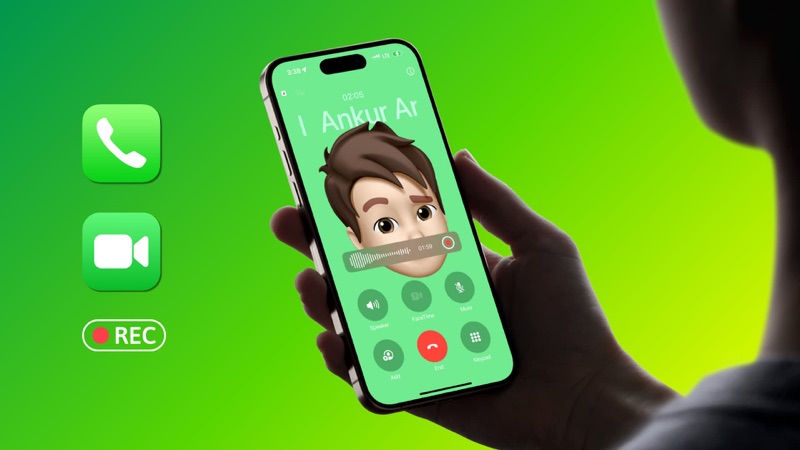 idownloadblog.comiDownloadBlog: How to officially record phone and FaceTime calls on iPhoneLearn how to record a phone call on your iPhone, transcribe the recording, summarize it, and export the audio file to another app.