An iPhone screen recording can capture two kinds of sound: what the phone plays (app audio) and what the microphone hears (your voice). Here's how to get each one.
App sound: on by default
When you start a normal screen recording, sound from apps, videos, and games is recorded automatically. Just make sure the phone is actually playing it:
- Turn the volume up.
- Check that Silent mode isn't muting the app. Some apps go quiet in Silent mode, and if the app is silent, so is the recording.
Your voice: turn on the microphone
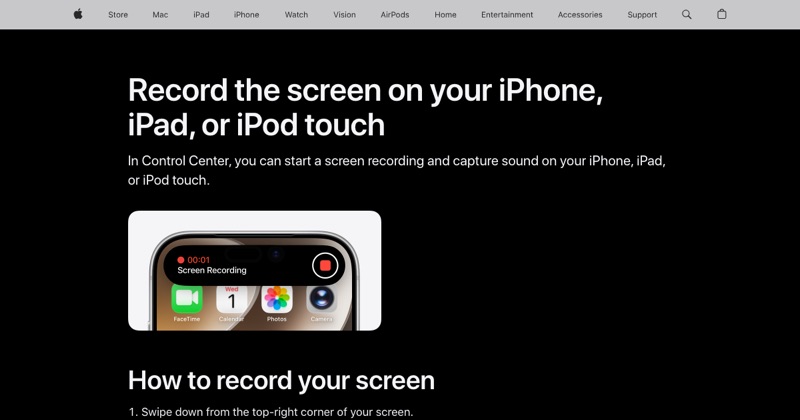
- Swipe down from the top-right corner to open Control Center.
- Touch and hold the Screen Recording button (don't just tap it).
- Tap Microphone so it shows as on.
- Tap Start Recording.
The recording now captures app sound and your voice. The microphone setting stays on for future recordings until you turn it off.
Only your voice, no app sound
There isn't a switch for this. The simplest way is to mute the app (or turn the volume down) and keep the microphone on.
Tips for clear narration
- Record in a quiet room.
- Hold the phone at normal reading distance.
- Turn on Do Not Disturb so notification sounds don't interrupt.
- Do a 10-second test and listen back with headphones.
When there's still no sound
- Calls: phone, FaceTime, and other call audio is never recorded.
- Protected apps: some streaming and media apps block their audio.
- Another app is using the mic: close it and try again.
Every cause is covered in does screen recording record audio.
Where MobileStudio fits
For app demos, you'll often want clean visuals more than narration. MobileStudio turns iPhone screen recordings into polished demos, framed and zoomed, right on your phone. Get MobileStudio.
Quick FAQ
Does iPhone screen recording record sound automatically?
App sound, yes. Your voice, only if you turn on the microphone.
Why does my recording have my voice but no app sound?
The app may be muted, in Silent mode, or protecting its audio.