Every major device ships with a screen recorder. The trick is knowing where each one hides. Here's the shortcut or path for each, in one place.
At a glance
| Device | How to start |
|---|---|
| iPhone / iPad | Control Center > Screen Recording button |
| Android | Quick Settings > Screen record |
| Samsung Galaxy | Quick panel > Screen recorder |
| Mac | Shift + Command + 5 |
| Windows 11 | Snipping Tool (video mode) or Xbox Game Bar (Windows + Alt + R) |
| Chromebook | Quick Settings > Screen capture > video |
iPhone and iPad
Swipe down from the top-right corner and tap the Screen Recording button. If it's missing, tap + > Add a Control to add it. Full steps are in our iPhone guide.
Android and Samsung
Swipe down twice and tap Screen record (or Screen recorder on Samsung). If it's not there, edit your tiles and add it. See the Android guide.
Mac
Press Shift + Command + 5 to open the screenshot toolbar. Choose Record Entire Screen or Record Selected Portion, then click Record. Click the stop button in the menu bar to finish. QuickTime Player also has File > New Screen Recording.
Windows
- Snipping Tool: open it, switch to video mode, select an area, and start. It's the easiest way to record part of the screen.
- Xbox Game Bar: press Windows + Alt + R to start and stop recording the active app. It records one app or game at a time, not the desktop.
Chromebook
Open Quick Settings, choose Screen capture, switch to the video icon, pick full screen, a window, or an area, and start. Stop from the shelf.
Before you record on any device
- Turn on Do Not Disturb.
- Close windows and tabs you don't want seen.
- Decide whether you need your voice. Most recorders have a microphone toggle.
Where MobileStudio fits
For recordings of a mobile app, MobileStudio handles the polish on the phone itself: device frames, zooms, and export, without moving the file to a computer. Get MobileStudio.
Quick FAQ
Do I need to download a screen recorder?
No. Every device above has one built in.
Which recorder captures system sound?
iPhone, Android, Samsung, and Windows Game Bar can capture app sound. Mac's built-in recorder records your microphone, not system audio.
Sources and further reading
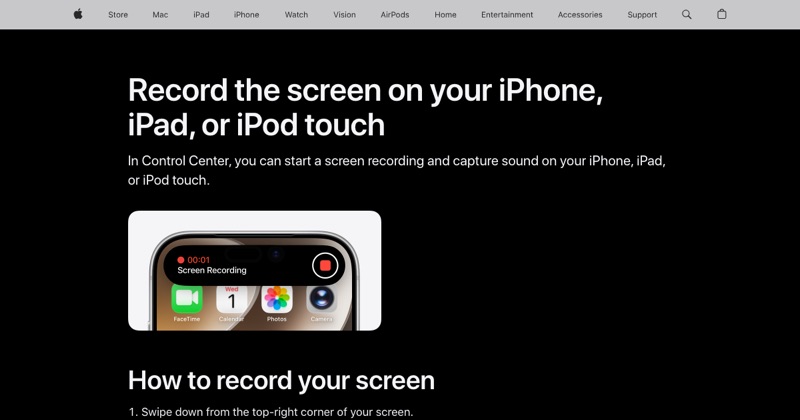 support.apple.comApple Support: Record the screen on your iPhone, iPad, or iPod touchIn Control Center, you can start a screen recording and capture sound on your iPhone, iPad, or iPod touch.
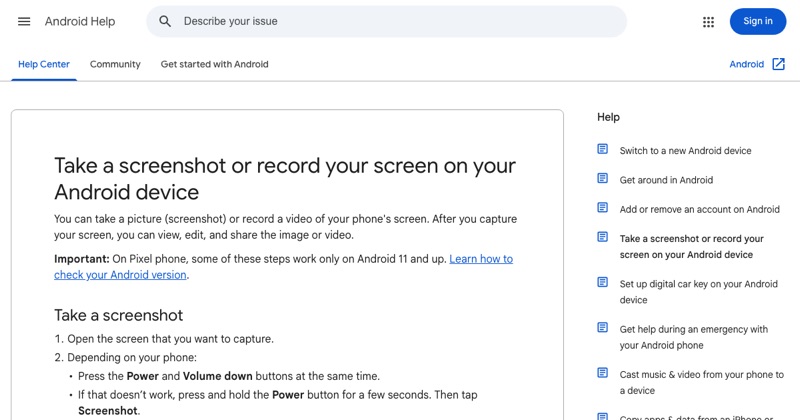 support.google.comAndroid Help: Take a screenshot or record your screenGoogle's official steps for the built-in Android screen recorder, including where recordings are saved.