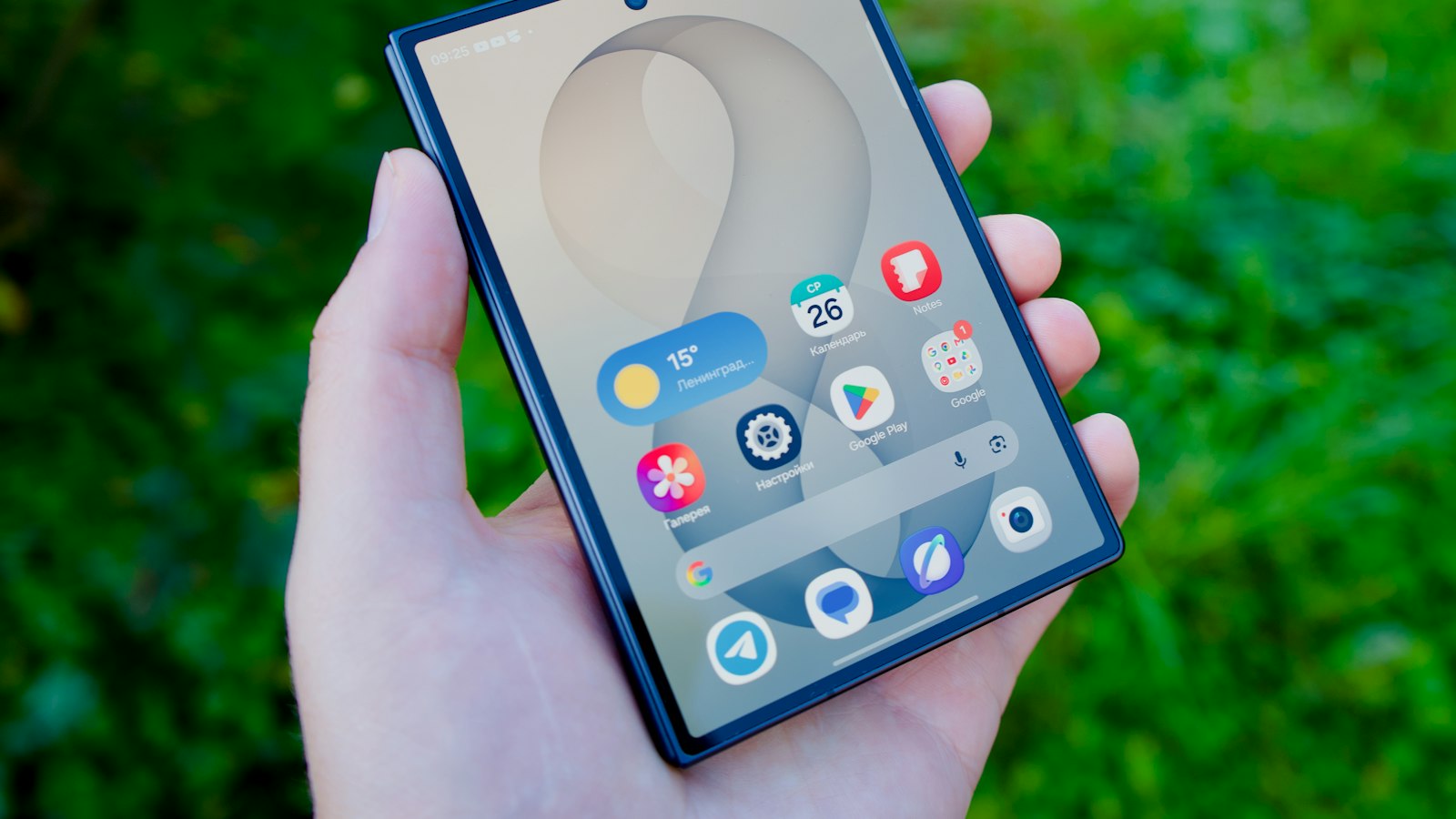
Most Android phones made in the last few years have a screen recorder built in. You don't need to install anything. The only catch is that every brand puts it in a slightly different place and names the audio options differently.
Here's the general answer first, then the specifics for Samsung, Pixel, and Xiaomi.
The quick answer
- Swipe down twice from the top of the screen to open Quick Settings.
- Tap Screen record (Samsung calls it Screen recorder). If it's not there, swipe sideways through the tiles.
- Choose your options, mainly whether to record audio, then tap Start. Recording begins after a short countdown.
- To stop, swipe down and tap the screen recording notification (or the stop button in the floating toolbar on Samsung).
Your video is saved to your gallery. In Google Photos, look in Collections > On this device > Movies. On Samsung, it's in the Gallery app.
The Screen record tile is missing
Open Quick Settings, tap the pencil (Edit) icon, find Screen record in the list of available tiles, and drag it into your active tiles. On Samsung, tap the three dots or pencil in the Quick panel and choose Edit buttons.
If it isn't in the list at all, your phone's software may be too old. The built-in recorder arrived on most phones with Android 11, and on Samsung Galaxy phones with Android 10. Older phones need a recorder app from the Play Store.
How to screen record on Samsung Galaxy
Samsung's recorder has the most options of any Android brand:
- Swipe down twice to open the Quick panel and tap Screen recorder.
- Pick a sound setting:
- No sound: a silent video, good for showing visual steps.
- Media sounds: the phone's internal audio (apps, games, videos). Your mic stays off.
- Media sounds and mic: internal audio plus your voice, for narration.
- Tap Start recording. After a 3-second countdown, a small toolbar appears.
- Tap the stop button in the toolbar when you're done.
Where to change the defaults: go to Settings > Advanced features > Screenshots and screen recordings. There you can set the default sound, the video quality, and the size of the selfie video, Samsung's front-camera overlay for when you want your face in the corner.
How to screen record on Google Pixel
- Swipe down twice and tap Screen record.
- Choose what to record: on recent Pixels you can record one app or the entire screen.
- Turn on Record audio if you want sound, and choose Device audio, Microphone, or Device audio and microphone.
- Optionally turn on Show touches on screen. It puts a small dot wherever you tap, which is great for tutorials.
- Tap Start. Stop it from the notification.
Recording a single app is worth knowing about: notifications and anything else you open won't end up in the video.
How to screen record on Xiaomi, Redmi, and POCO
On Xiaomi's HyperOS, the recorder is usually a Screen recorder toggle in Control Center (swipe down from the top-right on most models), or an app called Screen recorder in the Tools folder. Tap it, and a floating record button appears. Tap that to start and again to stop. Sound and quality options are in the Screen recorder app's settings.
Menus vary a lot between HyperOS and older MIUI versions, so if you can't find it, search "screen recorder" in the Settings search bar.
Other Android phones
OnePlus, Motorola, Nothing, and most other brands follow the stock Android pattern: a Screen record tile in Quick Settings with audio options before you start. If you can't find it, search your Settings for "screen record".
When Android screen recording doesn't work
There's no sound. You probably chose "no sound" or "media only". The choice is made before the countdown, so it can't be fixed afterwards. Our guide to screen recording audio covers every cause.
Part of the screen records as black. Banking apps, password screens, and streaming services can block capture. That's the app protecting its content, not your phone failing.
Calls are silent. Phone, VoIP, and video calls can't be recorded with the screen recorder. Samsung says so in its own documentation. If you need to record a call, see how to record WhatsApp and Zoom video calls.
The recording stops early. Check free storage, and turn off battery saver while recording. Some phones limit background tasks aggressively.
Recording an app demo on Android? Three small upgrades
If you're recording your own app, for a Play Store listing, a launch post, or a feature update, these make the raw footage cleaner:
- Turn on Do Not Disturb so notifications don't appear mid-demo.
- Turn on "Show touches" (Pixel) so viewers can follow your taps.
- Use a clean status bar. Developers can use Android's System UI demo mode in Developer options to freeze the clock and show full battery and signal.
Then plan the recording: open the app to the right screen first, move slowly, and pause briefly on each screen so the viewer can read it.
Where MobileStudio fits
Android recordings come off a wide range of screen sizes and aspect ratios, which makes them hard to use as-is in a launch video or store listing. MobileStudio is built to take a raw phone recording and turn it into a polished app demo: framed in a device mockup, on a clean background, with zooms where they matter, exported at the size you need.
It's now on Google Play, with iPhone coming soon. Get MobileStudio, or look through real app demos made with it.
Quick FAQ
Does Android have a built-in screen recorder?
Yes, on most phones running Android 11 or later, and on Samsung Galaxy phones from Android 10. It's a tile in Quick Settings.
Where do Android screen recordings go?
To your gallery. In Google Photos, look under Collections > On this device > Movies. On Samsung, open the Gallery app.
Can I screen record with my voice on Android?
Yes. Choose "Microphone" or "Device audio and microphone" on Pixel, or "Media sounds and mic" on Samsung, before you start.
Is there a time limit?
Not a published one on most phones. Storage and battery are the practical limits.
Can I record just one app?
On recent Pixel phones, yes: choose "Record one app" before starting. Other brands generally record the full screen.
Sources and further reading
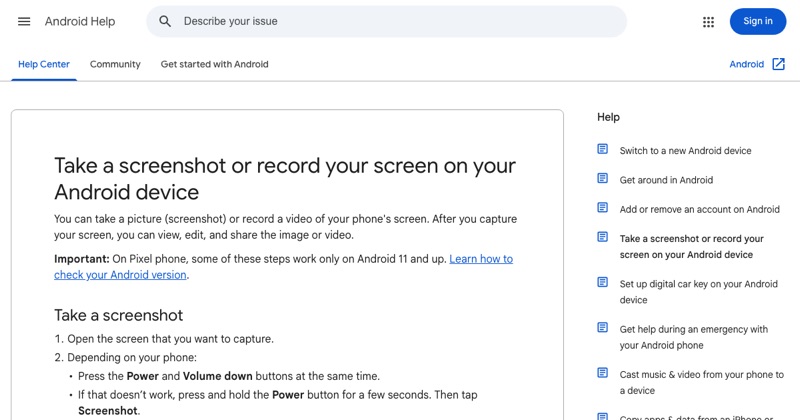 support.google.comAndroid Help: Take a screenshot or record your screenGoogle's official steps for the built-in Android screen recorder, including where recordings are saved.
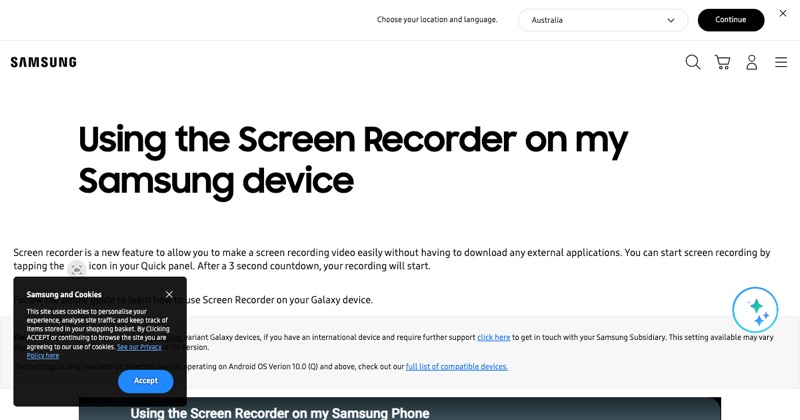 samsung.comSamsung Support: Using the Screen Recorder on my Samsung deviceSamsung's guide to the Galaxy Screen recorder in the Quick panel, its sound options and settings.