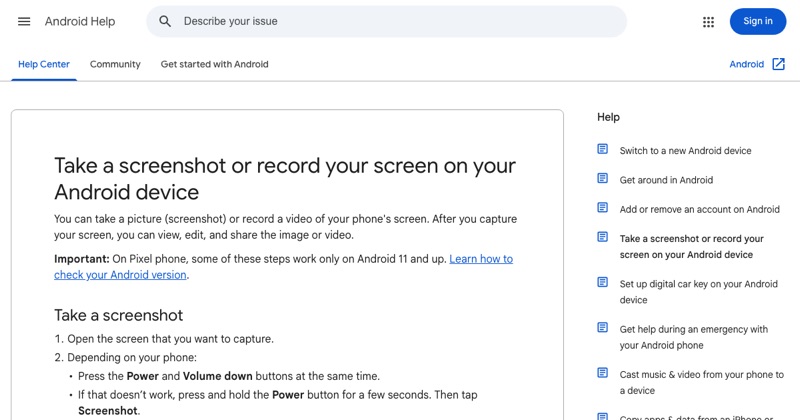
The most common reason people ask this: they swiped down, looked for Screen record, and it wasn't there. Here's how to find or add it, and fix the other common problems.
Step 1: Look properly
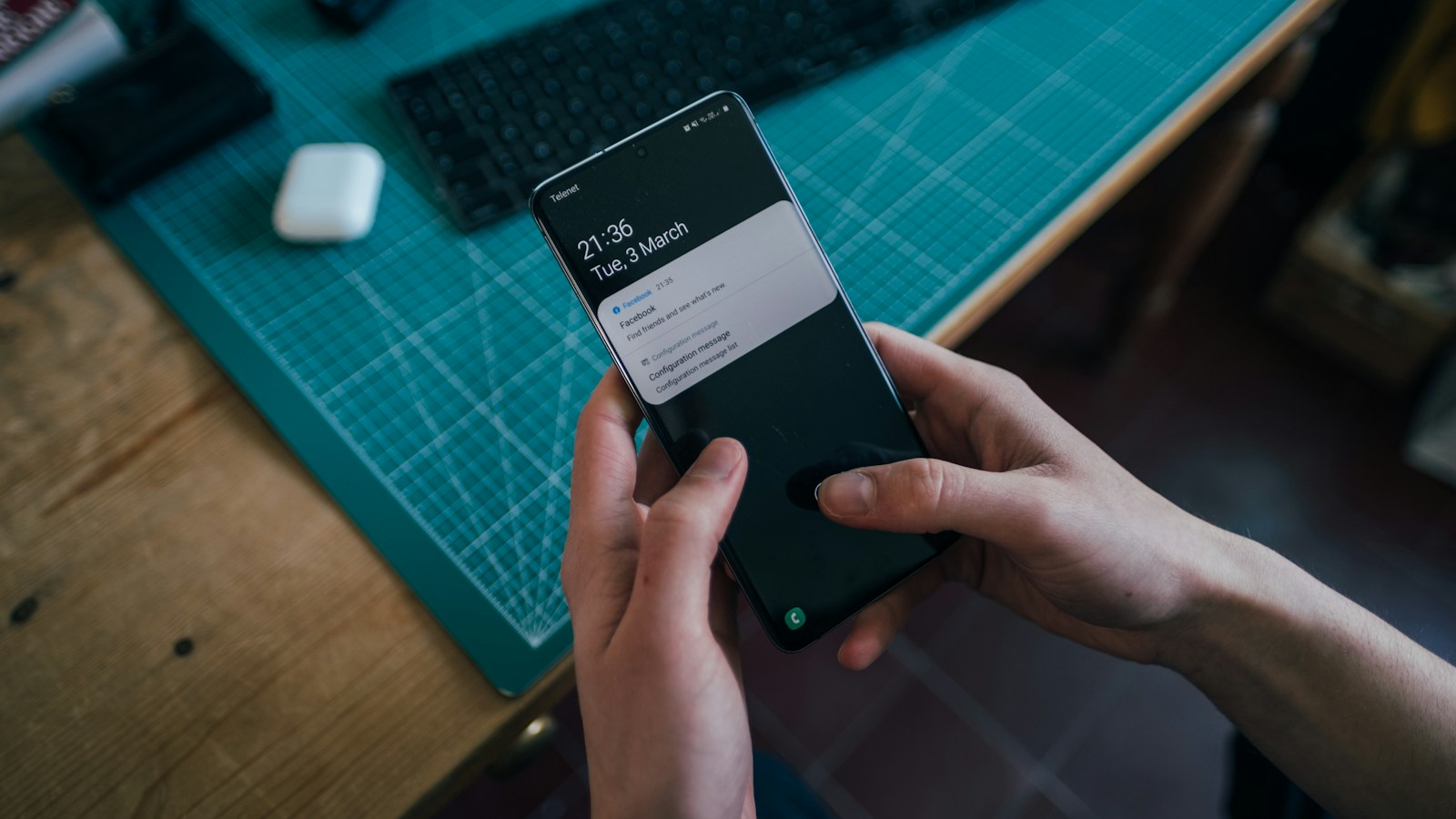
- Swipe down twice from the top (once shows notifications, twice shows all Quick Settings).
- Swipe sideways through the pages of tiles. Screen record may be on the second or third page.
Step 2: Add the tile
- In Quick Settings, tap the pencil (Edit) icon. On Samsung, tap the three dots or pencil and choose Edit buttons.
- Find Screen record (or Screen recorder) in the list of available tiles.
- Drag it into your active tiles, ideally the first row.
- Tap Done.
Step 3: If it isn't in the list
- Check your Android version in Settings > About phone. The built-in recorder arrived with Android 11 on most phones (Android 10 on Samsung).
- Search Settings for "screen record". Some brands put it elsewhere, like a Tools folder on Xiaomi.
- Work phone? A device policy can remove it.
- Still nothing? Use a screen recorder app from the Play Store.
Other problems once it's working
- "Screen recording stopped": free up storage, and turn off battery saver.
- No sound: choose device audio or microphone before starting.
- Black video: some apps, like banking and streaming, block recording.
Test it
Record 10 seconds, stop, and play it back from your gallery. If it plays with sound, you're done. For brand-specific steps, see how to screen record on Android.
Where MobileStudio fits
Once recording works, MobileStudio turns raw recordings of your app into polished demos. Get MobileStudio.
Quick FAQ
Why is there no screen record on my Android?
The tile isn't added, or the phone runs an Android version older than 11.
Can I add screen record to Quick Settings?
Yes, with the pencil (Edit) button.