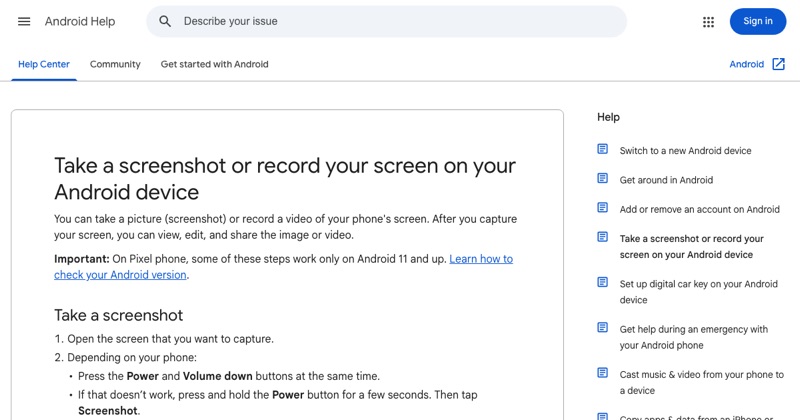
Most Android brands use the same basic screen recorder, with small differences in naming and settings. Here's how it looks on the popular ones.
The universal method
On almost any Android 11+ phone: swipe down twice, tap Screen record (or similar), pick audio options, and tap Start. If you can't find it, search Settings for "screen record".
OnePlus
Swipe down for Quick Settings and tap Screen recorder. OnePlus's recorder has its own settings for resolution and sound sources. Tap the settings icon in the floating recording controls, or search Settings.
Motorola
Motorola phones stay close to stock Android: Screen record in Quick Settings, with options for audio and showing touches.
Nothing Phone
Screen record is in Quick Settings, using Android's standard recorder options.
Xiaomi, Redmi, and POCO
Look for a Screen recorder toggle in Control Center, or a Screen recorder app in the Tools folder. Tap it to get a floating record button. Settings are in the recorder app.
Oppo, Realme, and Vivo
Usually a Screen recording toggle in the notification shade, with settings under the recorder's options.
Samsung and Pixel
These have the most features. See the Samsung guide and Pixel guide.
Can't find it on your brand?
- Search Settings for "screen record".
- Edit Quick Settings and look for the tile.
- Check your Android version (11+ for most brands).
- As a last resort, use a well-reviewed recorder app.
Where MobileStudio fits
Every brand's recordings come out at a different size. MobileStudio turns raw recordings of your app into consistent, polished demos. Get MobileStudio.
Quick FAQ
Is screen recording the same on all Android phones?
The basics are, but names and settings vary by brand.
Where's the recorder on Xiaomi?
Control Center or the Tools folder, as Screen recorder.