What to Look for in an iPhone Screen Recording App
A practical guide to capturing, polishing, and sharing iPhone screen recordings that look ready for a product launch.
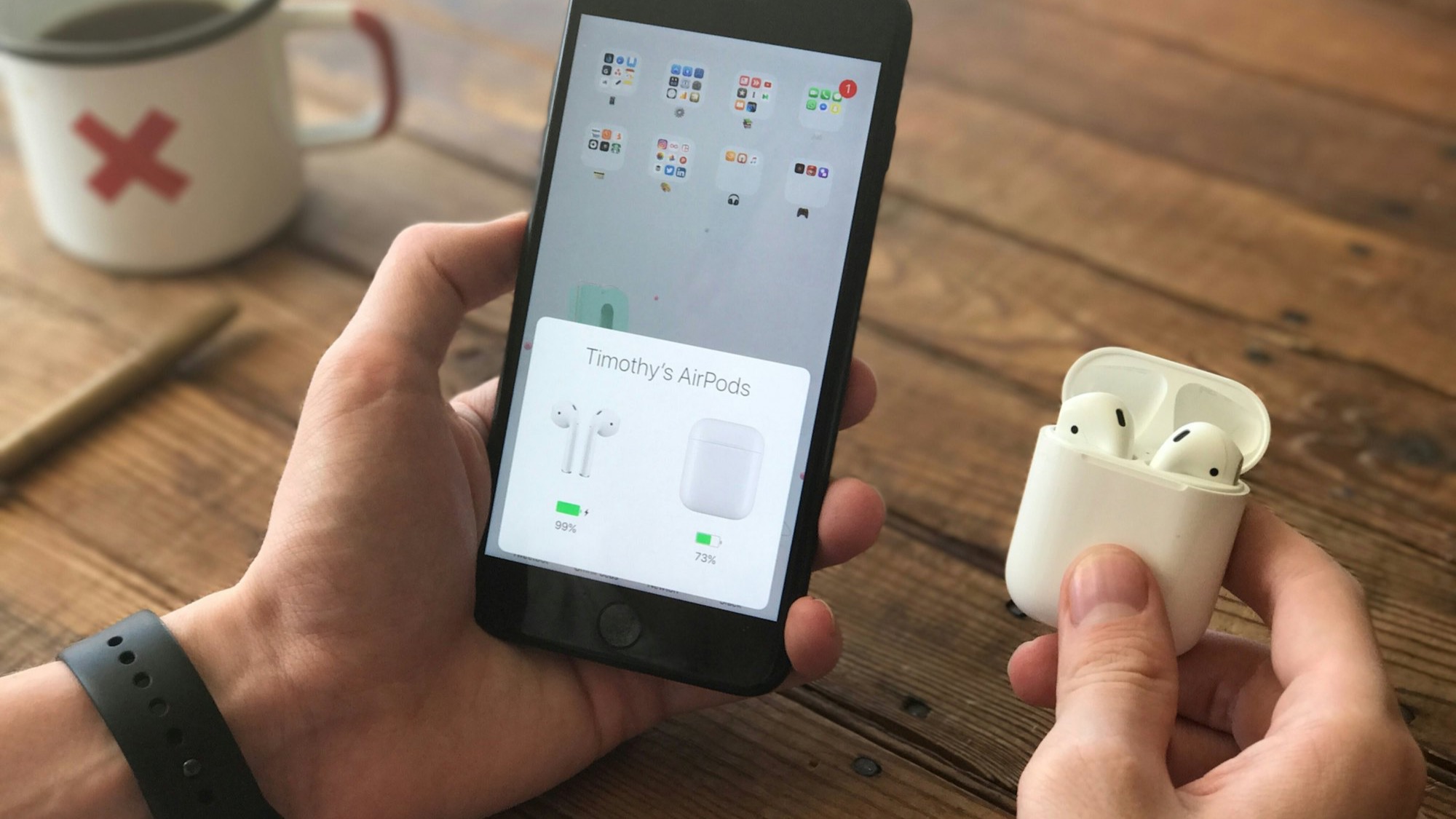
Recording an iPhone screen is easy. Producing a recording that explains a feature clearly, holds attention, and feels ready to publish takes a little more thought. The best tool is not simply the one with a record button—it is the one that keeps the path from capture to a polished video short.
This guide covers the practical details worth checking before you choose a screen recording app for an app demo, launch video, tutorial, or support clip.
Start with a clear purpose
Before recording, decide what the viewer should understand or do next. A focused product clip usually demonstrates one outcome: completing a checkout, organizing a project, editing a photo, or discovering a new feature.
Short recordings benefit from a simple structure:
- Show the starting point.
- Demonstrate the key interaction.
- Pause briefly on the result.
This keeps the video understandable even when it is muted or embedded in a fast-moving social feed.
Capture quality matters, but consistency matters more
An iPhone screen recorder should preserve readable text and smooth motion. It should also capture the correct orientation and avoid unexpected changes in scale. Before starting, turn off distracting notifications, choose a stable brightness level, and prepare the app at the exact screen where the demonstration begins.
If the recording includes taps or gestures, move at a deliberate pace. Viewers need enough time to follow each action. A clean ten-second walkthrough is often more useful than a rushed five-second one.
Look for an editing flow built for phone screens
General video editors can trim a recording, but app videos have specific needs. A useful screen recorder video editor should make it easy to:
- place the recording inside an accurate device frame;
- add balanced padding around the phone;
- choose a background that supports the interface;
- crop without hiding important UI;
- export in formats suited to stores and social platforms.
These controls help a plain capture become a clear app demo video. They also prevent common problems such as stretched content, clipped status bars, or a recording floating above the device bezel.
Device frames should support the content
A realistic phone frame gives viewers immediate context, but it should never compete with the product. The recorded screen needs to stay behind the bezel and Dynamic Island, follow the display's rounded corners, and preserve its aspect ratio.
Choose a light or dark frame based on the surrounding composition rather than the phone interface alone. The goal is visual separation: the device should remain visible without pulling attention away from the app.
Plan for the destination
The best export settings depend on where the video will appear. An app launch video on a landing page may use a different aspect ratio from an App Store preview or a vertical social post. Starting with the destination avoids late-stage cropping and keeps interface labels legible.
For reusable product footage, keep a clean master export. You can then create shorter versions for announcements, documentation, and support without recording the same flow again.
A faster capture-to-publish workflow
MobileStudio combines recording and focused presentation controls so a captured interaction can move directly into an editor. After recording, trim the unnecessary beginning and end, select a device treatment, set the composition, and preview the final export at its intended size.
The important measure is not how many editing features a tool contains. It is how quickly you can turn an accurate screen capture into a video that communicates one idea well. Once you've settled on a recorder, turning that recording into a polished demo video is the next step.
Final checklist
Before publishing an iPhone screen recording, confirm that:
- notifications and private information are not visible;
- text remains readable at the final viewing size;
- gestures are slow enough to follow;
- the recording is not stretched or cropped incorrectly;
- device details remain above the screen content;
- the opening frame makes sense without narration;
- the final frame gives the viewer time to understand the result.
A good screen recording app removes friction from this checklist. A great one makes the polished result feel like a natural extension of the recording itself.