How to Screen Record on iPhone for a Clean App Demo (No Third-Party App Needed)
iPhone's built-in screen recorder has fewer dials than Android's, which is exactly why the few it does have — mic mode, Do Not Disturb, and what it doesn't let you touch — are worth knowing before you hit record.
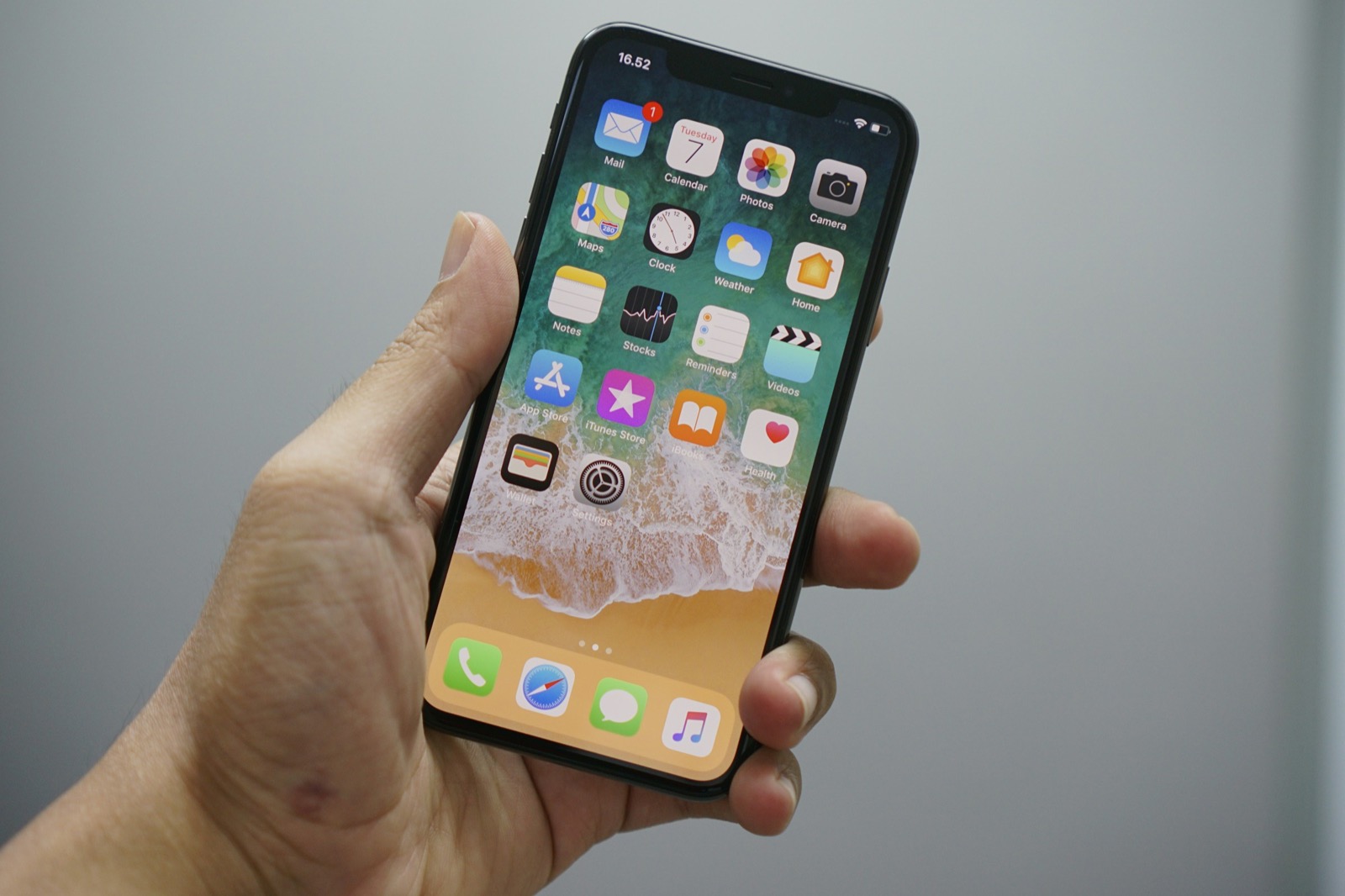
iPhone has had a built-in screen recorder since iOS 11, and unlike Android's version, it doesn't give you much to configure — no resolution choice, no bitrate, no third-party app really adds anything the stock recorder is missing. That's mostly a good thing. But the handful of settings it does expose are easy to miss on a first pass, and missing them is exactly what turns a usable take into a redo.
Add it to Control Center first
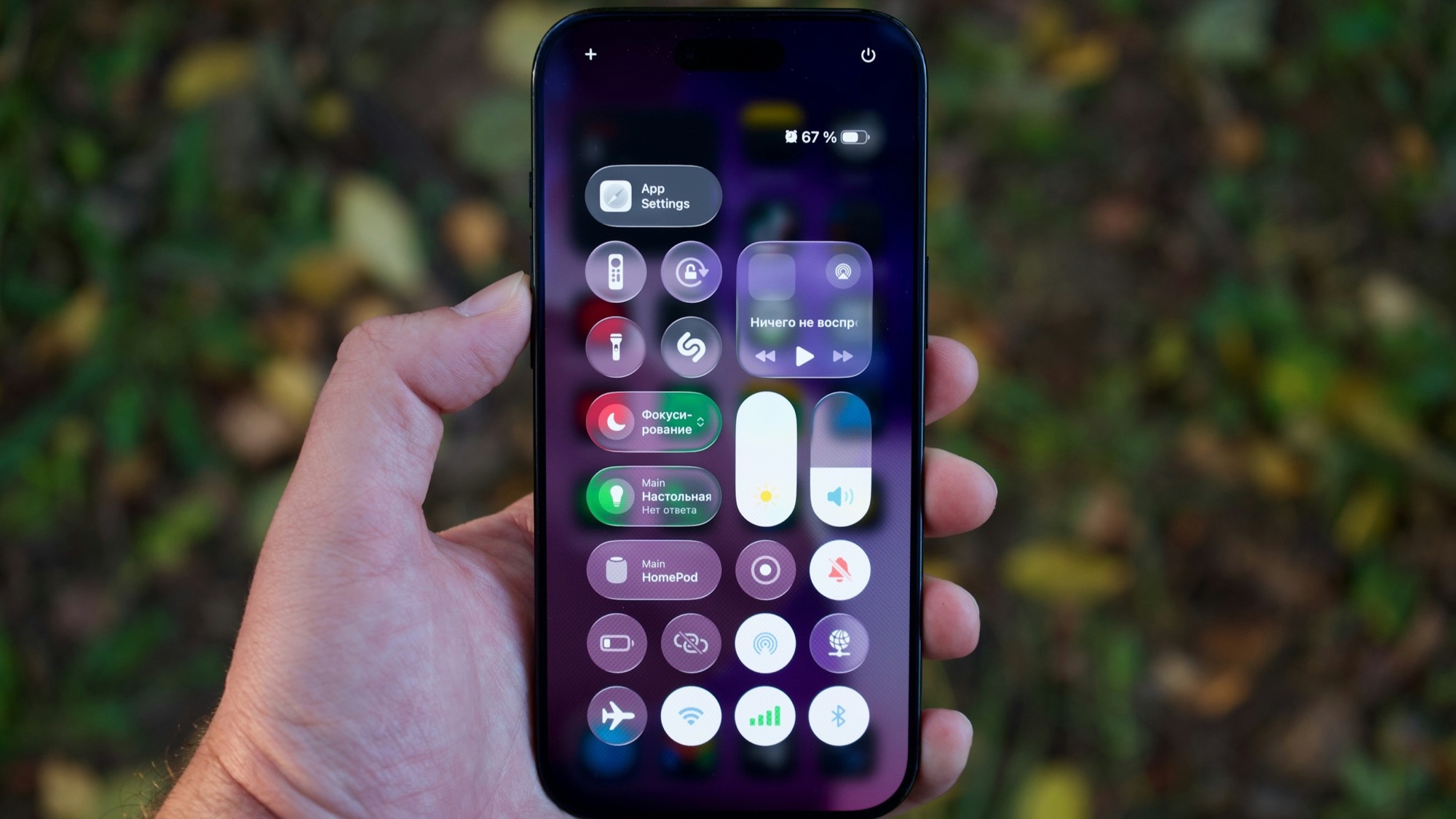
There's no Screen Recording app icon — it's a Control Center button, and on a lot of iPhones it isn't there by default. Go to Settings → Control Center, find Screen Recording in the list of available controls, and tap the green plus next to it. Once it's added, swipe down from the top-right corner (or up from the bottom edge on an iPhone with a Home button) to reach it.
This only has to be done once. If the button's already in your Control Center, skip straight to recording.
Long-press before you tap — this is the one setting that matters
Tapping the Screen Recording button starts a recording immediately, using whatever mic setting was active last time. That's the problem: if you don't check it first, you only find out it was wrong after you've already recorded. Long-press (or 3D Touch, on older models) the button instead, and a small menu opens with the microphone toggle and, on recent iOS versions, a Mic Mode choice — Standard, Voice Isolation, or Wide Spectrum.
For a narrated app demo, Voice Isolation is usually the right call — it suppresses room noise and keeps the focus on your voice. For a silent demo you'll caption later, leave the microphone off entirely so you're not stuck with room tone on the audio track. Decide before you tap record, the same way you would on Android — there's no way to add a mic track to a recording after the fact.
Turn on Do Not Disturb or a Focus mode
A text or call notification banner sliding in from the top mid-recording ruins a take, and it's arguably more common on iPhone than Android since banners default to showing over anything on screen, including a recording. Swipe into Control Center and turn on Do Not Disturb (or whichever Focus you've set up) before you start, rather than hoping nothing arrives in the next thirty seconds.
What iPhone doesn't let you touch — and why that's fine
Android's recorder exposes resolution and bitrate controls; iPhone's doesn't. It records at your screen's native resolution, encoded as HEVC, with no quality slider anywhere in the settings. There's also no "show taps" equivalent — the Android developer option that visually marks every tap on screen doesn't have an iOS counterpart, and turning on AssistiveTouch isn't a substitute, since it adds a persistent floating button to the screen rather than highlighting taps as they happen.
Practically, that means two things: you don't need to think about quality settings before recording on iPhone the way you do on Android, and if a viewer needs to see exactly where you tapped, that has to come from framing and pacing the recording itself — pausing briefly on the element before tapping it — rather than a setting that adds the indicator for you.
Recordings land in Photos, not a dedicated folder
When you stop a recording (tap the red status bar pill, or the Control Center button again), it saves straight to the Photos app, filed under Albums → Screen Recordings if you want to find past takes without scrolling your camera roll. Worth clearing out periodically — a phone with a dozen false-start takes sitting in that album makes it easy to grab the wrong one when you go to edit.
Where MobileStudio fits
iPhone recordings come off a narrower range of screen sizes than Android's, but they still arrive as raw HEVC footage with no trimming, framing, or export settings applied. MobileStudio picks up from exactly that point — the same recording Control Center just saved to Photos, trimmed and framed into a finished demo on the same phone.
MobileStudio is currently in early access. Join the waitlist to try it as it opens up, or see real edited clips made with it first.
Nothing here needs an install. It's the same recorder already on the phone, with the mic mode checked before the countdown starts instead of after.