How to Screen Record on Android for a Clean App Demo (No Third-Party App Needed)
Android's built-in screen recorder is good enough for most app demos. The three settings people skip — audio source, resolution, and show-taps — are what separate clean footage from a redo.
Android has had a built-in screen recorder since Android 11, and on most phones it's good enough that there's no reason to install a third-party app for it — the third-party options tend to add a watermark, cap your resolution, or compress the output harder than the stock recorder does. The problem isn't the tool. It's that the stock recorder has a few settings tucked away that most people never open, and skipping them is exactly what turns a usable take into a re-record.
Find it: Quick Settings, not the app drawer
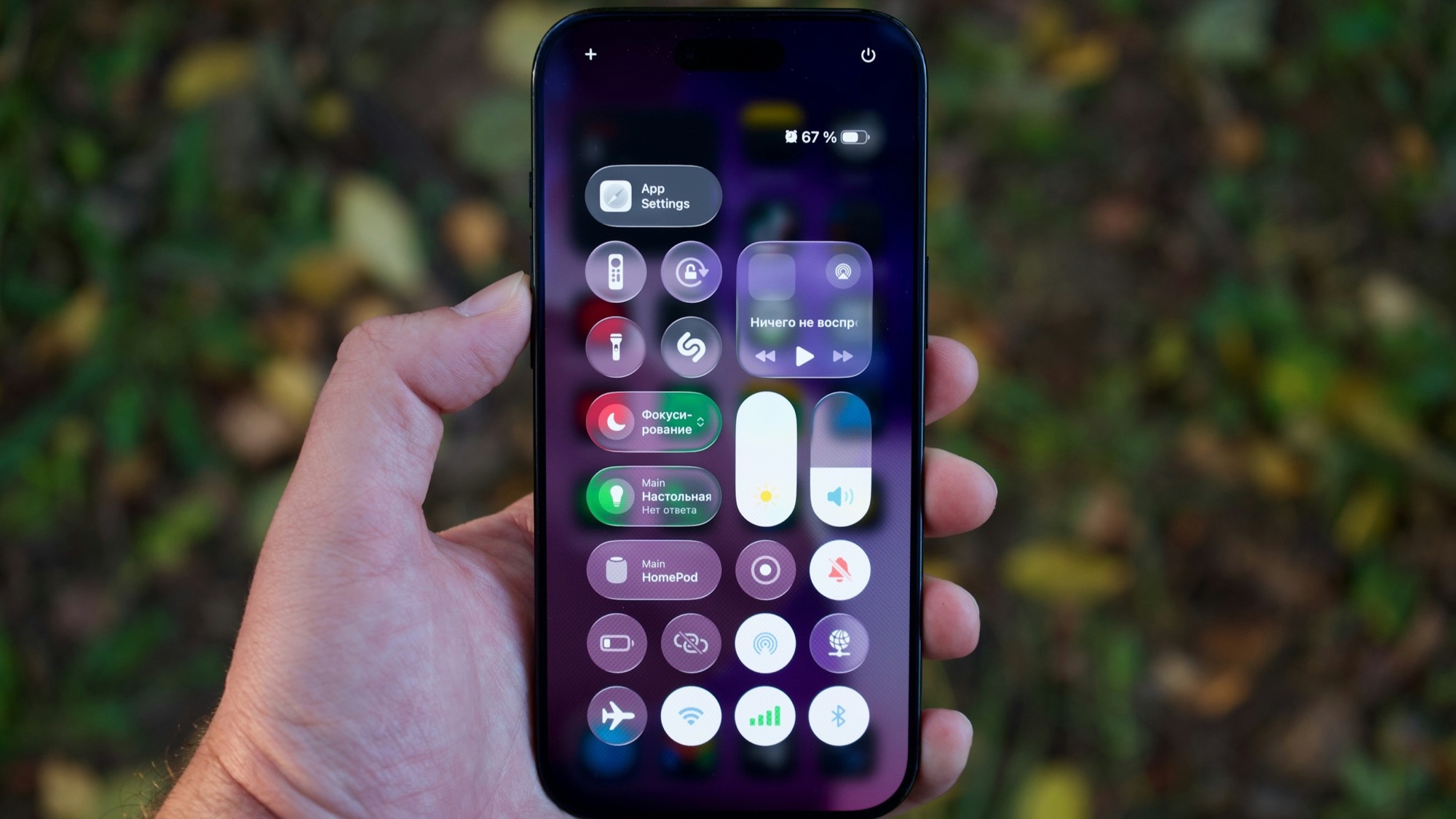
There's no "Screen Recorder" app icon on most Android phones — it lives as a tile in Quick Settings, the panel you get by swiping down twice from the top of the screen (or once, on some OEM skins). If you don't see a "Screen Record" tile there, swipe to the edit/pencil icon at the bottom of the panel and drag it in; it's present on stock Android, Samsung's One UI, and most other skins, just sometimes buried on the second page by default.
Tapping the tile opens a small settings sheet before recording starts. This is the part worth slowing down for.
Pick the right audio source — this is the one that ruins takes
The stock recorder gives you three audio choices: no audio, device audio (what's playing on screen), or device audio plus microphone. The default on most phones is "device audio," which sounds right for an app demo but has a specific failure mode — if you're narrating out loud while you record, the mic won't pick you up at all, and you only find out when you go to edit and there's no voice track.
Decide which one you actually need before tapping record, not after: silent demo meant for captions later, device audio only (no mic), or device audio with mic if you're narrating live. Switching this after the fact means re-recording, since Android doesn't let you add a microphone track to an already-finished screen recording.
Turn on "show taps" so viewers can follow along
Without it, a viewer watching your demo sees the screen change but never sees what caused it — a tap just looks like the UI updating on its own. Android has a setting for this, but it's in Developer Options, not the recorder itself: Settings → System → Developer Options → Show taps (if Developer Options isn't visible, tap your Build Number seven times under About Phone to unlock it).
Turn this on before recording any flow that involves tapping through multiple screens. It costs nothing and it's the difference between a demo that reads as a guided walkthrough and one that reads as a screen just changing on its own.
Set resolution and bitrate if your phone exposes them
Not every OEM skin shows this, but where it's available (the settings sheet, or sometimes in the Camera/Recorder app's own settings), there are usually two choices: resolution (often capped at your screen's native resolution or a step below it) and quality/bitrate (low/medium/high). Pick the highest your phone offers unless file size is a real constraint — a recording that's slightly too sharp scales down cleanly later, but one that's too compressed never gets sharper in editing.
Clear the notification shade first
The Android equivalent of the iPhone status-bar problem: a message notification sliding in from the top mid-recording ruins a take the same way on either platform. Turn on Do Not Disturb before you start — Quick Settings has a tile for this too — rather than hoping nothing arrives during the thirty seconds you're recording.
One note on OEM differences
Samsung, Pixel, OnePlus, and other Android skins all ship slightly different versions of this same recorder, so a setting that's in the Quick Settings sheet on one phone might live inside a dedicated "Screen Recorder" settings menu on another. The three things above — audio source, show taps, resolution — exist somewhere on every modern Android phone; where they're tucked away is the only part that varies.
Where MobileStudio fits
Android recordings come off a much wider range of screen sizes and aspect ratios than iPhone footage does, since there's no single reference device. MobileStudio's crop and aspect-ratio tools exist for exactly that gap — importing a recording shot at whatever resolution your phone happened to use, and bringing it to a consistent frame before export, instead of every device's output looking slightly different in the final video.
MobileStudio is currently in early access. Join the waitlist to try it as it opens up, or see real edited clips made with it first.
None of this requires installing anything. It's the same recorder that's already on the phone, with three settings opened instead of left on default.