How to Add a Phone Mockup to a Screen Recording (Without Photoshop or After Effects)
A raw screen recording reads as a screen recording. A phone mockup is what turns it into something that looks like a real app, shot on a real device — here's how to get it right.
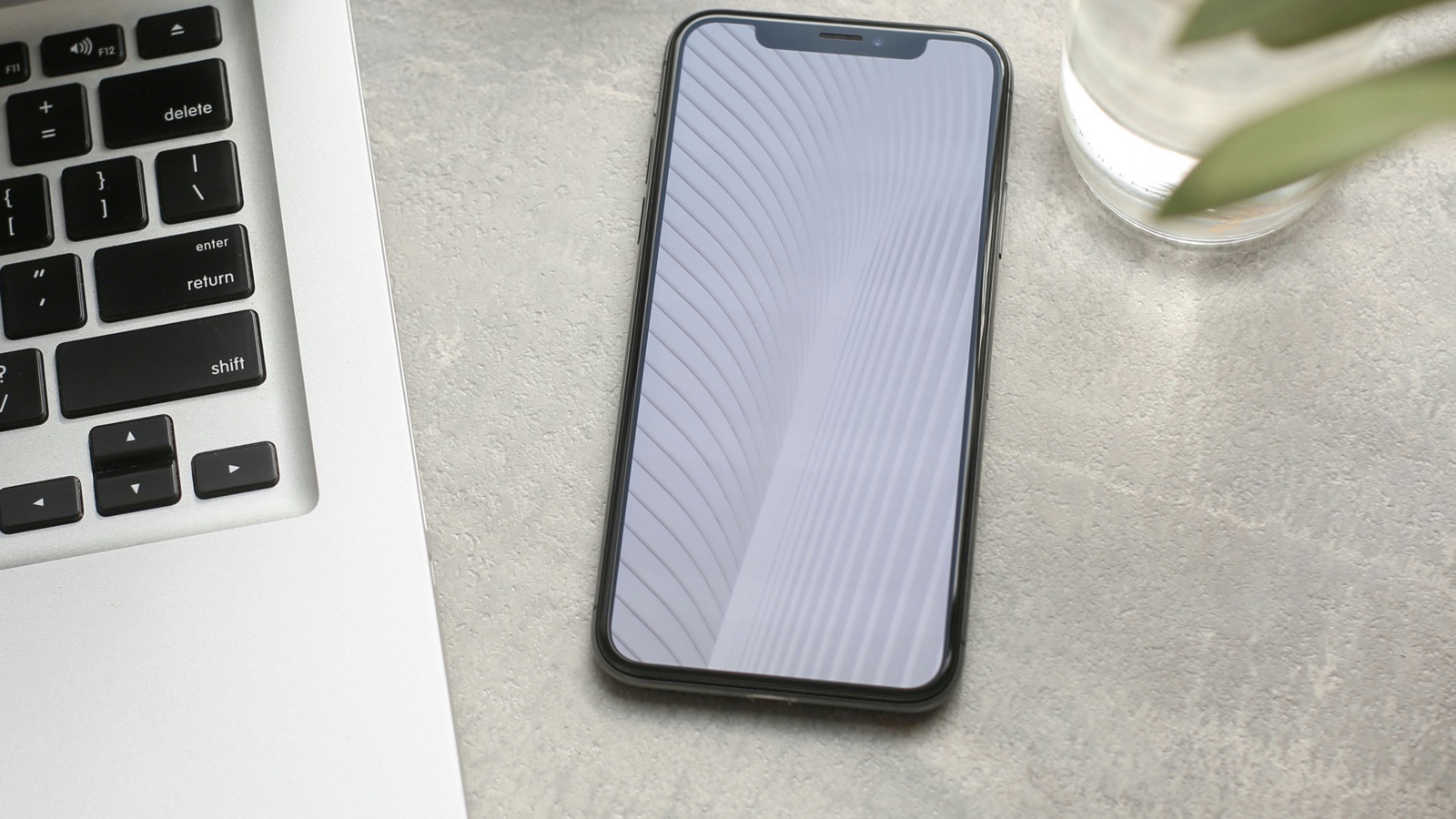
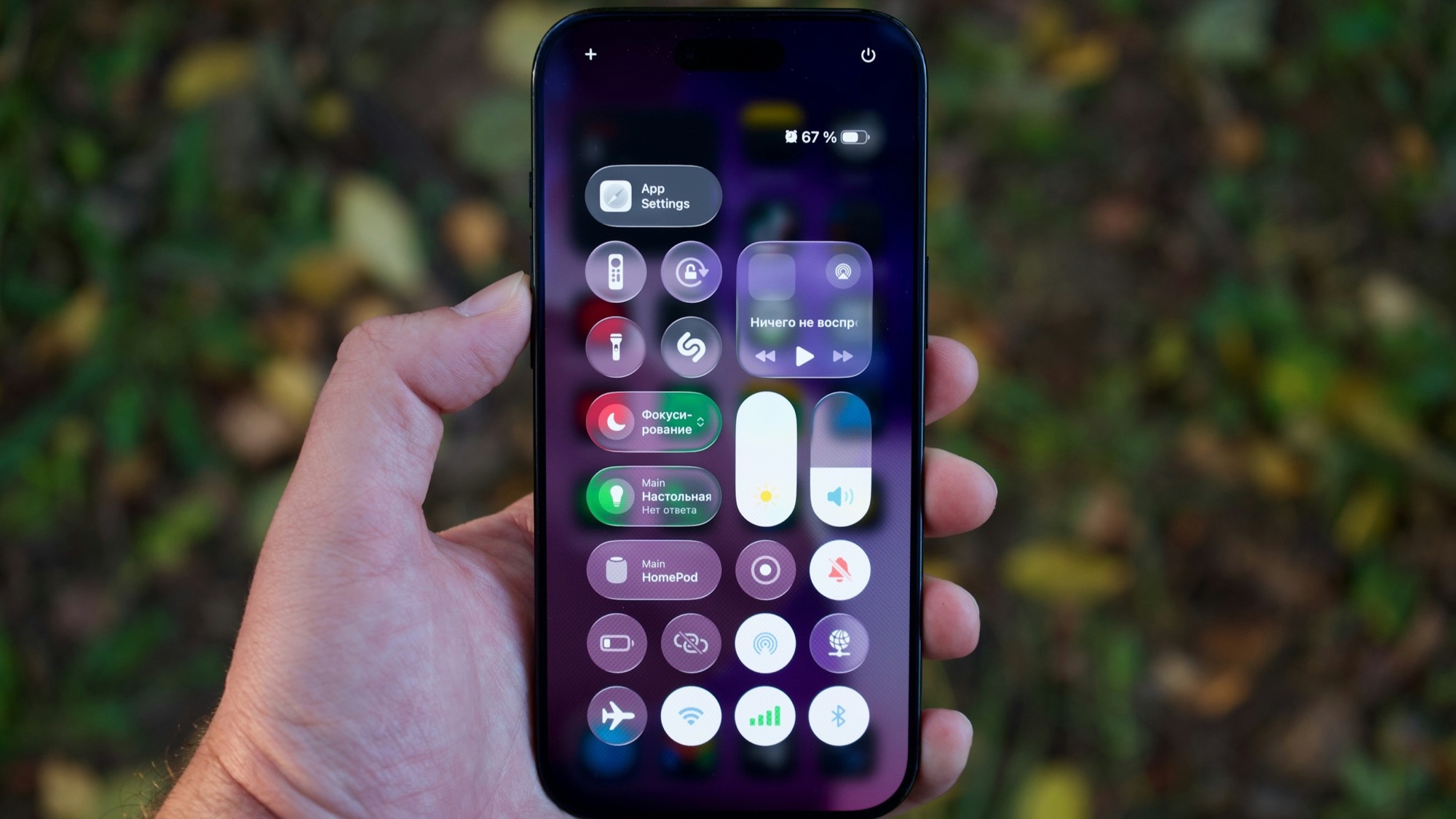
A raw screen recording is just a rectangle of pixels. No bezel, no depth, no sense that it's actually running on a phone in someone's hand — it's a flat capture of a screen, and on a landing page or in a tweet, it tends to just blend into whatever's around it. Drop the same footage inside a phone mockup — a bit of visible bezel, a notch or punch-hole in the right place, some breathing room around it — and it suddenly reads as a real product, not a screen grab someone attached to a bug report.
That gap is the whole reason phone mockups exist. This post is about getting the mockup itself right, since that's the part people usually get wrong when they try to add one for the first time.
What a phone mockup actually needs to get right
A mockup is a simple idea with a few details that are easy to miss:
- The aspect ratio has to match. A device frame is built around a specific screen cutout — a fixed rectangle at a fixed ratio. If your recording is a different ratio, it either gets squeezed to fit (a visibly distorted UI) or cropped (losing content off the edges). This is the single most common mistake, and it's usually invisible until you actually export and look at the result at full size.
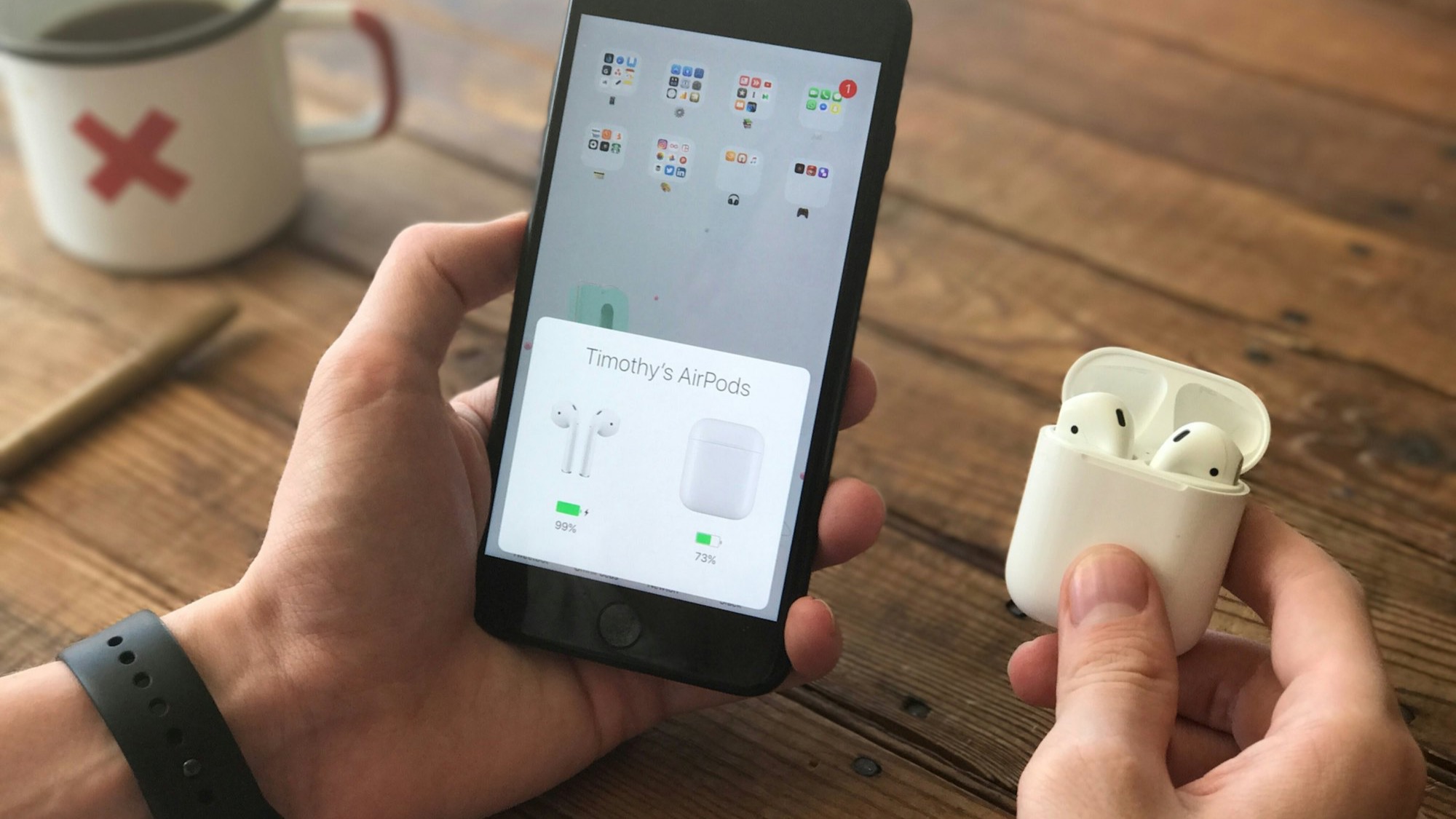
- The bezel has to match the device generation you're implying. A frame with an old-style home button reads as an old phone; a frame with a big notch reads as a specific era of iPhone; a punch-hole camera reads as a newer Android device. Using a mismatched frame is a small thing, but it's the kind of small thing that makes a screenshot look slightly off even to someone who couldn't tell you why.
- The content has to sit exactly inside the screen cutout, not floating a few pixels off, not clipped behind the bezel's rounded corners. This is the part that's genuinely fiddly to do by hand, because the "screen" area in most frame assets isn't a perfect rectangle — it has rounded corners of its own that need to match the corner radius of whatever's playing inside it.
- Restraint on shadow and background. A heavy drop shadow and a busy gradient behind the phone can end up doing more work than the actual product on screen. The frame's job is to add context, not to become the thing people look at.
Why this is more annoying to do manually than it sounds
The usual manual path is a device frame PNG or Figma component, a shape mask cut to the screen cutout, your recording placed and scaled by eye until it lines up, then re-exported at the right resolution. It works, but every step above is a place it can go slightly wrong — and if you re-record the footage, or switch to a different device frame, you're redoing the alignment from scratch.
After Effects gives you more control (precomps, track mattes, the ability to animate the frame moving with the content), but it's a heavier tool for something that's fundamentally a repeated, mechanical task: same frame, same screen cutout, different footage dropped in each time. For a one-off hero shot, that overhead is fine. For every export of every update video, it adds up.
A simpler way to think about the problem
The alignment work — matching the recording's aspect ratio to the frame's screen cutout, getting the corner rounding right, keeping the content from clipping behind the bezel — doesn't actually change between exports. It's the same geometry every time for a given device frame. Once that's solved correctly, picking a device and having it apply automatically to whatever you just recorded is a much smaller ask than redoing a compositing pass by hand each time.
This is easiest when the recording and the framing happen in the same place, because the tool already knows the recording's real resolution and aspect ratio — it doesn't have to guess, or have you tell it, or risk a mismatch between what was captured and what the frame expects.
Common mistakes worth checking for before you publish
- A frame that doesn't match how the app actually looks. If your UI still uses an older status bar style or your target users are mostly on Android, an iPhone frame with the newest bezel can look like it's showing off a different app than the one being demoed.
- Recording in one aspect ratio, framing for another. Check this by looking at the exported result at full size, not just a thumbnail — squeezing and cropping are both easy to miss in a small preview.
- A background that competes with the product. Save the elaborate gradient or scene for a hero shot on the homepage; a device frame inside a feed post or an App Store preview usually reads better plain.
- Not checking how it looks small. A lot of first views of a demo video happen on a phone — someone scrolling a feed, checking a launch tweet. A frame with fine detail that reads fine on a desktop preview can turn into a blur at feed size. Zoom out to phone-sized before calling it done.
Where MobileStudio fits
MobileStudio is currently in early access, and framing is built into the export itself rather than a separate compositing step — pick a device frame and it aligns to whatever you just recorded, at the recording's actual resolution, without a manual masking pass. Join the waitlist to try it as it opens up, or look through real demo videos made with it to see what a properly aligned mockup should actually look like.
A screen recording and a phone mockup are the same footage — the mockup is just what makes it look like it's actually running on a device instead of sitting in a screen-capture file. Getting the geometry right is most of the work; everything else is restraint.