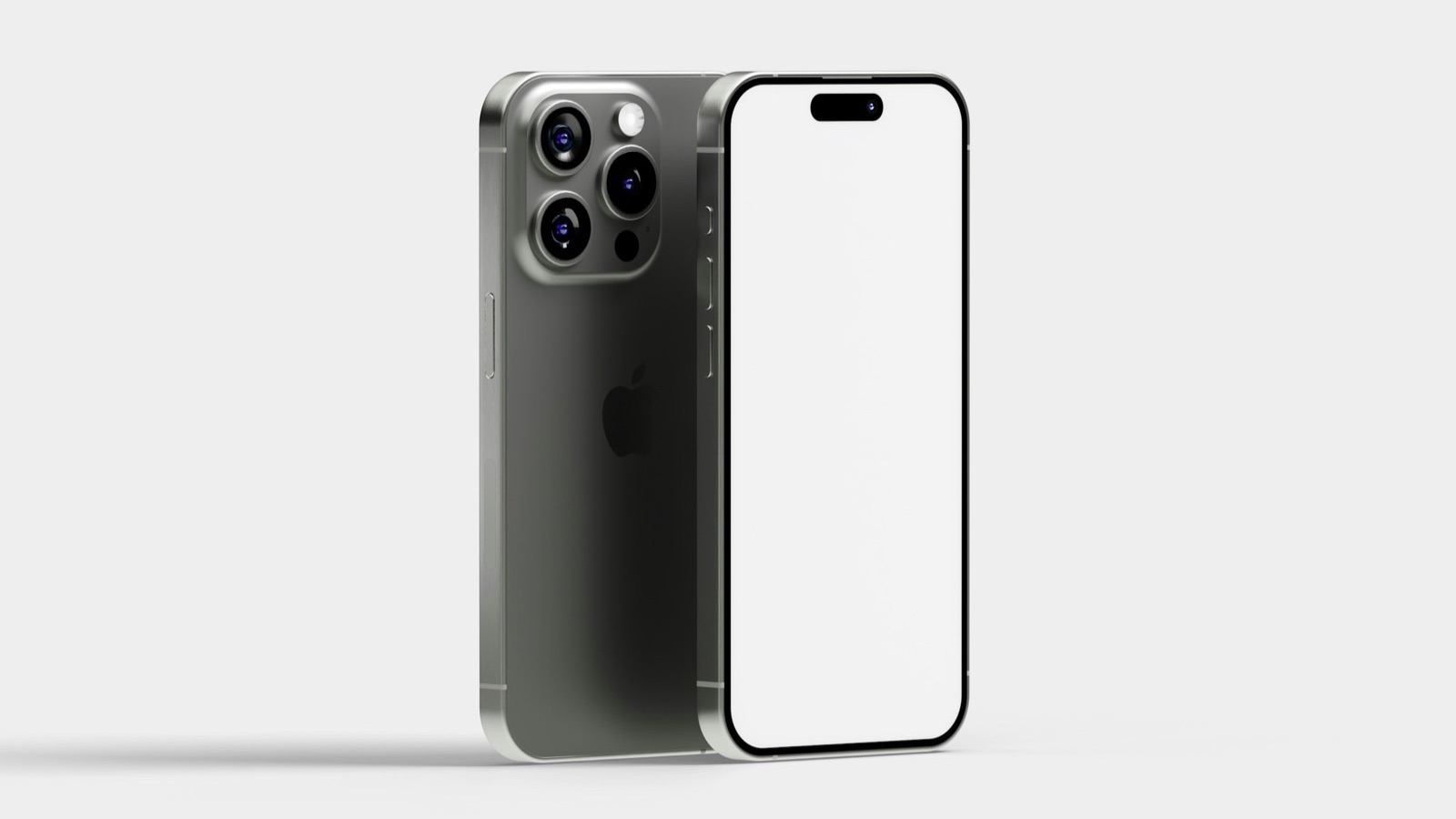
To put a screenshot in an iPhone frame, open the free MobileStudio App Mockup Generator, drop in your screenshot, choose a background and canvas size, and export a PNG or JPG. The screenshot is fitted to a realistic iPhone frame automatically, so there's no masking or lining up by hand. It works on any device, in the browser.
The short answer
| Goal | Best way |
|---|---|
| Quick framed image | App Mockup Generator |
| Full design control | Apple's bezels in Figma or Sketch |
| Framed video, not a still | MobileStudio |
| App Store screenshots | Framed images at Apple's exact sizes |
How do I frame a screenshot in my browser?
- Take a screenshot on your iPhone (press the side button and volume up together), or export a screen from your design tool.
- Open the App Mockup Generator.
- Drop the screenshot in. It's placed inside the iPhone frame.
- Choose a background: a photo scene, or a calm gradient.
- Pick a canvas size, such as 1080×1350 for a feed post or 1920×1080 for a website.
- Export as PNG or JPG.
Nothing is uploaded; the image is made on your device.
What screenshot size works best?
Use a full-resolution screenshot straight from the device, such as 1179×2556 from a recent iPhone. Avoid screenshots that were shared through chat apps, which often compress them. If you're designing in Figma, export at 3x for crisp results.
How do I frame a screenshot in Figma instead?
Download Apple's official product bezels from Apple Design Resources, place the bezel in a frame, and put your screenshot underneath, masked to the screen. Figma's frames guide explains how frames and clipping work. It takes longer but gives full control. Full steps: how to make a mockup in Figma.
Should I use a framed screenshot on the App Store?
You can, if it shows your app in use. Apple's Guideline 2.3.3 allows text and image overlays on screenshots but says they should show the app in use, not just a splash screen. Export at Apple's required sizes; see App Store screenshot sizes.
How do I make the framed image look good?
- Pick a screen with real content, not an empty state.
- Use a background that contrasts with the app's colors.
- Leave space around the phone; don't let it touch the edges.
- Use the same frame, background, and size for every image in a set.
More tips in how to make app screenshots look professional. For PNG cut-outs with transparent backgrounds, see iPhone mockup PNG.
Where can I use framed screenshots?
Almost anywhere you'd show your app: your website's hero section, a pitch deck, a launch tweet, a Product Hunt gallery, a newsletter, or a help article. Framed images read as finished product shots, while raw screenshots can look like bug reports. Export a few canvas sizes from the same screenshot, such as 16:9 for the site and 4:5 for social, so every channel gets a version that fits.
Can I frame a screen recording instead?
Yes, as a video. A framed recording shows the app moving, which works better for demos and launch videos. MobileStudio does this on your phone; see how to make a mockup video.
Where MobileStudio fits
The App Mockup Generator is one of our free tools. MobileStudio itself puts your screen recordings in device frames with smooth zooms and backgrounds, right on your phone. Get MobileStudio.
Quick FAQ
How do I put a screenshot in a phone frame for free?
Drop it into the App Mockup Generator and export.
Can I frame a screenshot on my iPhone?
Yes. The generator works in Safari.
Which iPhone frame does the generator use?
A realistic iPhone frame with the Dynamic Island design.
Can I change the background?
Yes. Choose a scene or gradient, and the canvas size.
What format should I export?
PNG for sharpness, JPG for a smaller file.