When a new iPhone comes out, designers want their app to look current. Here's how to get an accurate iPhone 17 (or newer) mockup.
Official frames: Apple Design Resources
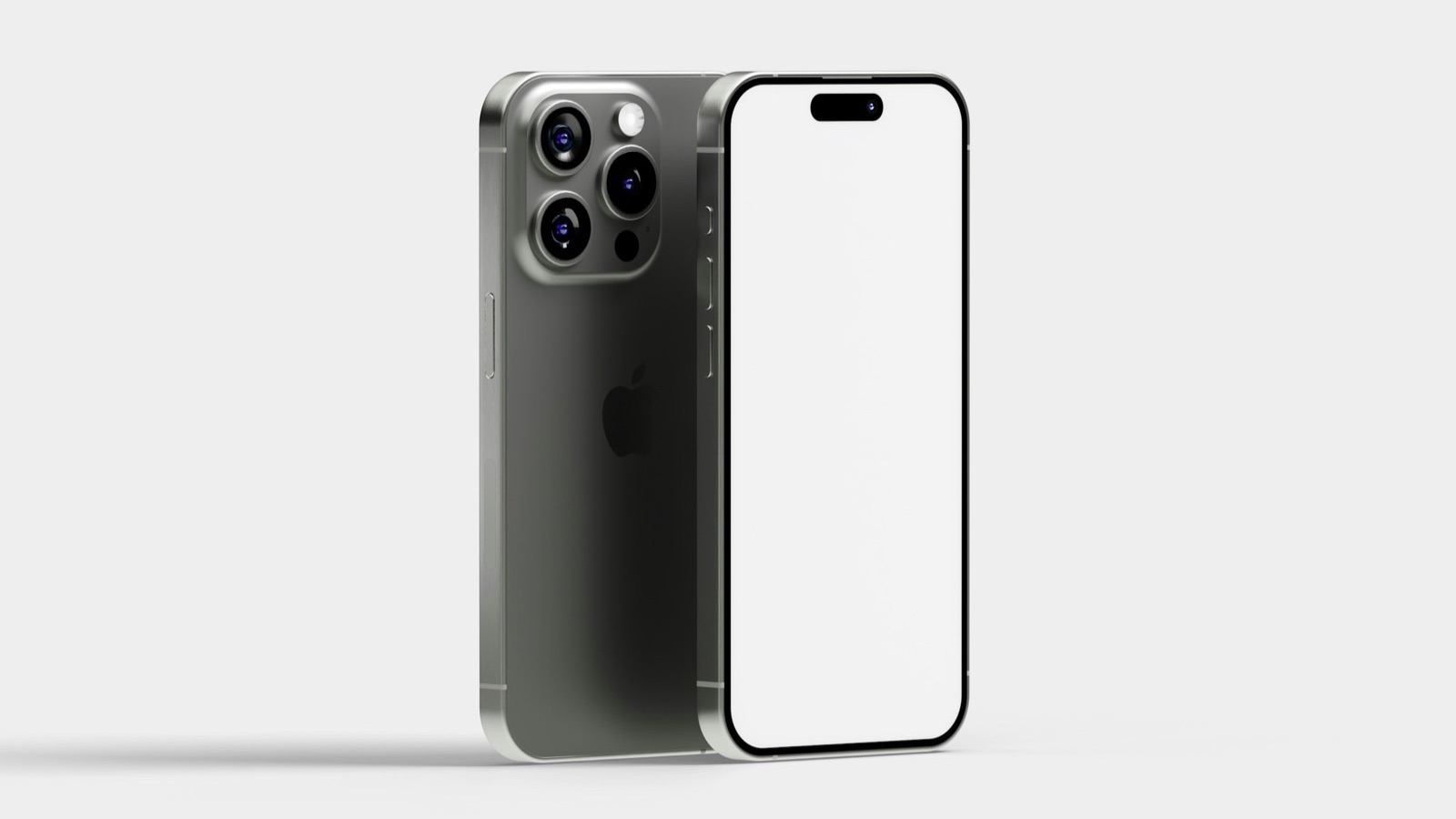
Apple publishes product bezels (device frame images) on its Apple Design Resources page, and typically adds frames for new iPhone models after they're released. These are the most accurate: correct proportions, corner radius, and camera cutout.
Check Apple's terms and marketing guidelines for how you're allowed to use them.
Community frames
Figma Community and design sites often post iPhone 17 mockups within days of launch. Before using one:
- Check the license (personal vs commercial use).
- Compare it to Apple's frame for accuracy. Early community frames can have wrong proportions.
Getting the details right
- Screen size: use a screenshot taken on the same model, or one with the same resolution, so nothing is stretched.
- Corner radius: the screenshot needs to sit under the frame's rounded corners without gaps.
- Dynamic Island: mockups should show it as on the real device. Don't place important UI underneath it.
Should you always use the newest iPhone?
Not necessarily. A slightly older or neutral frame ages more slowly in your marketing. If your audience is broad, a clean, generic frame works well too.
Mockups for video
Static frames work for screenshots. For screen recordings, you need the frame applied to every frame of the video. See phone mockup for both methods.
Free tool: the App Mockup Generator puts your screenshot in a realistic iPhone frame and exports a PNG or JPG in seconds.
Where MobileStudio fits
MobileStudio puts your app's screen recordings into polished device frames with backgrounds and zooms, right on your phone. Get MobileStudio.
Quick FAQ
Where can I get an official iPhone 17 mockup?
Apple Design Resources typically publishes bezels for new iPhones.
Can I use iPhone mockups commercially?
Check the specific license or Apple's usage terms.