A common reason people search this: they recorded in Slo-mo by accident, and now everything crawls. Good news: that one is fixable in Photos in seconds.
Fix a Slo-mo video in Photos
- Open the video in Photos.
- Tap Edit.
- Below the timeline you'll see a strip of vertical lines. The widely spaced lines in the middle are the slow-motion section.
- Drag the two tall markers at either end of that section toward each other until they meet.
- Tap Done.
Now the whole clip plays at normal speed. You can undo it later: tap Edit > Revert.
Speed up only part of a Slo-mo clip
Instead of removing slow motion completely, drag the markers to cover just the moment you want slow. Everything outside them plays at normal speed. It's great for sports or a jump.
Speed up a regular iPhone video
Photos can't make normal video faster than normal. For that, use iMovie (free from Apple):
- Start a new Movie project and add the clip.
- Tap the clip, tap Speed, and slide toward the hare (up to 2x).
- Done > Share > Save Video.
Avoid the problem next time
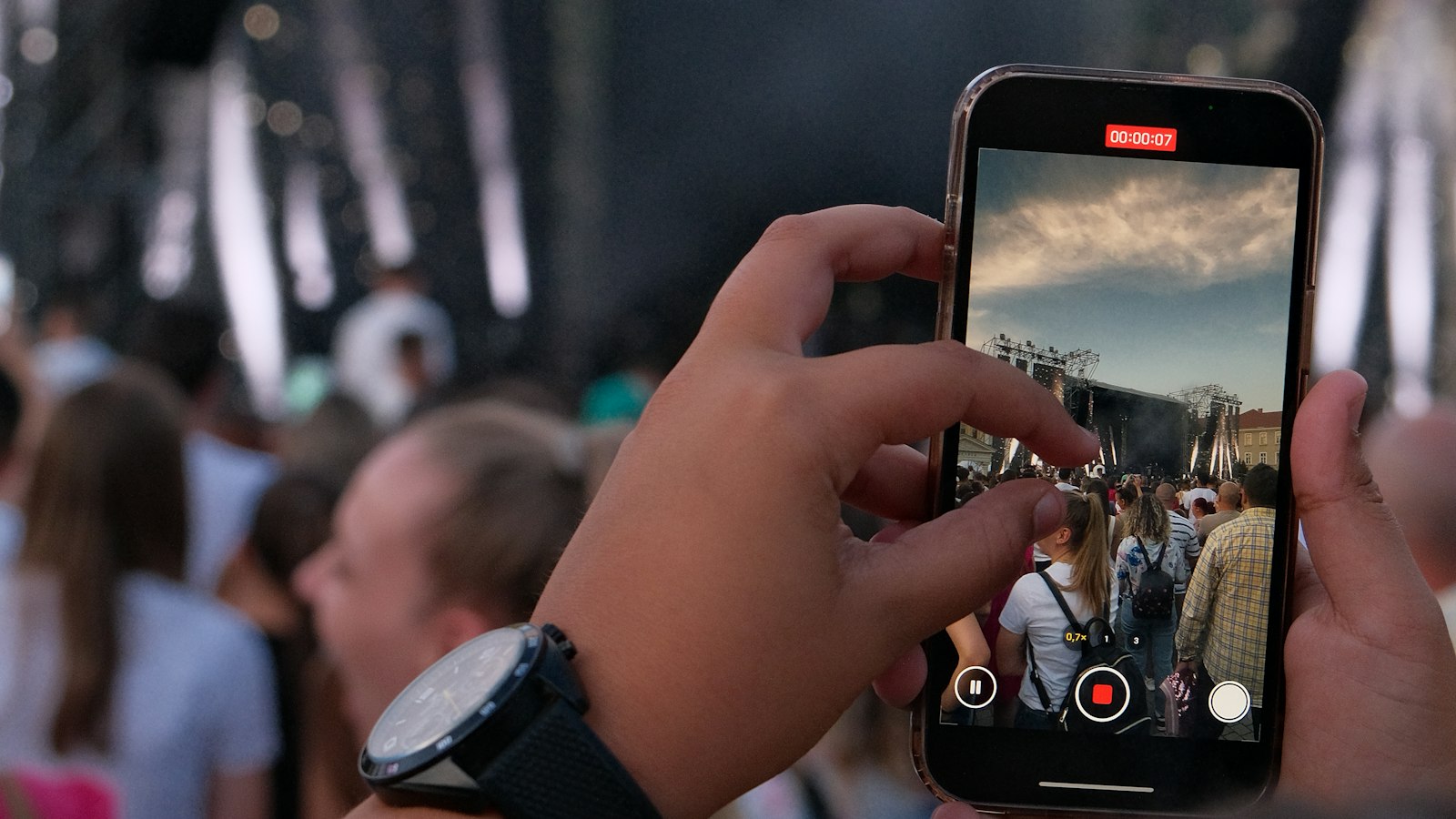
In the Camera app, check the mode name above the shutter button before you record. Video is normal speed, Slo-mo is slow, and Time-lapse is fast.
Free tool: Speed Up Video makes any video 0.25× to 4× faster or slower in your browser, with natural-sounding audio and no watermark.
Where MobileStudio fits
If what you're speeding up is a screen recording of your app, MobileStudio helps turn it into a well-paced demo, right on your iPhone. Get MobileStudio.
Quick FAQ
Can I turn a Slo-mo video back to normal on iPhone?
Yes. In Photos, tap Edit and drag the slow-motion markers together.
Does removing Slo-mo lose quality?
No. It's non-destructive and you can revert it.