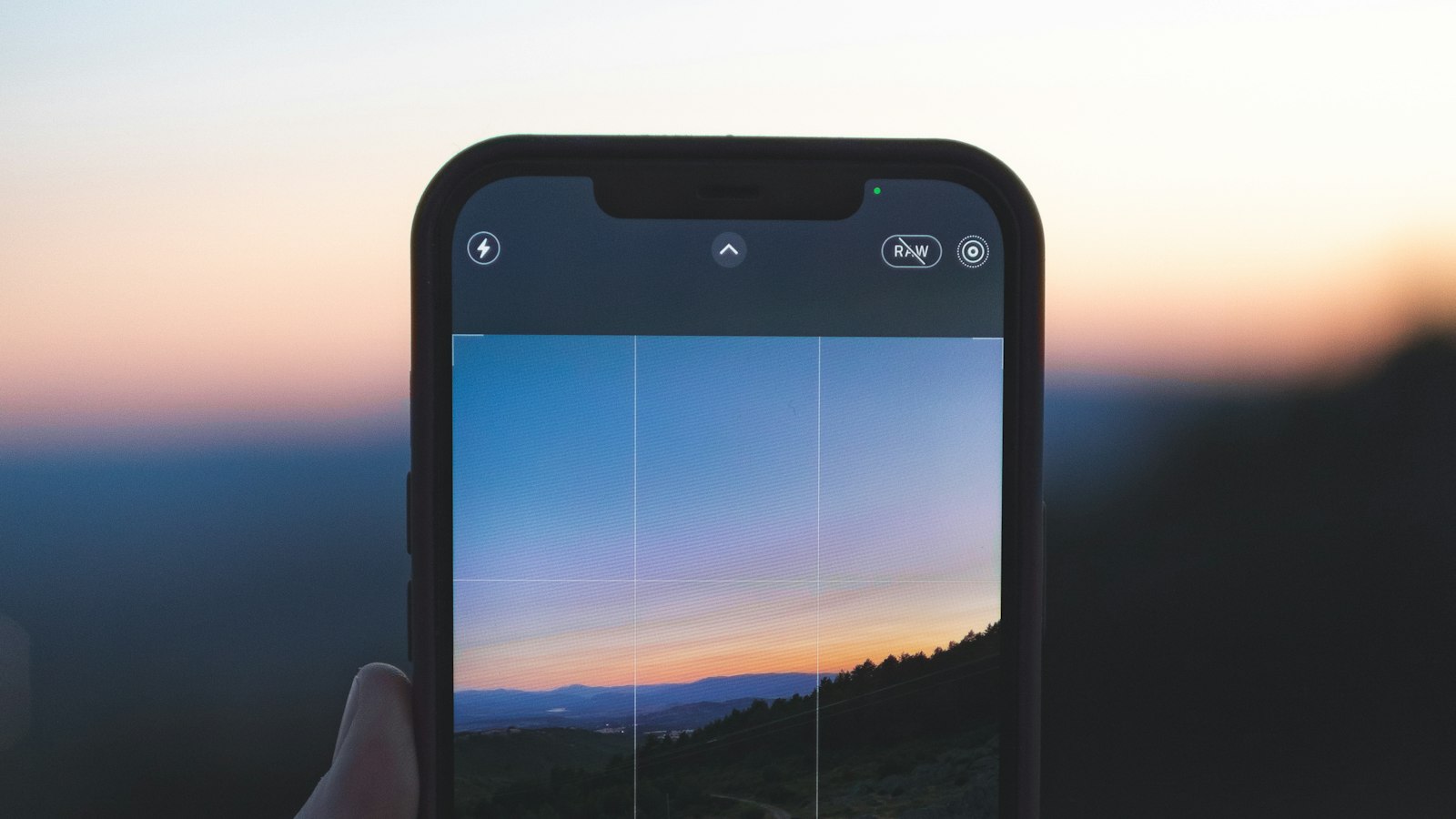
To trim a video on iPhone, open it in the Photos app, tap Edit, drag the ends of the frame viewer to the new start and end, and tap Done. Then choose Save Video to replace the original or Save Video as New Clip to keep both. It's free and built in. For frame-exact cuts, looping, or a guaranteed MP4, use the MobileStudio Video Trimmer in Safari.
The short answer
| Need | Best way on iPhone |
|---|---|
| Quick trim of the start and end | Photos app |
| Keep the original too | Photos, Save Video as New Clip |
| Cut out the middle | iMovie, split the clip |
| Exact frames, mute, or loop | Video Trimmer in Safari |
| MP4 output for Windows users | Video Trimmer exports MP4 |
How do I trim a video in the Photos app?
- Open Photos and tap the video.
- Tap Edit.
- Drag the left end of the frame viewer to the new start, and the right end to the new end. The viewer turns yellow while trimming.
- Tap the play button to check your selection.
- Tap Done, then Save Video or Save Video as New Clip.
Apple documents these steps in its trim guide. Touch and hold an end of the frame viewer to zoom in for a more precise position.
How do I undo a trim on iPhone?
Open the trimmed video, tap Edit, then Revert and Revert to Original. This only works if you chose Save Video. A video saved as a new clip is a separate file, and the original stays untouched in your library.
How do I trim a video on iPhone precisely?
Touch and hold either end of the frame viewer: the timeline expands so you can move frame by frame. For even more precision, the Video Trimmer lets you type start and end times, step one frame with the arrow buttons, and see the selection length, which helps when you need exactly 15 or 30 seconds.
How do I cut out the middle of a video on iPhone?
Photos only trims the ends. To remove a section in the middle, use Apple's free iMovie:
- Start a new Movie project with the video.
- Move the playhead to where the unwanted part starts, tap the clip, and choose Actions > Split.
- Split again at the end of the unwanted part.
- Tap the middle piece and delete it, then save the movie.
More in how to cut the middle out of a video.
Does trimming on iPhone reduce quality?
Not noticeably. Photos keeps the video's original format and quality. Apple's video editing overview covers the other edits you can make at the same time, such as crop and filters.
How do I trim a screen recording on iPhone?
The same way: screen recordings live in Photos, so tap Edit and drag the ends. Screen recordings often start and end with Control Center showing, so trimming a second or two from each end makes them look much cleaner. See how to trim a screen recording, and how to screen record on iPhone for the recording side.
Where MobileStudio fits
The trimmer is one of our free tools. MobileStudio itself turns iPhone screen recordings into polished app demos with trimming, device frames, and zooms, right on your phone. Get MobileStudio.
Quick FAQ
How do I shorten a video on iPhone?
Open it in Photos, tap Edit, drag the ends of the frame viewer, and save.
Does trimming a video on iPhone delete the rest?
With Save Video, the hidden parts can be restored with Revert. Save as New Clip keeps the original separately.
Can I trim a video on iPhone without losing quality?
Yes. Photos keeps the original quality.
Why can't I trim a video in Photos?
Shared videos from iCloud Shared Albums or some apps may need saving to your library first.
How do I trim a long video into a short clip for Instagram?
Trim in Photos or the browser trimmer, keeping the length your post needs.