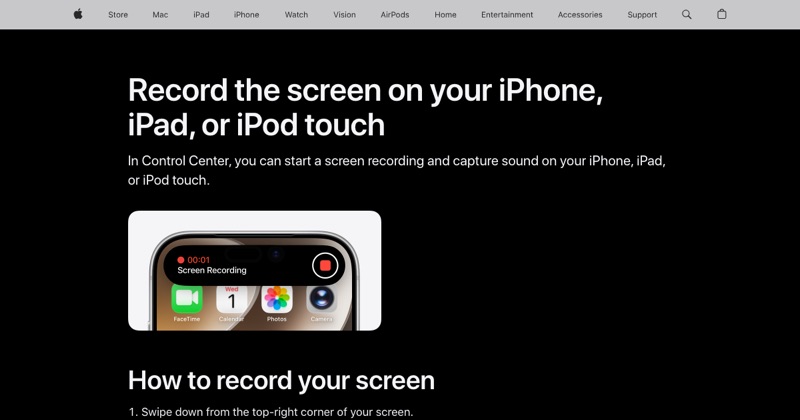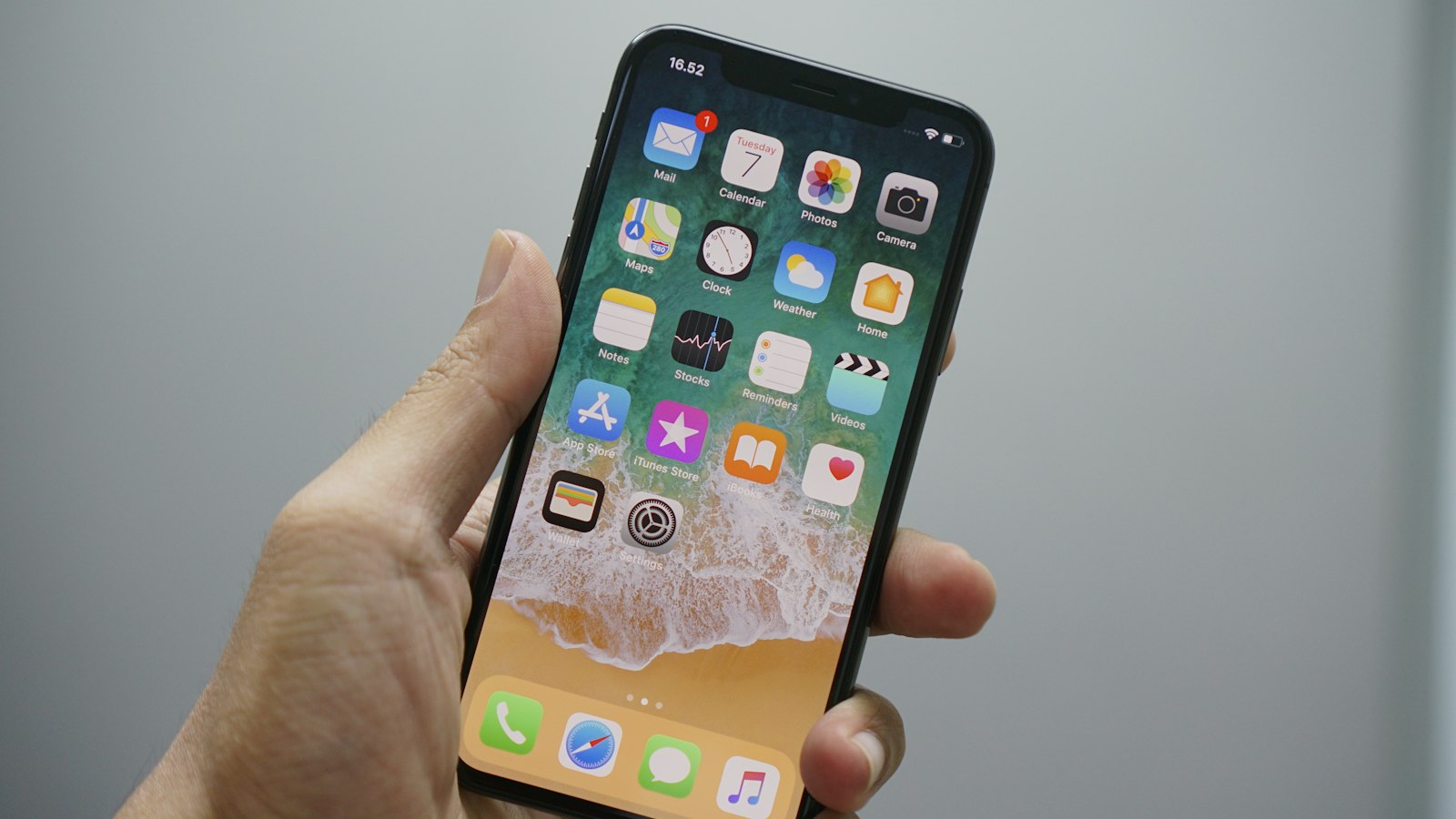
All four iPhone 12 models screen record the same way. The only practical difference is reach: on the 12 mini everything is close, and on the 12 Pro Max the top-right corner is a stretch.
Steps for every iPhone 12 model
- Swipe down from the top-right corner to open Control Center.
- Tap the Screen Recording button.
- After the three-second countdown, the recording starts.
- Stop by tapping the red indicator around the clock at the top-left, then Stop.
Your video saves to Photos.
Button missing? Tap + > Add a Control in Control Center (iOS 18 and later), search Screen Recording, and add it.
Tip for the 12 Pro Max: Reachability
If swiping from the top-right corner is awkward one-handed, turn on Reachability in Settings > Accessibility > Touch. Swipe down on the bottom edge to bring the top of the screen within reach, then swipe down from the top-right.
Recording with sound
App sound is recorded by default. For your voice, touch and hold the Screen Recording button, turn on Microphone, then Start Recording.
Storage
The base iPhone 12 and 12 mini started at 64GB. Long recordings can fail to save when space is tight, so check Settings > General > iPhone Storage first.
Common iPhone 12 issues
- Grayed-out button: Settings > Screen Time > Content & Privacy Restrictions > Content Restrictions > Screen Recording > Allow.
- No sound from a call: call audio is never recorded. See why recordings go silent.
Where MobileStudio fits
Recording your app on an iPhone 12? MobileStudio frames and polishes the recording into an app demo on your phone. Get MobileStudio.
Quick FAQ
Does the iPhone 12 mini record at lower quality?
Recordings follow the screen's resolution, so the smaller screen produces a smaller video.
Can iPhone 12 record the screen with audio?
Yes. App audio by default, and your voice if you turn on the mic.