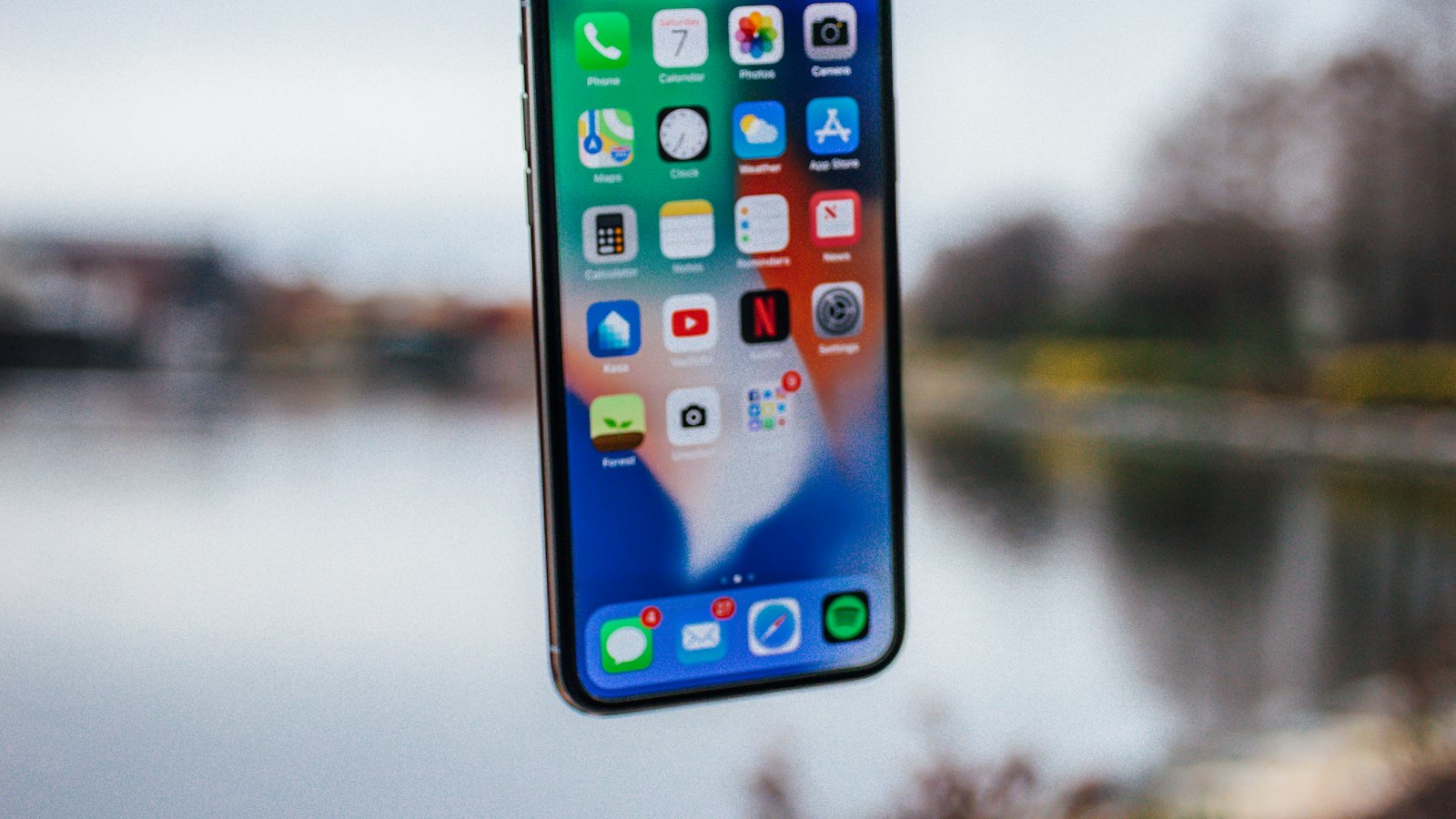
The iPhone 11 family records its screen exactly like newer iPhones. The main differences are where the recording indicator appears and how much storage you have to play with.
Steps for iPhone 11, 11 Pro, and 11 Pro Max
- Swipe down from the top-right corner (to the right of the notch) to open Control Center.
- Tap the Screen Recording button, the circle inside a ring.
- Wait for the three-second countdown.
- To stop, tap the red indicator at the top-left, around the clock, and tap Stop.
The video saves to Photos.
No button? Tap + > Add a Control in Control Center and add Screen Recording. If your iPhone 11 is still on iOS 17, add it in Settings > Control Center instead.
Where you'll see that it's recording
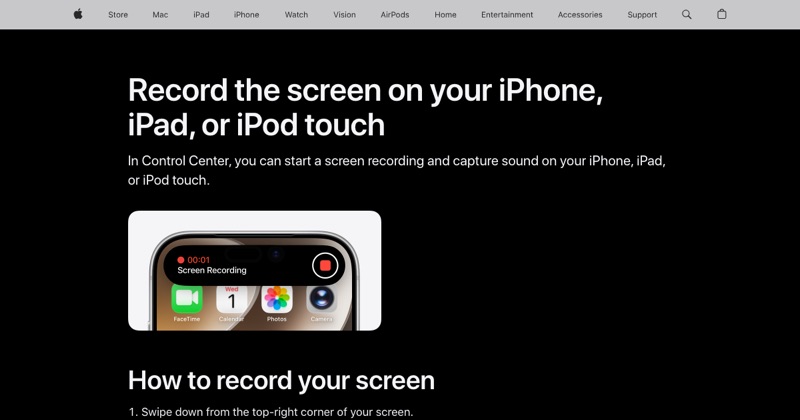
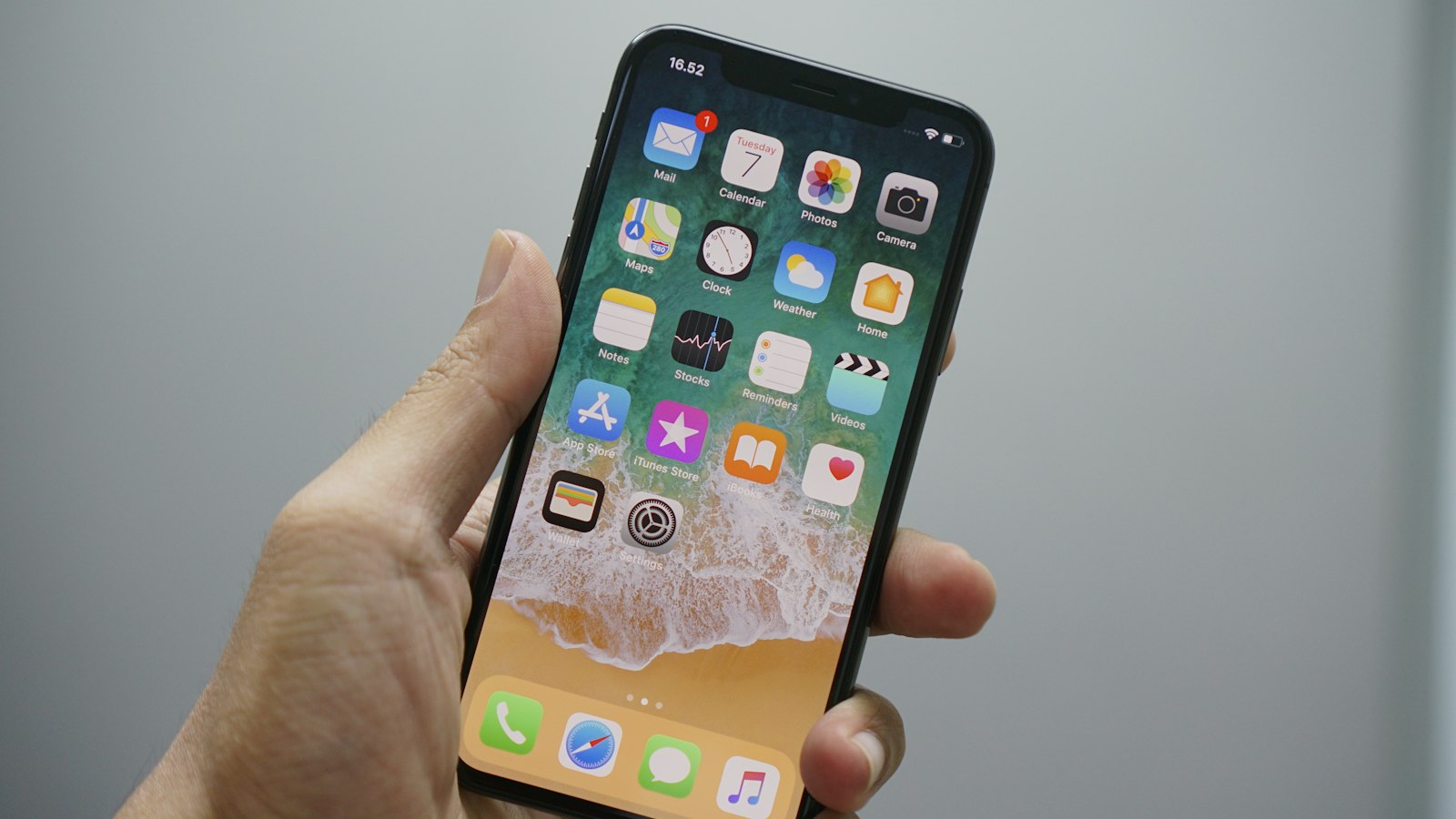
The iPhone 11 has a notch, not a Dynamic Island. While recording, the clock area in the top-left corner turns into a red pill. That's what you tap to stop.
Record with your voice
Touch and hold the Screen Recording button, turn Microphone on, and tap Start Recording.
Storage on iPhone 11
Many iPhone 11 models shipped with 64GB, which fills up fast. Screen recordings are large, so:
- Check free space in Settings > General > iPhone Storage before a long recording.
- Delete or offload recordings you've already shared.
If a recording stops by itself or fails to save, low storage is the most likely cause.
Which iOS can iPhone 11 run?
iPhone 11 runs iOS 26. Check Settings > General > Software Update to see what your phone is offered now. The screen recording steps are the same on any version from iOS 18 up.
For more fixes and tips, see the full iPhone screen recording guide.
Where MobileStudio fits
Recording an app on your iPhone 11? MobileStudio turns the raw clip into a polished demo with a device frame and zooms, right on the phone. Get MobileStudio.
Quick FAQ
Is screen recording different on iPhone 11 Pro?
No. The 11, 11 Pro, and 11 Pro Max all work the same way.
Why does my iPhone 11 recording stop early?
Usually low storage, especially on 64GB models.