Most iPhone screen recordings get watched once and deleted, usually because they're too long, start in the wrong place, or move too fast to follow. The recording itself is easy. Here's how to make it useful.
The basics: record your iPhone screen
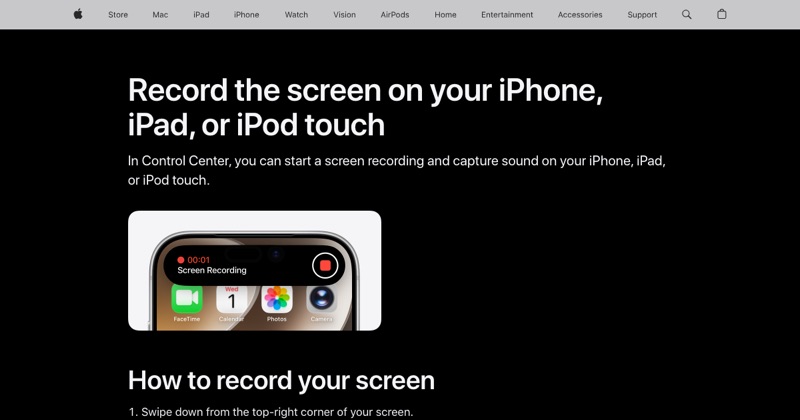
- Swipe down from the top-right corner to open Control Center.
- Tap the Screen Recording button (a circle inside a ring). If it's missing, tap + > Add a Control and add it.
- Wait for the three-second countdown, then do what you want to show.
- Tap the red indicator at the top of the screen and tap Stop.
The video lands in Photos.
Before you hit record
Know what you're showing. Write one sentence: "This shows how to export a report." Anything that doesn't serve that sentence gets left out.
Start on the right screen. Open the app and navigate to the starting point first. Nobody wants to watch you hunt for an app on your home screen.
Clean up. Turn on Do Not Disturb, close unrelated apps, and if it's your own app, use realistic demo data rather than "test test test".
While you record
- Move slower than feels natural. Pause about a second on each screen so viewers can read it.
- Tap deliberately. Quick flicks look like jump cuts in a recording.
- Narrate only if it helps. For a quick how-to, a silent recording with captions is often clearer. To add your voice, touch and hold the record button and turn the microphone on.
After you record
Open it in Photos, tap Edit, and trim the first and last few seconds. Watch it once at normal speed. If you got lost, so will your viewer: record again rather than explaining it in a message.
Common reasons to record your iPhone screen
- Showing a family member how to change a setting.
- Reporting a bug to a developer, so they see exactly what happened.
- Saving a moment in a game.
- Showing off an app you built.
That last one is where a raw recording usually isn't enough.
Where MobileStudio fits
MobileStudio takes an iPhone screen recording of your app and turns it into a polished demo, with a device frame, background, and zooms, right on the phone. Get MobileStudio.
Quick FAQ
How long can I record my iPhone screen?
Apple doesn't set a limit. Free storage and battery decide it.
Can I record just one app?
No, iPhone records the whole screen. Crop afterwards in Photos.