If you only need the conversation, not the video, recording FaceTime is much easier. Apple's built-in Call Recording handles one-to-one FaceTime audio calls on both iPhone and Mac.
On iPhone
- Start a one-to-one FaceTime audio call.
- Tap the record button on the call screen.
- Everyone hears that the call is being recorded.
- Stop recording, or hang up.
Recordings save to Notes > Call Recordings, with a transcript in supported languages.
On Mac
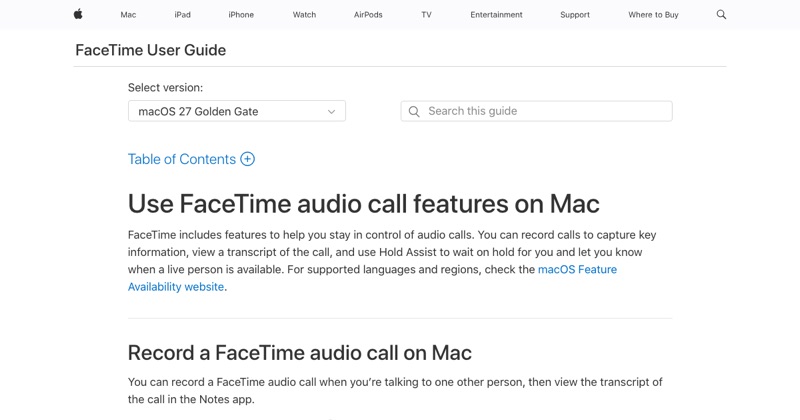
Apple's FaceTime guide for Mac lists call recording for FaceTime audio calls too:
- Start an audio call in the FaceTime app.
- Click the record button in the call window.
- Everyone is notified.
- The recording and transcript are available in Notes.
Requirements
- A recent version of iOS or macOS (iOS 18.1 and later on iPhone).
- A supported region and language. Call Recording isn't available everywhere, including some EU countries.
- A one-to-one call. Group calls aren't supported.
Already on a video call?
You can't use Call Recording on a FaceTime video call. Either switch to an audio call, or use a Mac with BlackHole or Audio Hijack. Video call methods.
Exporting the audio
In Notes, open the recording and use Share to save the audio file to Files, or send it.
No record button?
Check your iOS version, and whether Call Recording is offered in your region. The option simply doesn't appear where it isn't supported.
Where MobileStudio fits
MobileStudio doesn't record calls. It turns screen recordings of your app into polished demos. Get MobileStudio.
Quick FAQ
Can I record FaceTime audio on Mac?
Yes, with Call Recording for audio calls, where available.
Do I get a transcript?
Yes, in supported languages.