Almost everyone who screen records FaceTime hits the same wall: the video is fine, your voice might be there, but the other person is silent. Here's why, and what actually fixes it.
What a screen recording captures
An iPhone screen recording captures two audio sources, at most:
- App audio: the sound apps play through the system.
- Your microphone, if you turned it on.
Why FaceTime audio isn't included
Call audio is handled differently from normal app sound. Apple excludes it from screen recordings, so a recording can't secretly capture the other side of a call. It's the same for phone calls and most other calling apps.
That's why a FaceTime screen recording gives you:
- The video: yes.
- Your voice: only if the mic is on.
- Their voice: no.
What works instead
Let the mic hear them. Put the call on speaker with the mic on during screen recording. The other person's voice is captured through the air, at lower quality. iPhone steps.
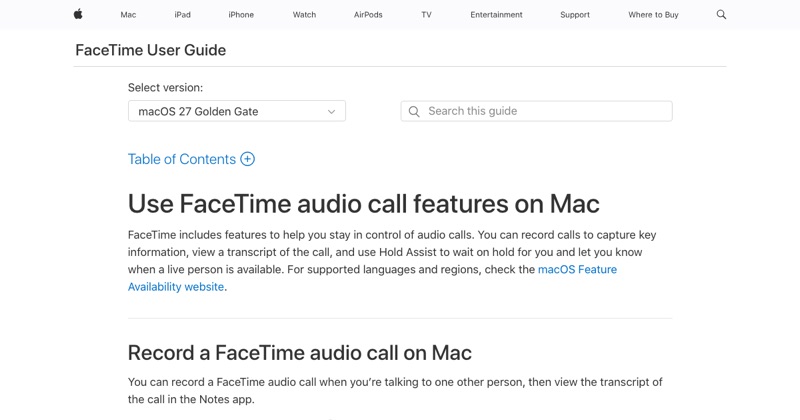
Use Apple's Call Recording. For one-to-one FaceTime audio calls, in supported regions, iOS 18.1 and later can record both sides and announce it to everyone.
Use a Mac. Route FaceTime's sound into a recorder with BlackHole or Audio Hijack. This is the cleanest option for video calls. Mac steps.
What doesn't work
- Third-party screen recorder apps on iPhone. They use the same system and have the same restriction.
- Changing settings. There's no toggle to include call audio.
Where MobileStudio fits
MobileStudio can't capture call audio either. Nothing on iPhone can. What it does is turn screen recordings of your app into polished demos. Get MobileStudio.
Quick FAQ
Is there a setting to record FaceTime audio?
No. Use Call Recording for audio calls, or a workaround.
Will a screen recorder app fix it?
No. They share the same iOS restriction.