Most weak app demos fail before anyone presses record: there is no plan, so the video wanders through menus. This template gives you a plan. Fill in the blanks, record to the script, and cut anything that is not in it.
The short answer
A good 30-second demo has five beats: the result, the problem, the flow, the payoff, and the name. Each beat is one idea and one screen. If a beat needs two ideas, split it or cut one.
The template
| Time | What is on screen | What it says (voiceover or caption) |
|---|---|---|
| 0 to 3 s | The finished result your app produces | "[Result] in [time or taps]." |
| 3 to 8 s | The moment the problem happens | "You [describe the annoying thing]." |
| 8 to 20 s | The core flow, one tap per step | "Tap [A], choose [B], done." |
| 20 to 26 s | The payoff screen | "[What you get]. [One piece of proof]." |
| 26 to 30 s | App name and where to get it | "[App name]. Free on [store]." |
Copy this table into your notes and fill every cell before you record. If a cell is hard to fill, that is usually a sign of where the video is unclear.
A worked example
This is a made-up budgeting app, only to show how the blanks fill in.
| Time | On screen | Says |
|---|---|---|
| 0 to 3 s | The monthly summary, all categories green | "Know where your money went in one glance." |
| 3 to 8 s | A messy bank statement scrolling by | "Statements are a wall of numbers." |
| 8 to 20 s | Tap Import, pick the file, categories fill in | "Import it. The app sorts every line." |
| 20 to 26 s | The summary chart, with one category zoomed | "See the one habit that costs you most." |
| 26 to 30 s | Logo and the store badge | "Budget Example. Free on Google Play." |
Notice what the example does not do: it never explains settings, never shows sign-up, and never says "welcome".
Rules that keep the script short
- One idea per beat. If you write "and" in a cell, you probably have two beats.
- Seven words or fewer on screen at a time. Text that takes longer to read than to show gets skipped.
- Show, do not describe. If the screen already shows it, the voiceover should add the reason, not repeat it.
- Cut every wait. Loading spinners, keyboards sliding up and typing are the first things to trim.
- Put the result first. People decide whether to keep watching almost at once, so open on the outcome. More on that in the posts on product demo video guide and the launch checklist.
Voiceover or captions?
Use captions at the very least. A demo that only works with sound is fragile: Google Play, for one, autoplays a store preview video muted, and only for its first 30 seconds (Google's guidance). If you also record a voiceover, write it from the right-hand column of the template, and keep it short enough to say calmly.
Record to the script
- Prepare the app first: sample data in place, notifications off, battery and clock tidy.
- Record each beat as its own short take, not one long run. Retakes are cheaper that way.
- Do the flow slower than feels natural. You can speed up or trim later, but you cannot slow down a rushed tap.
- Record the payoff screen last, when the app is in its best state.
Edit it down
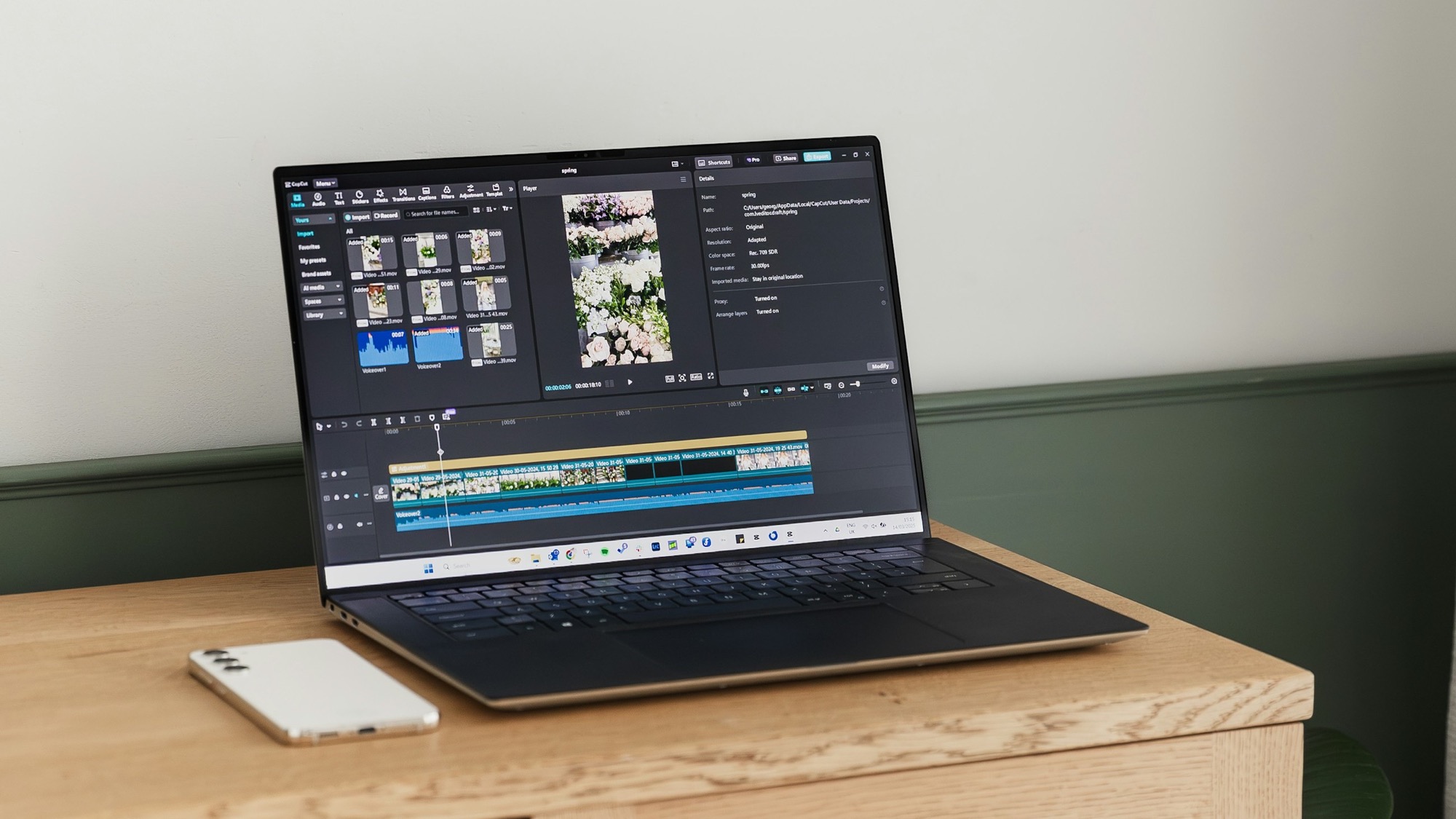
Trim the starts and ends of each take, then join them. Add a short zoom on the tap that matters, and put the recording in a phone frame on a plain background so it looks finished. For the trimming steps, see how to trim a screen recording.
Where MobileStudio fits
MobileStudio is a phone app for the edit step: import your screen recording, trim and split it, add phone mockups and backgrounds, and use the Zoom Timeline to push in on the key tap, then export landscape, square or portrait. It is on Google Play, and an iPhone version is on the way.
Quick FAQ
How long should the script be?
For a first demo, about 30 seconds. If you cannot fill the five beats in 30 seconds, the flow is probably doing too much for one video.
Should I write a voiceover or just use captions?
Write the captions first. Add a voiceover only if it adds a reason the screen cannot show.
Can I reuse the same script for different platforms?
Yes. Keep the beats the same and export different shapes, for example landscape for a website and portrait for social. See video aspect ratios explained.