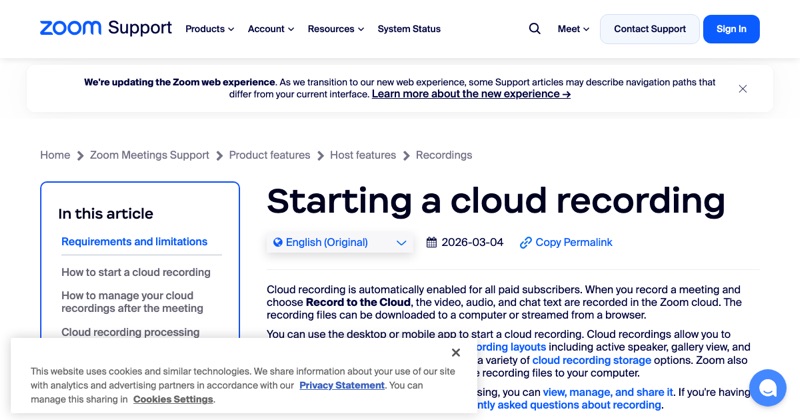
There are two ways to "screen record" a Zoom call: Zoom's own Record button, or a separate screen recorder on your computer or phone. They're not the same.
Option 1: Zoom's built-in recording (recommended)
- Click Record in the meeting controls (desktop), or More > Record on mobile.
- Records the meeting's audio, video, and any shared screen.
- Everyone sees that the meeting is being recorded.
- You need to be the host, a co-host, or have the host's permission.
Local recordings are saved to your computer; cloud recordings (paid plans) go to your Zoom account.
Option 2: Your device's screen recorder
- Mac: Shift + Command + 5, or QuickTime.
- Windows: Snipping Tool's video mode, or Xbox Game Bar (Windows + Alt + R).
- iPhone or Android: the built-in screen recorder.
Watch out for audio. On a phone, screen recordings often don't capture the other participants' voices from a call. On a computer, you may need to set the recorder to capture system audio.
Which should you use?
| Situation | Use |
|---|---|
| You're the host | Zoom's Record button |
| You need everyone's audio reliably | Zoom's Record button |
| You're recording yourself presenting | Zoom's Record button, alone in a meeting |
| You only need your own shared screen | Device screen recorder |
Recording a shared screen
If you want to capture a demo you're presenting, Zoom's recording includes the shared screen automatically. Choose a layout in Zoom's recording settings (like "shared screen with active speaker").
A note on consent
Whichever method you use, tell people you're recording. A device screen recorder doesn't trigger Zoom's notice, so the responsibility is yours.
Where MobileStudio fits
Demoing a mobile app on Zoom? Record the app on your phone instead, and MobileStudio turns that recording into a polished demo you can share before or after the call. Get MobileStudio.
Quick FAQ
Does Zoom know if I screen record?
Zoom's own recording shows a notice. A device screen recorder doesn't, so tell people yourself.
What's better for quality?
Zoom's recording is the most reliable for audio.