The iPhone 13 family records its screen the same way as other Face ID iPhones. The 13 Pro models add one twist: a 120Hz ProMotion display.
Steps for iPhone 13, 13 mini, 13 Pro, and 13 Pro Max
- Swipe down from the top-right corner to open Control Center.
- Tap the Screen Recording button.
- Wait for the three-second countdown, then close Control Center.
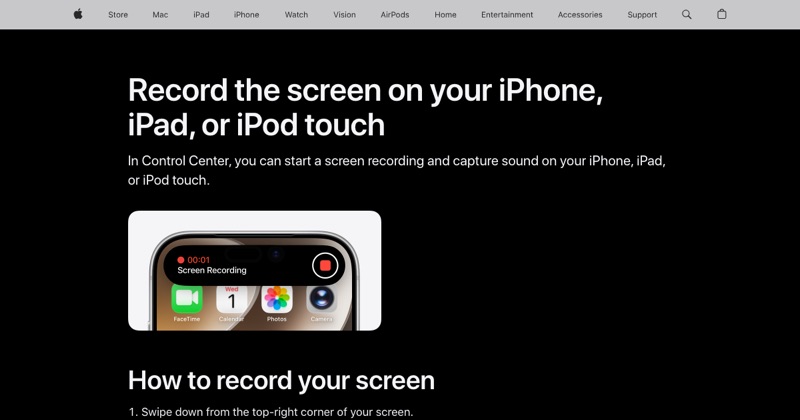
- To stop, tap the red indicator in the top-left corner and tap Stop.
The video saves to Photos.
Need to add the button? In Control Center tap + > Add a Control, search Screen Recording, and add it.
Where the indicator appears
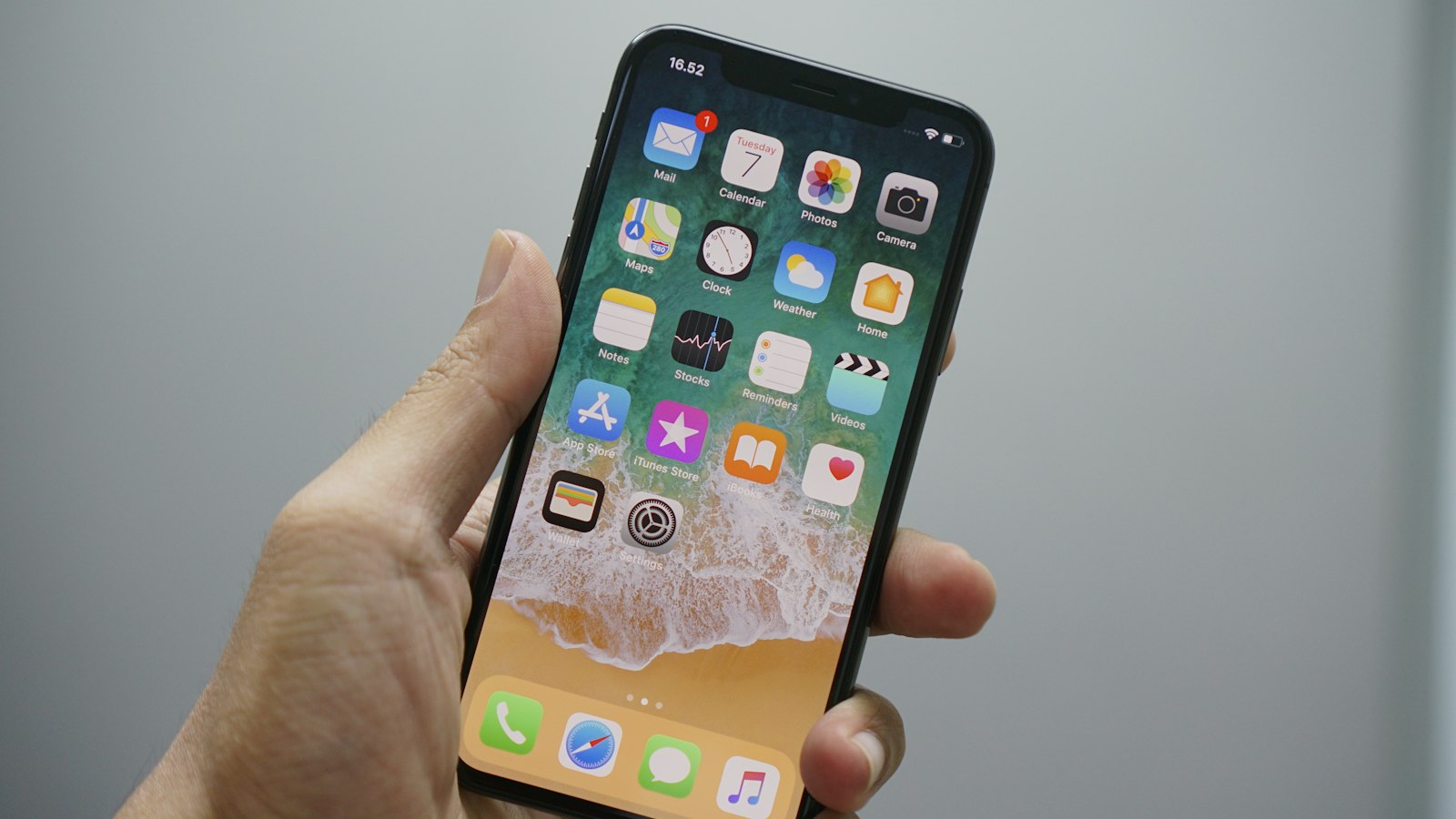
iPhone 13 models have a notch (smaller than the iPhone 12's). While recording, the clock in the top-left corner turns into a red pill.
ProMotion on the 13 Pro
The 13 Pro and 13 Pro Max displays refresh at up to 120Hz, so scrolling looks very smooth on the phone itself. Your screen recording won't necessarily capture all of that smoothness. Recordings are typically saved at a lower frame rate. If smooth scrolling matters in your video, scroll more slowly than you normally would.
Recording sound
App sound is captured automatically. To add your voice, touch and hold the Screen Recording button and turn on Microphone.
Storage
iPhone 13 models start at 128GB, which handles recordings comfortably. Still, check free space before recording anything long.
Where MobileStudio fits
Making a demo of your app on an iPhone 13? MobileStudio adds a device frame, background, and zooms to the recording right on your phone. Get MobileStudio.
Quick FAQ
Are iPhone 13 Pro screen recordings 120fps?
Generally no. Recordings are saved at a lower frame rate than the display.
Is the process different on the 13 mini?
No. Every iPhone 13 model works the same way.