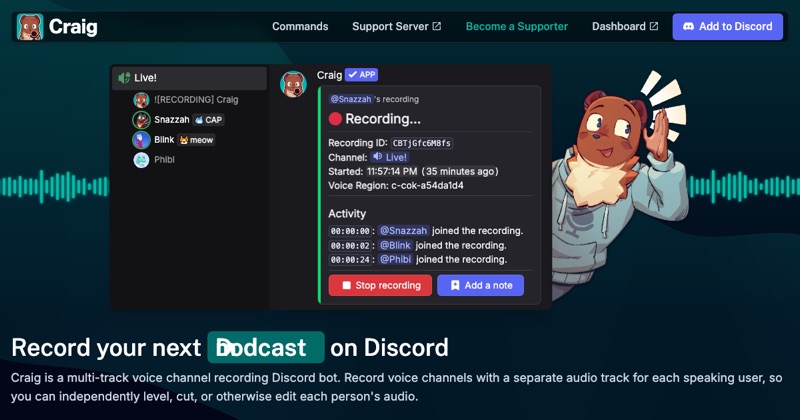
For recording voice channels on a Discord server, like a podcast, a meeting, or a game session, the Craig bot is the most popular option. It records each person on a separate audio track.
What you need
- A Discord server (Craig works in server voice channels, not one-to-one DMs).
- Permission to add bots to that server, or someone who has it.
Step 1: Add Craig to your server
- Go to craig.chat and choose the option to invite Craig.
- Pick your server and authorize it.
Step 2: Start recording
- Join the voice channel you want to record.
- In a text channel, use Craig's join command (Craig uses Discord's slash commands; type / and look for Craig's join option).
- Craig joins the voice channel and starts recording.
Craig makes it visible that it's recording, so everyone in the channel can see.
Step 3: Stop and download
- Use Craig's stop command.
- Craig sends you a link (by direct message) to download the recording.
- Choose a format. Multi-track downloads give each speaker their own file.
Why separate tracks matter
If one person is too quiet or has background noise, you can fix their track without affecting anyone else's. That's ideal for podcasts.
Limits to know
- Craig records audio only, not video or screen shares.
- It works in server voice channels. For DM calls or video, use OBS on a computer. Desktop method.
- Check Craig's site for current recording length and plan limits.
Consent
Tell everyone before you start. Craig's visible recording status helps, but say it out loud too.
Where MobileStudio fits
MobileStudio isn't a call recorder. It turns screen recordings of your app into polished demos. Get MobileStudio.
Quick FAQ
Does Craig record video?
No, audio only.
Can Craig record DMs?
It's built for server voice channels. Use OBS for DMs.