A great demo can be ruined by one text message sliding in from the top. Preparing the phone takes five minutes and makes the video look professional. Here is the checklist, with the exact steps for iPhone and Android.
The short answer
Silence notifications, put the status bar in a tidy state, load sensible sample data, and record a short test before the real take. On iPhone, a Focus silences alerts. On many Android phones, the System UI demo mode can set a clean status bar.
Before you record: the checklist
- Notifications off. Silence alerts for the whole recording.
- Charge the phone, or plug it in. A low-battery warning popping up is a classic ruin.
- Tidy status bar. A sensible clock, full signal and no stray icons.
- Sample data in place. Realistic names and numbers, no private information, no test junk.
- Light or dark mode chosen and used throughout. Do not switch halfway.
- Auto-rotate set the way you want, so the screen does not flip mid-demo.
- Close other apps so nothing unexpected opens.
- Record a ten-second test and watch it before the real take.
iPhone: silence notifications with a Focus
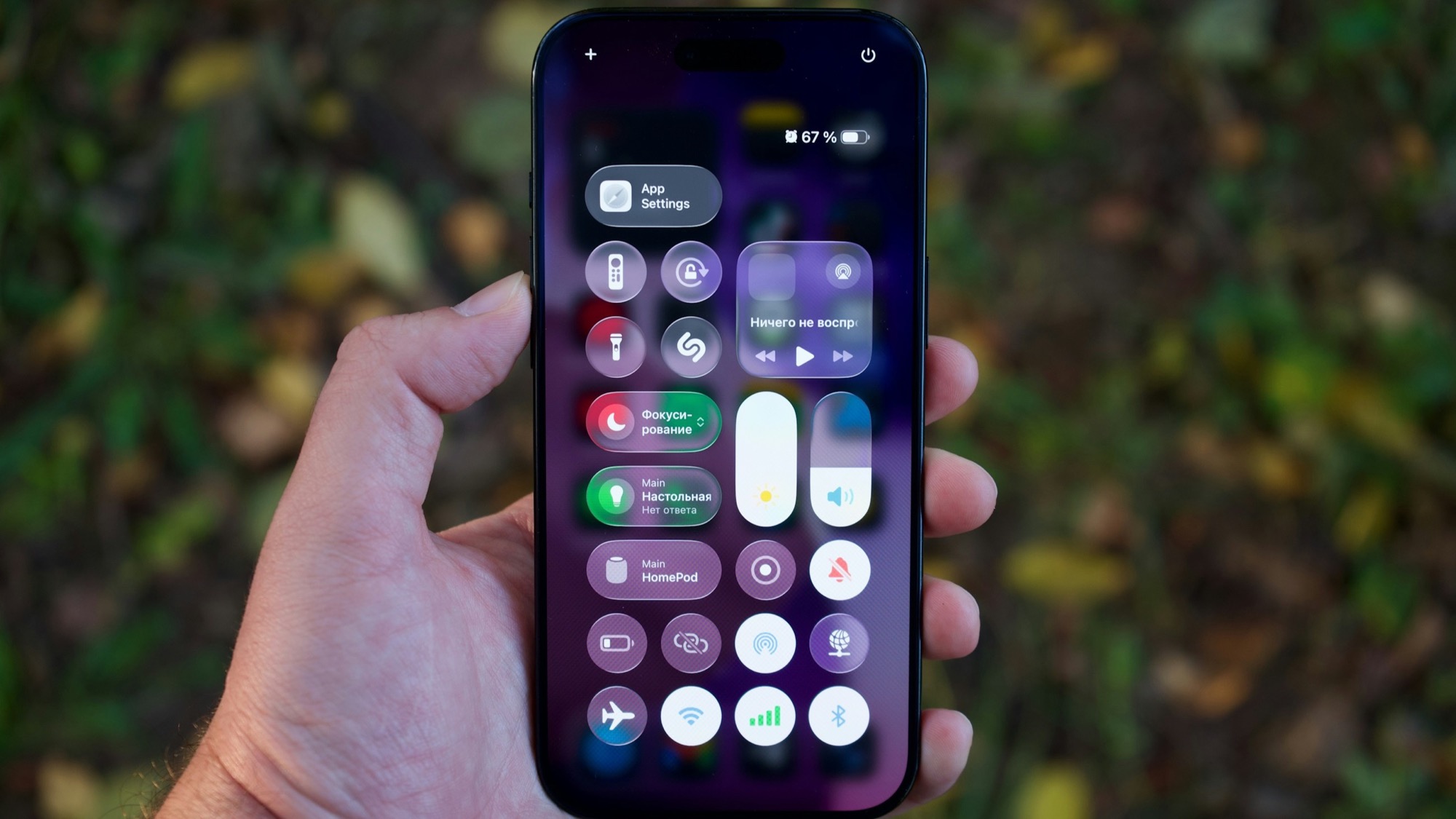
Apple's guide says you turn a Focus on from Control Center: open Control Center, tap Focus, then tap the Focus you want, such as Do Not Disturb. Per Apple, that silences notifications for the people and apps you set; you can also choose to allow certain people through, so check your allowed list before recording. See Apple's page on turning a Focus on or off.
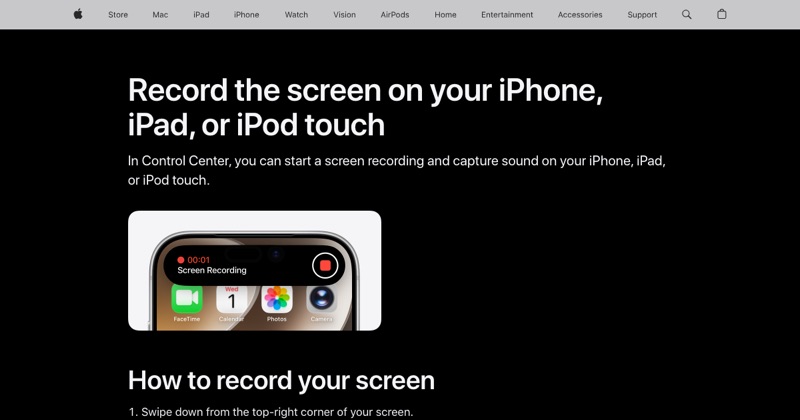
Then record: Apple's steps are to swipe down from the top-right corner to open Control Center, tap the gray Record button, wait for the three-second countdown, and close Control Center. To stop, tap the red status indicator and then Stop. See Apple's screen recording guide. The page does not say whether notifications show in a recording, which is why the Focus is worth doing first.
We could not find an official iPhone setting that fixes the status bar for a recording. The usual workaround is to crop the status bar out of the video afterward, or frame it so the status bar is outside the visible area.
Android: demo mode for a clean status bar
Android has a System UI Demo Mode that overrides what the status bar shows. It is documented in the Android source (demo_mode.md), which says it is available in recent versions of Android. It is controlled from a computer over USB debugging, using adb. Behavior can vary by phone and Android version, so test it first.
Turn it on once, then enter it:
adb shell settings put global sysui_demo_allowed 1
adb shell am broadcast -a com.android.systemui.demo -e command enter
Then set the parts you want, for example a clean clock, a full battery and hidden notification icons:
adb shell am broadcast -a com.android.systemui.demo -e command clock -e hhmm 1231
adb shell am broadcast -a com.android.systemui.demo -e command battery -e level 100 -e plugged false
adb shell am broadcast -a com.android.systemui.demo -e command notifications -e visible false
When you are done, leave demo mode:
adb shell am broadcast -a com.android.systemui.demo -e command exit
Per the same page, demo mode can also set the battery, network and Wi-Fi signal levels, so you can show full bars. It is a developer feature, so it needs a computer and USB debugging.
Test data that looks real
- Use realistic but invented names and numbers.
- Avoid real customer data, real emails or anything private.
- Fill screens enough that they look used, but not so full that the key action is hidden.
- Reset the app to the same starting state before every take.
After recording
Trim the start and end, crop away anything you could not clean, and put the recording in a phone frame on a plain background. For trimming, see how to trim a screen recording. For platform steps, see how to screen record on iPhone and on Android.
Where MobileStudio fits
MobileStudio can crop out a status bar, trim and split a recording, and add a phone frame and background in one place on your phone. It is on Google Play.
Quick FAQ
Will Do Not Disturb stop notifications in my recording?
Apple says a Focus silences notifications for the apps and people you choose. Check the allowed list first, since some contacts can still get through.
Do I need a computer for Android demo mode?
Yes. It is controlled with adb over USB debugging.
How do I hide the status bar on iPhone?
We could not find an official setting for it. Crop it out in the edit, or frame the video so it is not shown.