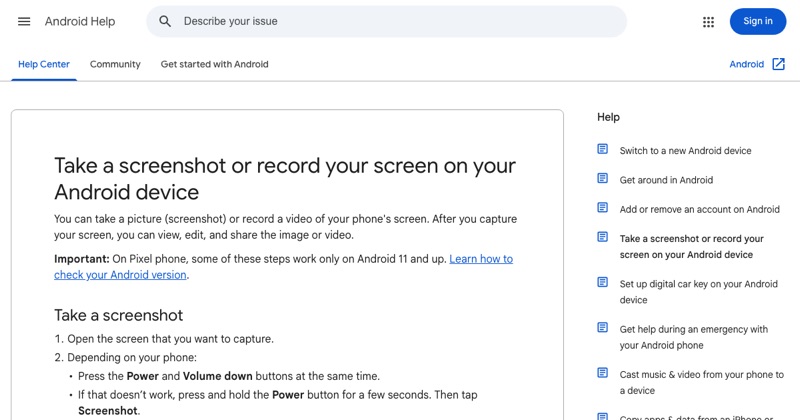
The first time you tap Screen record on Android, a box of options appears. Here's what each one means, so you get the recording you want first time.
Start the recorder
Swipe down twice from the top of the screen and tap Screen record. (On Samsung, it's Screen recorder in the Quick panel.)
The options, explained
What to record (Pixel and recent Android). You may see Record one app or Record entire screen. One app keeps notifications and other apps out of the video.
Record audio. Turn this on for sound, then choose:
- Device audio: sound from apps, games, and videos.
- Microphone: your voice and the room.
- Device audio and microphone: both.
Show touches on screen. Puts a dot wherever you tap. Turn it on for tutorials, so viewers can follow your taps.
Start and stop
Tap Start. A short countdown runs, then everything is recorded. A notification or small indicator shows it's recording. To stop, swipe down and tap the screen recording notification (or Samsung's stop button).
What ends up in the video
- Everything on screen (or one app, if you chose that).
- Sound, as chosen.
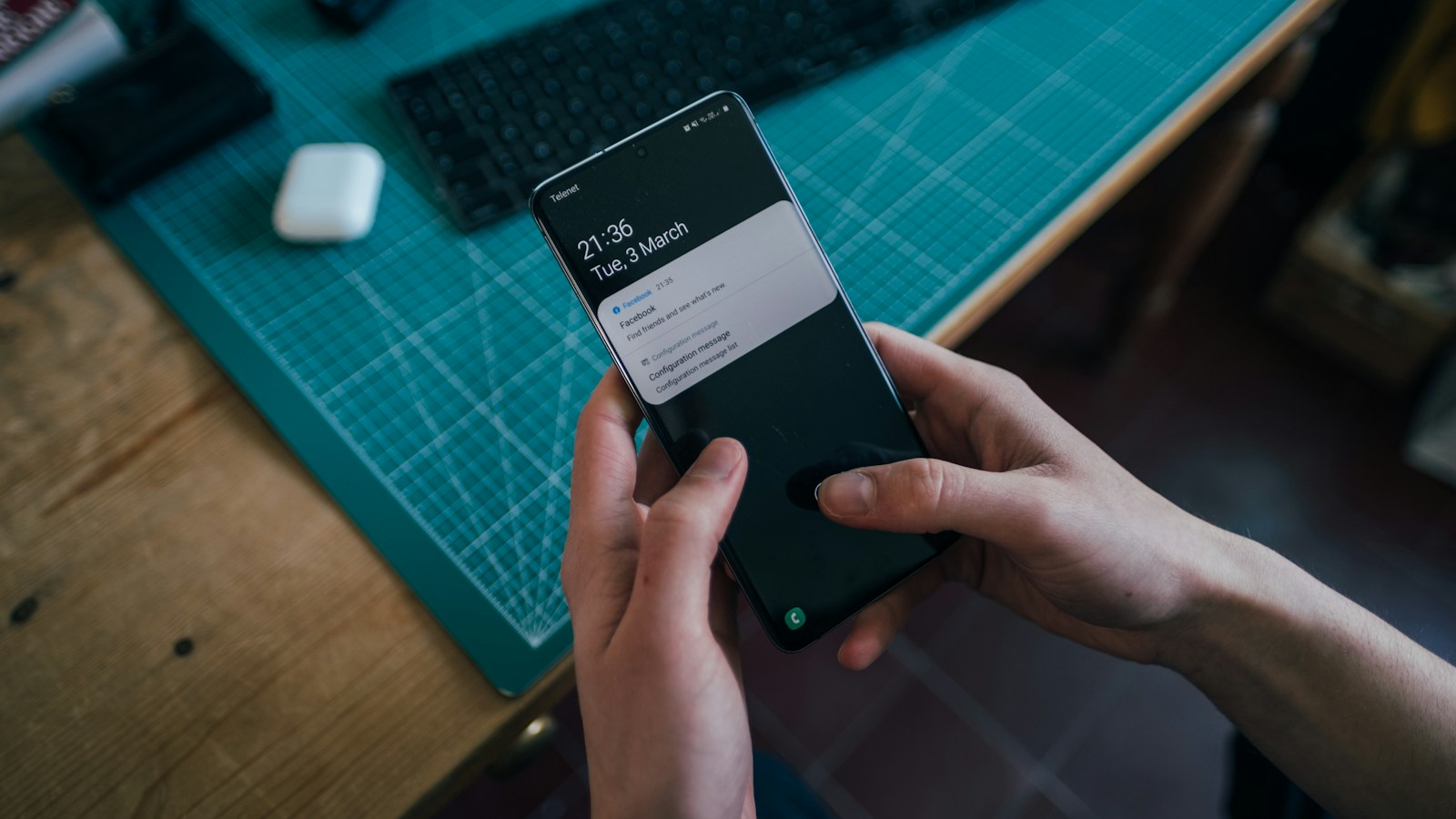
- Notifications, unless you're recording one app or Do Not Disturb is on.
- Not call audio, and not protected video like streaming apps.
Where to find it
In Google Photos under Collections > On this device > Movies, or the Gallery app on Samsung.
Where MobileStudio fits
Recording your own app? MobileStudio turns raw screen recordings into polished demos with frames and zooms. Get MobileStudio.
Quick FAQ
What does "show touches" do?
It shows a dot wherever you tap, so viewers can see your taps.
Should I record one app or the whole screen?
One app, if available, to keep notifications out.