The iPhone 16 lineup (16, 16 Plus, 16 Pro, and 16 Pro Max) shipped with iOS 18 and an Action button on every model. That gives you a faster way to start screen recording than older iPhones had.
Method 1: Control Center
- Swipe down from the top-right corner.
- Tap the Screen Recording button.
- Wait three seconds and go.
Not there? Tap + > Add a Control and add Screen Recording.
Method 2: Put it on the Action button
- Open Settings > Action Button.
- Swipe through the options to Controls.
- Choose Screen Recording.
Now press and hold the Action button on the left side of the phone to start recording. It's the quickest way to capture something before it disappears.
Stopping
All iPhone 16 models have a Dynamic Island. While recording, a red indicator appears there. Tap it and tap Stop, or use Control Center. The video saves to Photos.
What about Camera Control?
Camera Control (the button on the lower right side) is for the camera, not screen recording. Leave screen recording on the Action button or in Control Center.
Recording with sound
Touch and hold the Screen Recording button in Control Center, turn Microphone on, and tap Start Recording.
Before you record
- Turn on Do Not Disturb.
- Check storage. iPhone 16 models start at 128GB, but long recordings still add up.
Where MobileStudio fits
Recording your app on an iPhone 16? MobileStudio turns the clip into a polished demo with a device frame and zooms, right on the phone. Get MobileStudio.
Quick FAQ
Does iPhone 16 have a screen recording shortcut?
Yes. Assign Screen Recording to the Action button.
Is it different on iPhone 16 Pro?
No. Every iPhone 16 model works the same way.
Sources and further reading
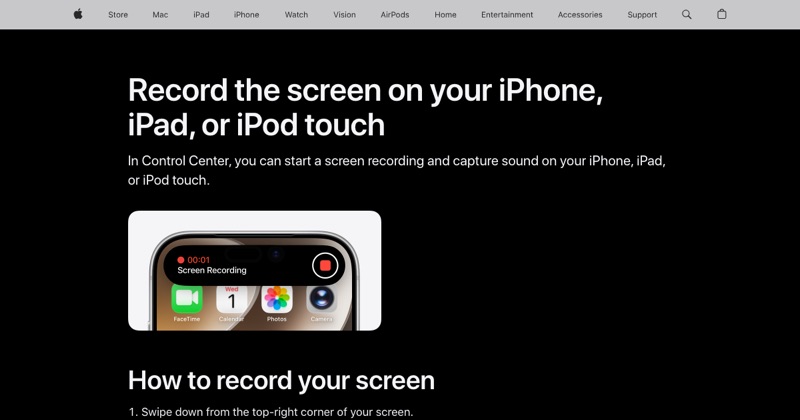 support.apple.comApple Support: Record the screen on your iPhone, iPad, or iPod touchIn Control Center, you can start a screen recording and capture sound on your iPhone, iPad, or iPod touch.
 support.apple.comApple Support: Use and customize Control Center on iPhoneOpen the iPhone Control Center to access useful controls. You can customize Control Center by adding controls.