How to Edit a Screen Recording So It Doesn't Feel Like a Screen Recording
The gap between a raw capture and a video worth publishing isn't more footage — it's a handful of deliberate editing decisions. Here's what actually closes it.
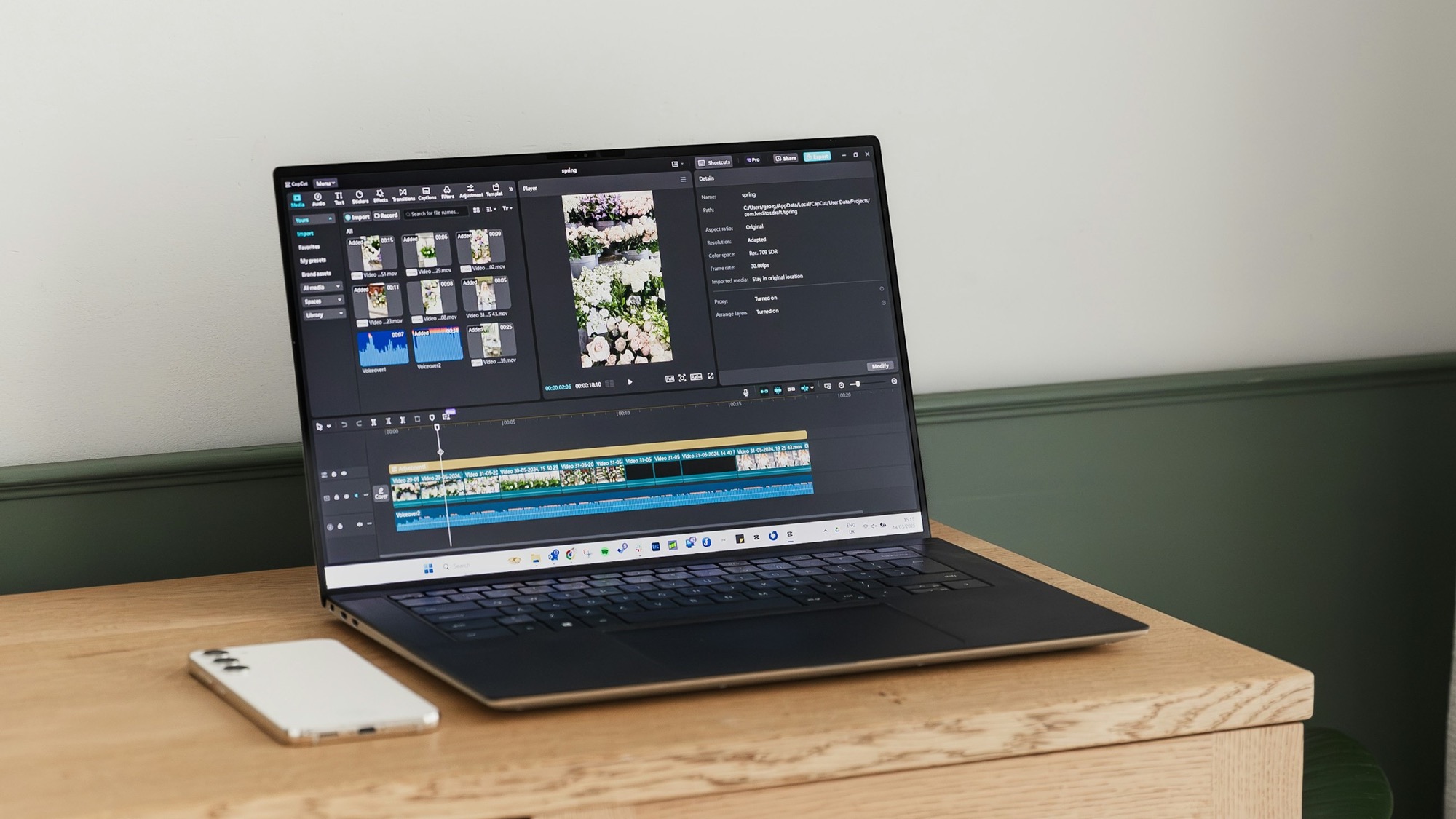
A raw screen recording and a video someone actually watches to the end are usually the same footage. What separates them isn't better source material — it's a small set of editing decisions made after the recording, not during it.
That's good news, because it means the fix isn't "record better." It's edit with intent. Here's what that actually looks like.
Cut before you polish
The single biggest gap between an amateur clip and a professional one is dead time, not missing effects. The pause before a tap. The three seconds of a menu sitting still while nothing happens. The false start at the beginning where you're still getting the app into position.
Before adding anything — captions, music, a device frame — go through the raw recording and cut every moment where nothing is teaching the viewer something. Most screen recordings shrink by a third to a half once this pass is done, and the video gets more engaging by losing footage, not gaining it.
Do this pass first. It's tempting to jump straight to the fun part, but polishing a scene you're about to delete is wasted work.
Control pace, not just length
A shorter video isn't automatically a better-paced one. Pace is about where time goes, not how much of it there is.
Two moves cover most of what a screen recording needs:
- Speed up the repetitive parts. Typing a search query, scrolling to find a setting, waiting for a screen to load — these prove the app works but don't need to be watched at real speed. Cut the time in half or more.
- Slow down the one moment that matters. The result of an action — a chart updating, an export completing, a before/after appearing — deserves an extra beat at normal speed, sometimes even a brief hold, so it actually registers before the next cut.
Uniform pacing throughout a recording is a signal it wasn't edited at all. Deliberately uneven pacing — fast through the setup, slower on the payoff — is what makes a clip feel directed rather than just captured.
Let captions carry the explanation
Most people watch app videos with the sound off, whether that's a social feed, a Product Hunt gallery, or a landing page playing muted by default. If the explanation only exists in a voiceover, most viewers never get it.
Short on-screen text — three to six words, timed to the action it describes — does more work than narration for this format. "Tap to export," "Auto-syncs across devices," "Done in one step" placed right as the action happens gives a silent viewer everything a voiceover would have said, without asking them to turn their sound on.
Save full voiceover for longer-form content like a product demo video meant to be watched with sound. For a short clip meant to travel through feeds and listings, captions are the more reliable choice.
Sound is a choice, not a default
Whatever your recording tool captured — system sounds, notification chimes, keyboard clicks — is rarely what you want in the final export. Strip it and decide sound design on purpose instead of by default.
Silence is a legitimate choice, not a placeholder for music you haven't picked yet. A lot of the best app clips online have no soundtrack at all — the visual pacing does the work, and silence reads as confident rather than incomplete. If you do add music, keep it low enough that it never competes with on-screen text, and pick something that doesn't sound like it came from the same generic library everyone else's launch video used.
Export for where the edit is going
The edit itself should happen once; the export shouldn't. Once you've cut, paced, captioned, and finished a clip, treat it as a master and export several versions from it rather than re-editing per platform.
A square or vertical crop for social, a wider cut for a landing page or App Store preview, a trimmed-down version for a forum post — these are export decisions, not new edits. Re-doing the cut-and-caption work for every destination is what makes editing feel like it takes forever. Exporting the same finished edit a few different ways is what actually makes it sustainable to show up in all the places reach comes from.
Where MobileStudio fits
MobileStudio is currently in early access, built around this exact editing pass — trimming dead time, adjusting pace, adding captions, and framing a recording — without needing a separate desktop editor for a clip that started as a phone screen recording. Join the waitlist if you want to try it as it opens up, or browse real edited clips made with it.
None of this requires expensive software or editing experience. It requires going through the raw recording once with these five decisions in mind — cut, pace, caption, sound, export — instead of publishing the first take.