How to Add Captions to a Screen Recording or Product Video
Most product videos are watched with the sound off. Captions are the difference between a video that still works muted and one that quietly loses everyone.
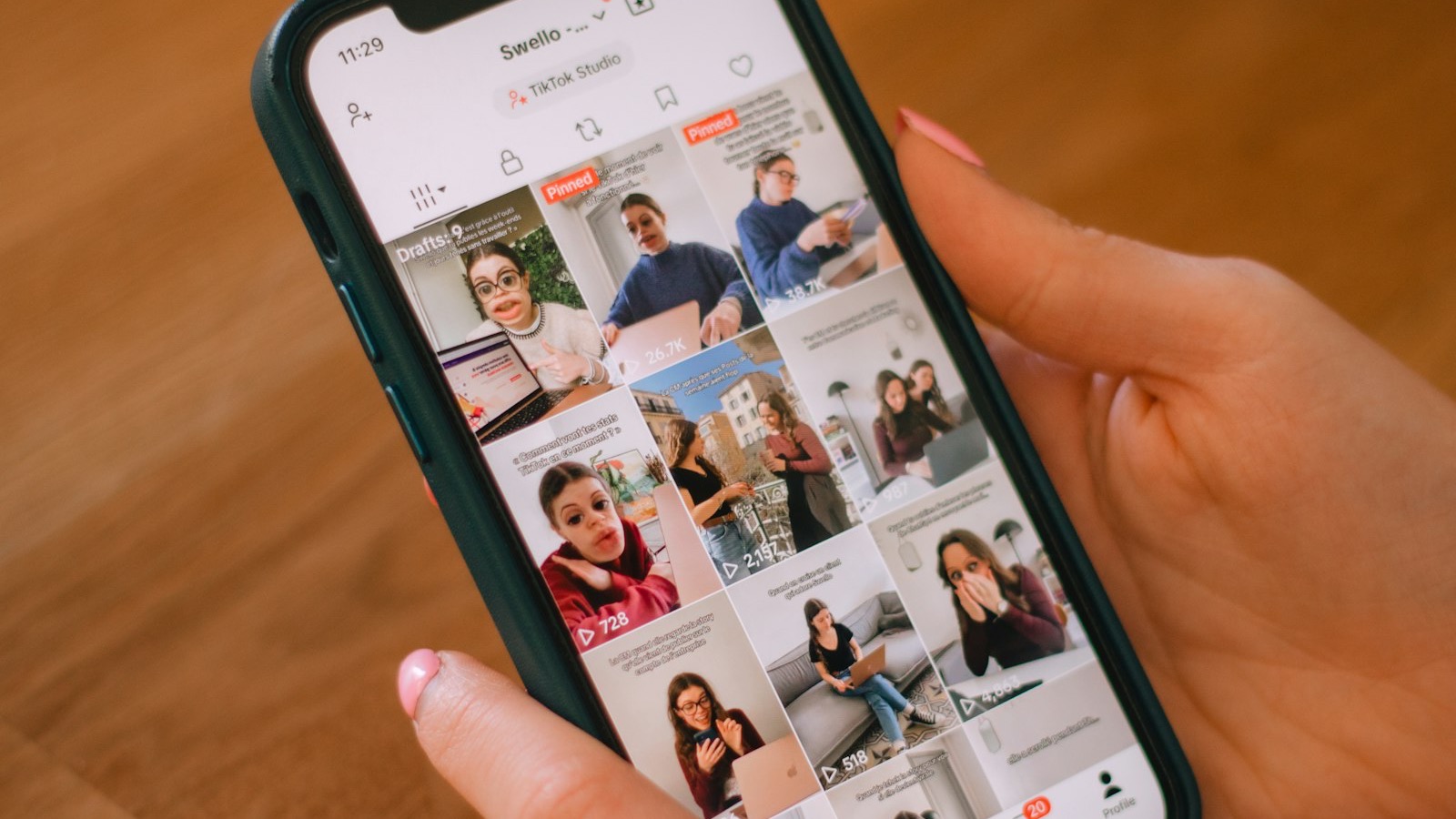
Most product videos are watched muted by default — autoplay in a feed, autoplay on a landing page, a phone on silent in a waiting room. A video that only works with sound on is a video that only works for a small share of the people who see it. Captions are what closes that gap, and they're one of the cheaper, higher-leverage edits you can make to a finished video.
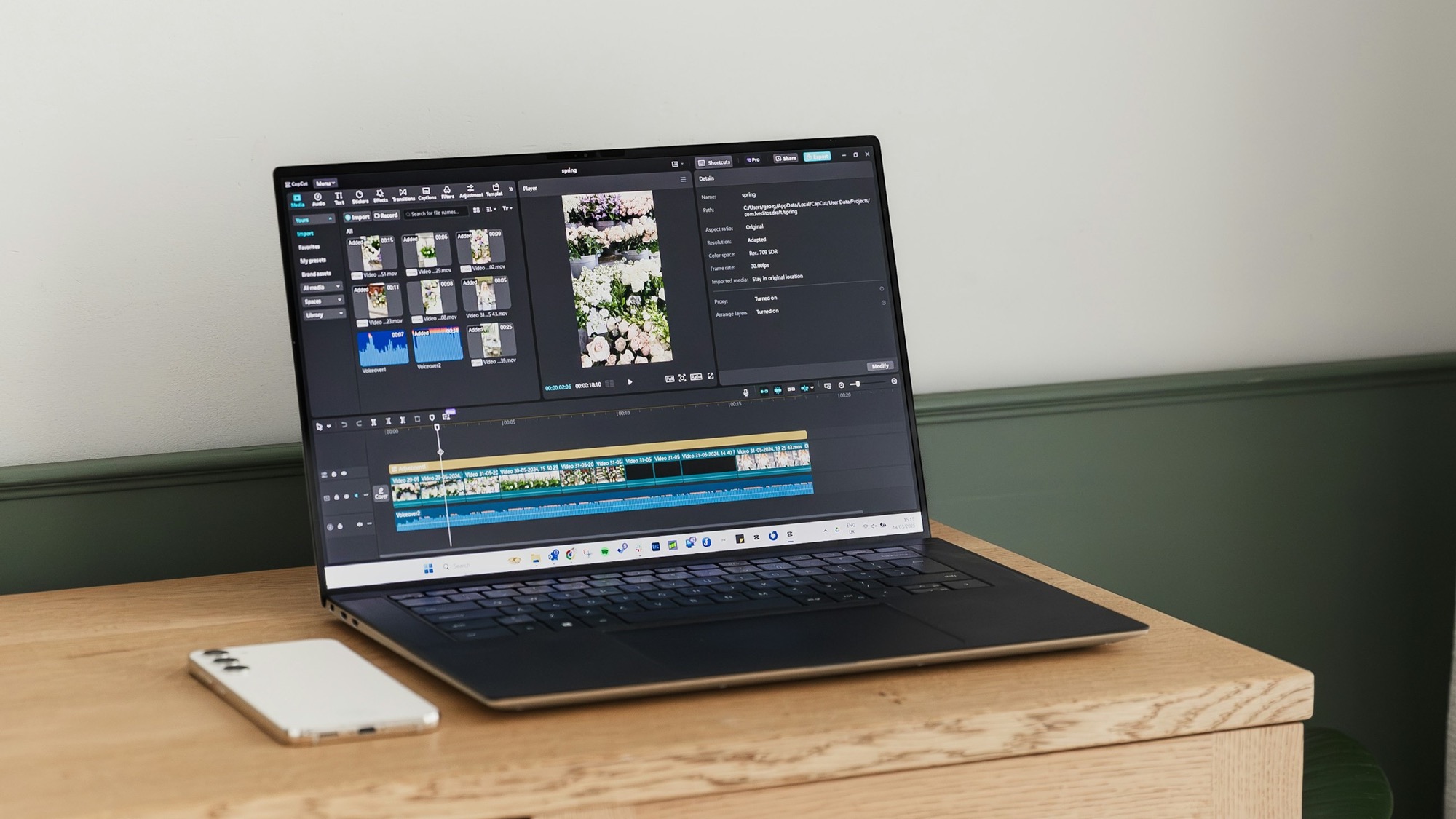
If you're still shaping the footage itself, How to Edit a Screen Recording So It Doesn't Feel Like a Screen Recording covers trimming and pacing; this post is specifically about the text layer on top.
Captions and on-screen text aren't the same thing
It's worth separating two things that get lumped together:
- Captions are a transcript of spoken narration or dialogue, timed to the audio.
- On-screen text (labels, callouts, a headline over a UI shot) explains what's happening even when there's no narration to transcribe.
A screen recording with no voiceover doesn't need captions in the strict sense — it needs on-screen text doing the same job captions would. A product video with a voiceover needs actual captions, or the muted majority loses the entire audio track's worth of explanation.
Write for reading speed, not speaking speed
Spoken narration and on-screen text get read at different speeds, and a caption timed to exactly match speech is often on screen for too short a window to actually finish reading — especially if the viewer is also watching the demo itself, not just the caption. A caption that's shorter and simpler than the literal transcript, held slightly longer than the words alone would need, is usually easier to actually absorb than a verbatim, tightly-timed one.
Keep it to one idea per caption
A caption trying to carry two separate points at once forces a choice: read it fully and miss what's happening on screen, or watch the screen and miss half the caption. One short caption per idea, timed to sit next to the moment it's explaining, works better than a longer caption that's technically more complete but harder to use while also watching the demo.
Position matters more than it seems like it should
On a screen recording, caption placement isn't just an aesthetic choice — it can sit directly over UI elements the viewer needs to actually see. Keep captions clear of navigation bars, buttons, and any text already on screen. If the recording already has a device frame and padding around it (the kind covered in What to Look for in an iPhone Screen Recording App), the padding itself is often the cleanest place for a caption to live — off the screen content entirely, not layered on top of it.
Don't skip styling for legibility
A caption only helps if it's actually readable against whatever's behind it — and a screen recording's background changes shot to shot. A thin font with no outline or background plate disappears against a light UI in one frame and a busy one in the next. A solid or semi-transparent background plate behind the text, sized consistently throughout the video, keeps captions legible regardless of what's playing underneath them.
Burned-in vs. platform-native captions
Two different approaches solve two different problems:
- Burned-in captions (rendered directly into the video file) look the same everywhere, which matters for platforms with inconsistent or no native caption support.
- Platform-native captions (uploaded as a separate file, or auto-generated by the platform) can be toggled on/off and are more accessible for screen readers — but only on platforms that actually support them, and only if you check the auto-generated version before publishing, since automatic transcription still gets product names, acronyms, and fast speech wrong often enough to be worth a manual pass.
For a product demo going to multiple destinations — a landing page, a feed post, an App Store preview — burned-in captions are usually the safer default, since you can't guarantee every destination will render an uploaded caption file the same way.
A short checklist before publishing
- Every spoken point has a caption, or on-screen text doing the same job if there's no narration
- Captions are shorter than a literal transcript, not a word-for-word match
- One idea per caption, not two competing for the same few seconds
- Captions sit clear of UI elements the viewer needs to see
- Text has enough contrast or a background plate to stay legible against every shot, not just the one it was designed against
- The video was watched once, fully muted, start to finish, as its own review pass
Where MobileStudio fits
MobileStudio is currently in early access, built around turning a raw recording into something export-ready without juggling a separate captioning tool for the text layer. Join the waitlist to try it as it opens up, or look through real product videos made with it in the meantime.
A muted autoplay isn't a lesser way of watching a video — for most product videos, it's the default way. Captions are what makes sure the video still does its job when that's how it's seen.