Holding the record button for a long Snap is awkward, especially when you want to be in the shot. Snapchat has a hands-free mode built in.
Use the lock (hands-free) feature
- Open the Snapchat camera.
- Press and hold the capture button to start recording.
- While holding, slide your finger toward the lock icon that appears next to the button.
- Let go. Snapchat keeps recording on its own.
- Tap the capture button to stop.
The exact gesture and icon position have changed between versions, so look for the lock icon as you hold the button.
Don't see the lock icon?
- Update Snapchat. Features roll out gradually and change.
- Check your device. Behavior can differ between iPhone and Android versions of the app.
iPhone workaround: AssistiveTouch
If you can't find hands-free mode, an iPhone accessibility feature can hold the button for you:
- Go to Settings > Accessibility > Touch > AssistiveTouch and turn it on.
- Tap Create New Gesture, hold your finger on the screen for as long as you want to record, and save it.
- In Snapchat, open the AssistiveTouch menu, choose your custom gesture, and position it over the capture button.
Recording longer videos
Snapchat records in segments. If you keep recording, it adds more segments to the Snap. Check the app for current length limits.
Tips for hands-free Snaps
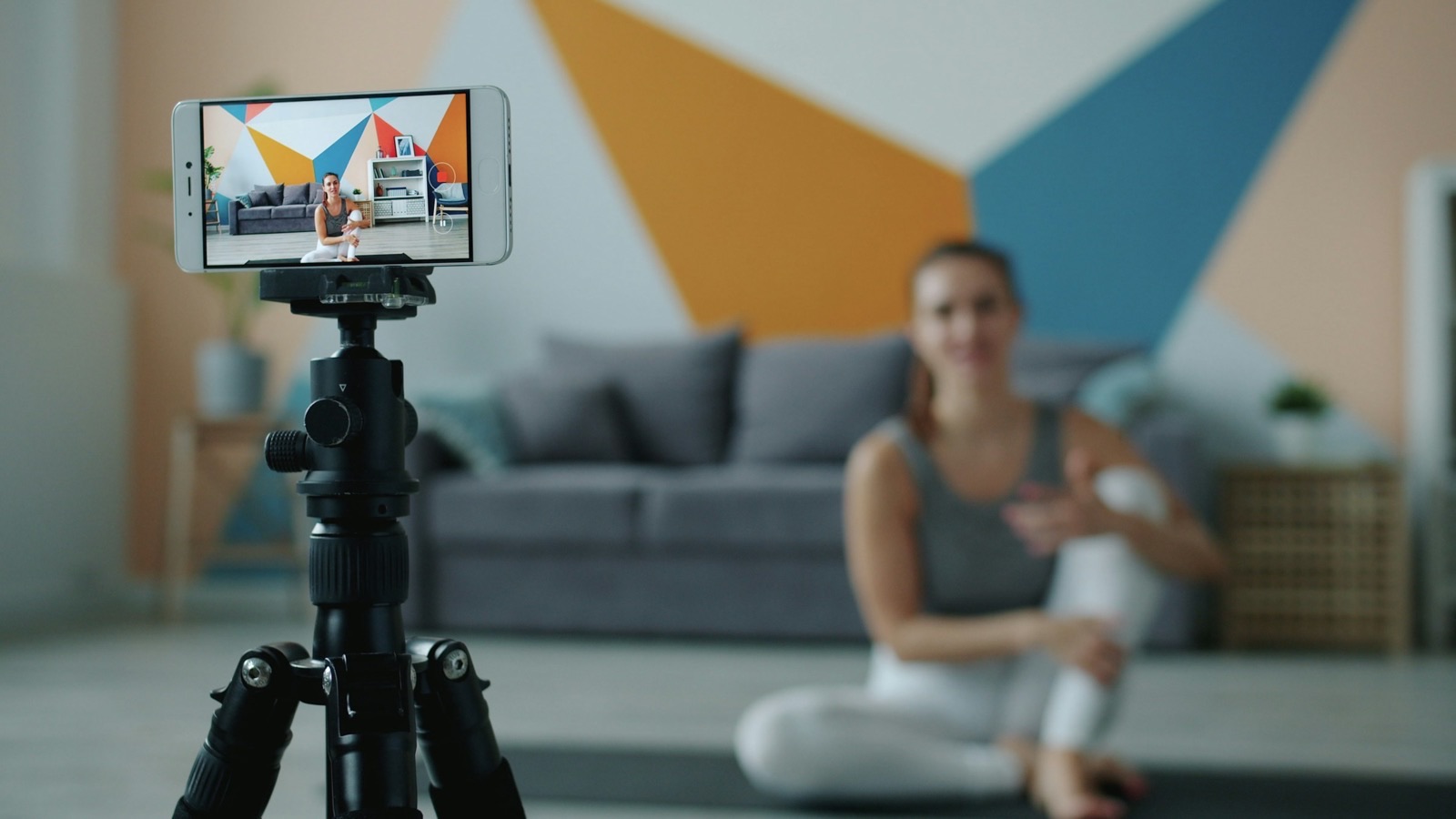
- Prop the phone on something stable, or use a small tripod.
- Use the front camera timer, if available, to give yourself time to get in position.
- Good light matters more than anything else for phone video.
Where MobileStudio fits
If you're making content about your app, MobileStudio turns screen recordings into polished vertical demos for Snapchat, Reels, and TikTok. Get MobileStudio.
Quick FAQ
Can you record on Snapchat without holding?
Yes. Slide to the lock icon while holding the button.
Why is there no lock icon?
Update the app. The feature's design changes over time.