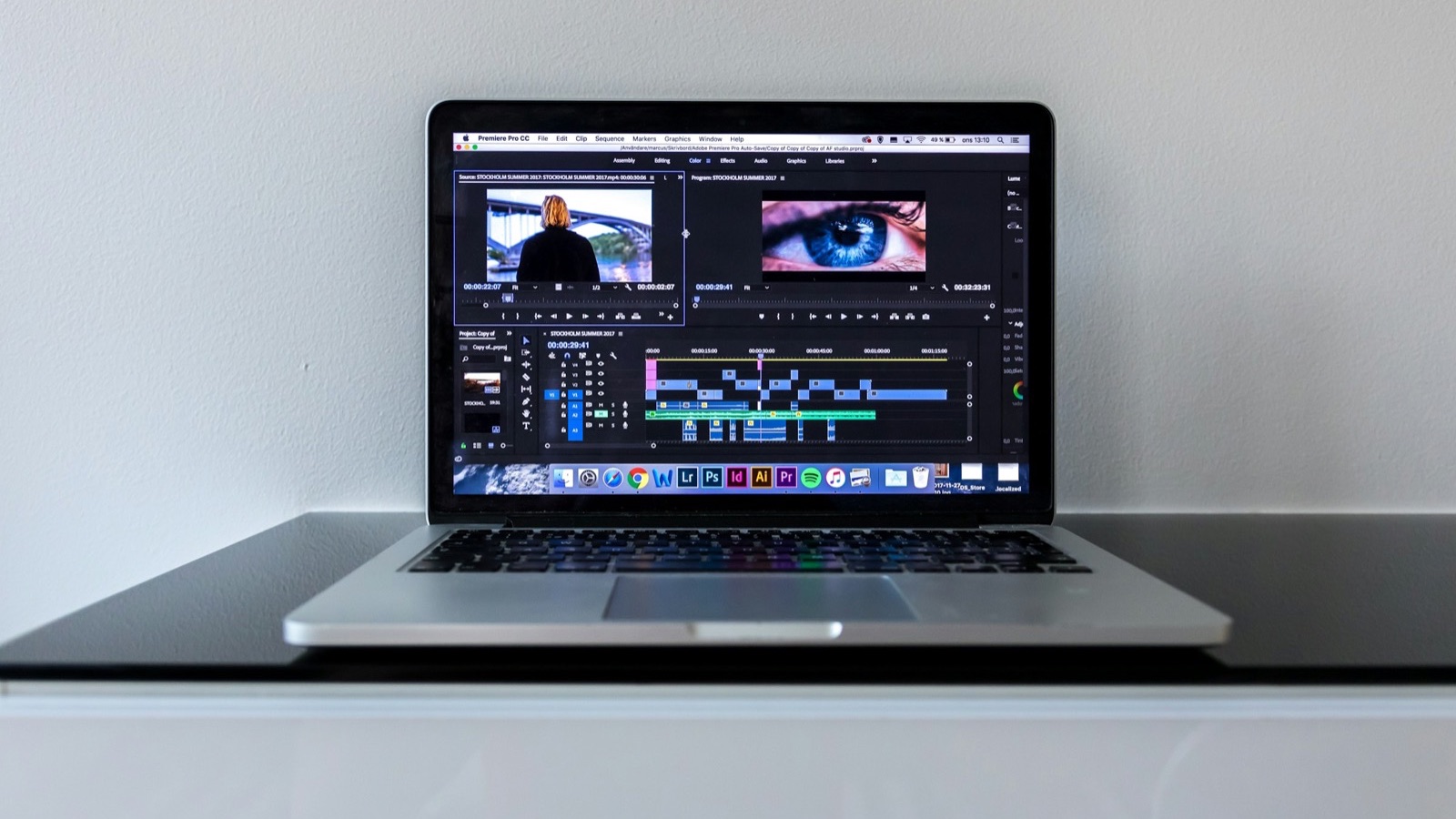
To crop a video on Mac, use iMovie (select the clip, click the Cropping button, choose Crop to Fill, and adjust the frame) or the Photos app's Crop tool. QuickTime Player can't crop. For preset shapes like 9:16, 1:1, or 4:5 and a direct MP4 export, the MobileStudio Crop Video tool works in Safari or Chrome.
The short answer
| Method | Presets | Output |
|---|---|---|
| iMovie | 16:9 project frame, crop to fill | MP4 via File > Share > File |
| Photos | Aspect options in Crop | Saved in your library |
| Crop Video | 9:16, 1:1, 4:5, 16:9, free | MP4 |
| QuickTime | Can't crop |
How do I crop a video in iMovie on Mac?
- Drag the video into an iMovie project timeline and select the clip.
- Click the Cropping button above the viewer.
- Click Crop to Fill, then drag and resize the frame in the viewer.
- Click the checkmark to apply.
- Export with File > Share > File.
Apple's iMovie crop guide has the details. Note that iMovie projects are 16:9, so cropping in iMovie zooms into a 16:9 area. For a vertical or square file, use the browser tool.
How do I crop a video in Photos on Mac?
- Open the video in Photos and click Edit.
- Click Crop at the top.
- Choose an aspect ratio from the Aspect menu, or drag the corners.
- Click Done.
The video stays in your library with the crop applied, and Revert to Original undoes it. Apple's video editing guide covers editing across iPhone, iPad, and Mac.
How do I crop a video to 9:16 or square on Mac?
- Open Crop Video in Safari or Chrome.
- Drag in the video.
- Choose 9:16 for vertical, 1:1 for square, or 4:5 for the Instagram feed.
- Drag the box over the subject and resize it from the corner.
- Click Crop & download.
You get an H.264 MP4 with the original audio. Nothing is uploaded.
Why can't QuickTime crop a video?
QuickTime Player is built for viewing, trimming, and simple exports. It can trim, split, and rotate or flip clips, but not crop the frame. Use iMovie, Photos, or the browser tool.
Which ratio should I use?
| Destination | Ratio |
|---|---|
| TikTok, Reels, Shorts | 9:16 |
| Instagram feed | 4:5 or 1:1 |
| YouTube, presentations | 16:9 |
See video aspect ratios explained and, for Instagram, how to crop a video for Instagram.
How do I crop a screen recording on Mac?
Screen recordings often include the menu bar, the Dock, or a second monitor. Crop them out so viewers only see the app you're showing. If you record often, save time by recording just a window or area in the first place: press Shift-Command-5 and choose Record Selected Portion. You'll get a smaller file and sharper text, with nothing to crop afterwards.
Does cropping on Mac reduce quality?
The area you keep isn't degraded, but it holds fewer pixels than the full frame, so very tight crops can look soft when shown large. Starting from a 4K source gives you room to crop.
Where MobileStudio fits
Crop Video is one of our free tools. MobileStudio itself turns phone screen recordings into polished app demos in any aspect ratio, without the Mac step. Get MobileStudio.
Quick FAQ
Can I crop a video in QuickTime?
No. Use iMovie, Photos, or Crop Video.
How do I crop a video on a MacBook for free?
iMovie and Photos are free, and so is the browser tool.
How do I make a vertical video on Mac?
Crop to 9:16 in the browser tool; iMovie projects stay 16:9.
Does iMovie crop keep the audio?
Yes, the original audio stays with the clip.
Can I undo a crop in Photos on Mac?
Yes. Choose Revert to Original.