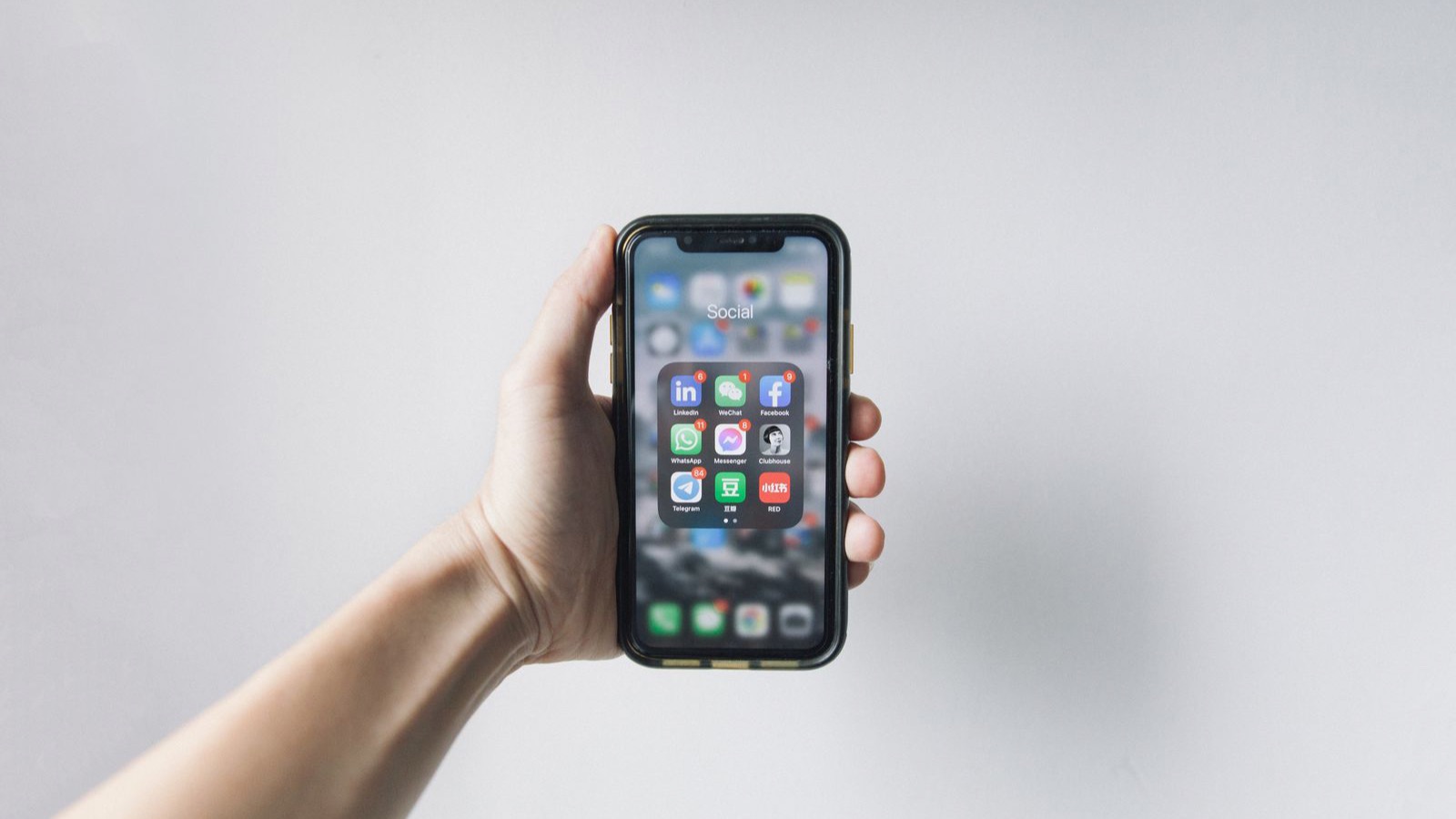
Screen recordings show more than you plan to. A name in a corner, an email in a settings screen or a notification can end up in a public video.
Prevent it first
Blurring after the fact is a fix. It is better to avoid private data in the first place.
- Use a test account and sample data. See test accounts and sample data for an app demo.
- Turn on Do Not Disturb so notifications do not appear.
- Log out of personal accounts you do not need.
What to look for
Watch the recording once only for private information:
- Names, email addresses, phone numbers
- Account numbers and balances
- Location and addresses
- API keys, tokens or passwords on a screen
- Messages and notifications
- Other people's photos
How to hide it
- Re-record when possible. This is the safest option.
- Cover the area with a solid shape. Solid is more secure than a light blur.
- Blur or pixelate only if the blur is strong enough that the text cannot be read. Zoom in to check.
- Crop the area out of the picture if it is at the edge.
Make sure the hidden area stays covered for the whole time the information is on screen, and that it follows the content if it moves.
Check twice
Scrub through the finished video frame by frame near the moments with sensitive screens. Also check the first frame and the thumbnail, because those are what people see first.
If something leaks
Delete the post, change any exposed passwords or keys, and re-upload a fixed version.
Where MobileStudio fits
MobileStudio lets you trim a recording and place shapes and text over it, which you can use to cover details. It is on Google Play, and an iPhone version is on the way.
Quick FAQ
Is a blur safe enough for passwords?
No. Do not show passwords at all. Re-record instead.
Does blurring affect quality?
Only the blurred area.
What about audio?
Listen for names, numbers and details you say aloud.