Yes, you can screen record Instagram stories, with no notification to the poster. Here's how to do it cleanly on each phone.
On iPhone
- Open Instagram and find the story (don't open it yet).
- Swipe down from the top-right corner and tap Screen Recording.
- During the three-second countdown, close Control Center and tap the story.
- Let it play. Hold your finger on the screen to pause on a frame.
- Tap the red indicator at the top and Stop.
Sound from the story is recorded automatically, as long as your phone isn't muted.
On Android
- Swipe down twice and tap Screen record (Samsung: Screen recorder).
- Choose Device audio (Pixel) or Media sounds (Samsung) for the story's sound.
- Tap Start, then open the story.
- Stop from the notification or toolbar.
Trim the result
Open the video in Photos (iPhone) or Gallery and use Edit to cut the bits before and after the story.
Recording your own stories? Don't
For your own stories, Instagram can save them directly. Open your story, tap More (three dots), and tap Save. Your Archive keeps past stories too, if archiving is on.
Will the person know?
No. They'll see you in their viewer list, because you watched, but not that you recorded. Full details.
Where MobileStudio fits
Making stories about your own app? MobileStudio turns screen recordings of your app into polished vertical demos. Get MobileStudio.
Quick FAQ
Can I screen record Instagram stories with sound?
Yes. Make sure the phone isn't muted (iPhone), or choose device audio (Android).
How do I pause a story while recording?
Hold your finger on the screen.
Sources and further reading
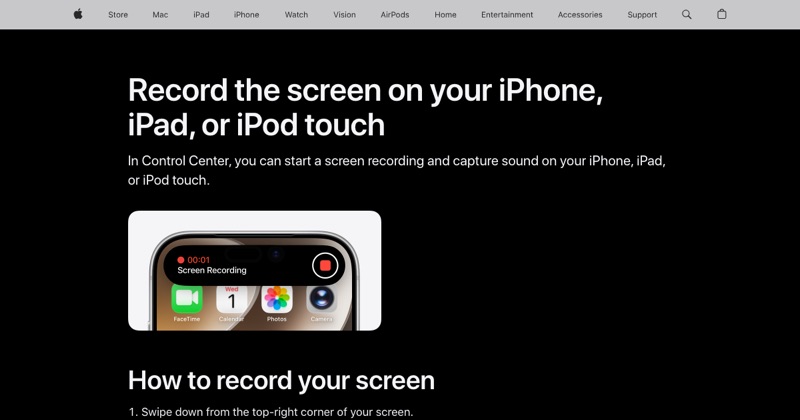 support.apple.comApple Support: Record the screen on your iPhone, iPad, or iPod touchIn Control Center, you can start a screen recording and capture sound on your iPhone, iPad, or iPod touch.
 support.google.comAndroid Help: Take a screenshot or record your screenGoogle's official steps for the built-in Android screen recorder, including where recordings are saved.